
EmbedAny How-to Guide
How to Embed Content in Product Descriptions
There are multiple scenarios where you need to add content to your product descriptions. It could be PDF product manuals, social media posts or giveaway contests, or user-generated content.
With EmbedAny, you can easily embed videos, slides, or posts right inside your product descriptions. Here’s how:
Step #1: Select the Product
- Go to Products in your Shopify dashboard.
- Select any product from the list and open it for editing.
Step #2: Paste Your Link
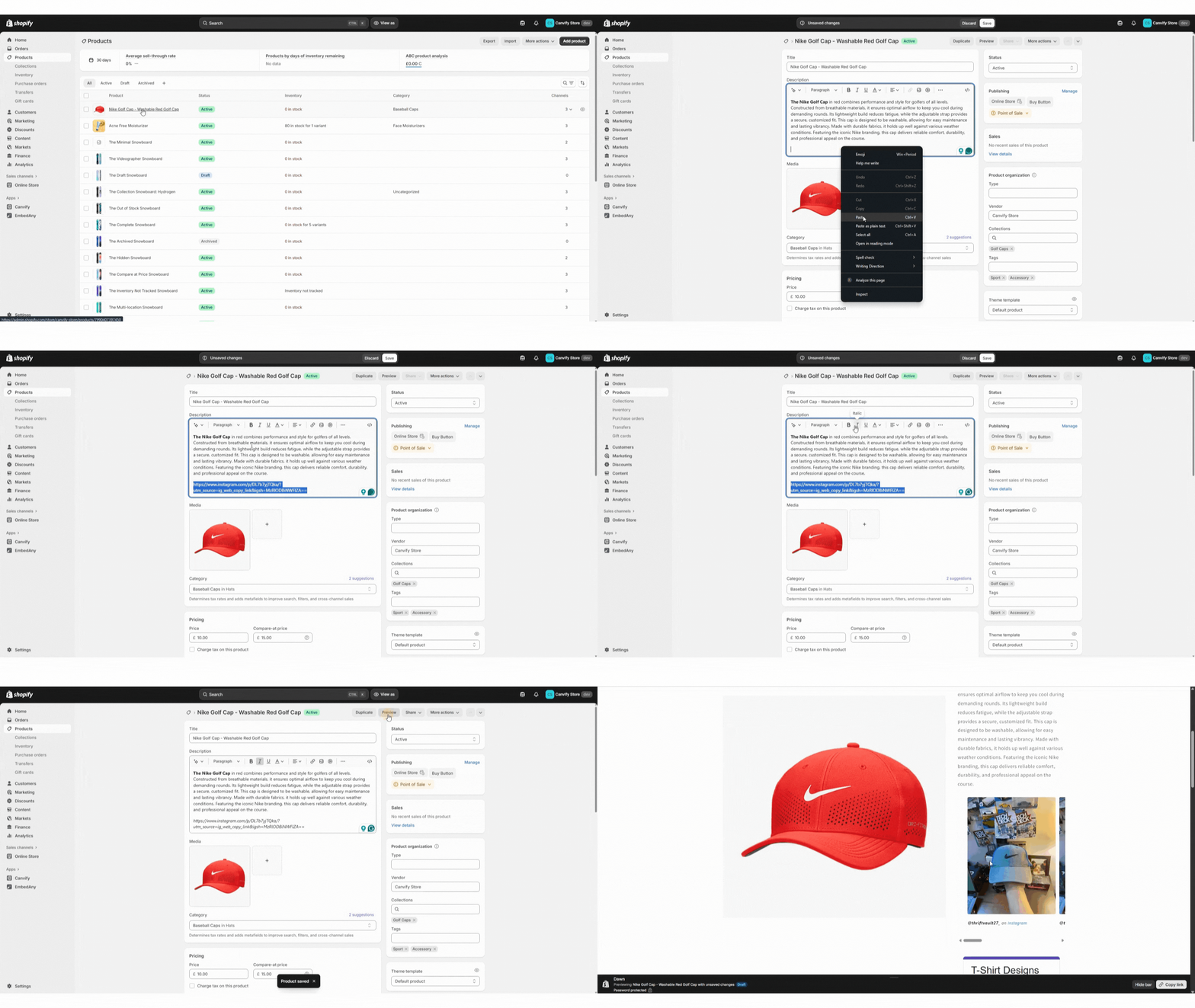
- Copy the link to your content and paste it in the product description box.
Step #3: Make the link italic
- Make the pasted link italic and save the product.
- EmbedAny will automatically turn that link into a live, interactive widget on your product page.
Here is a simplified visual explanation:
✨ It’s that simple!
Your product description can now feature videos, presentations, or posts to make your products more dynamic and trustworthy.
How Tronex Tools Embeds ISSUU Flipbooks For Their Products
About Tronex Tools
Tronex Tools is a precision hand tool manufacturer for the jewelry business. Their tools require careful explanation, and buyers need access to detailed specifications, features, and usage guides to make informed purchasing decisions.
The Challenge
Product listings for technical tools often require extensive documentation. Uploading static PDFs or text-heavy spec sheets into Shopify can make pages cluttered and hard to navigate. Tronex needed a more effective way to present long-form product information in an engaging and user-friendly format.
The Solution with EmbedAny + ISSUU
ISSUU is a digital publishing platform that turns PDFs and documents into interactive flipbooks. These can be zoomed, searched, paged through, or expanded full screen, making them ideal for catalogs, spec sheets, or product manuals.
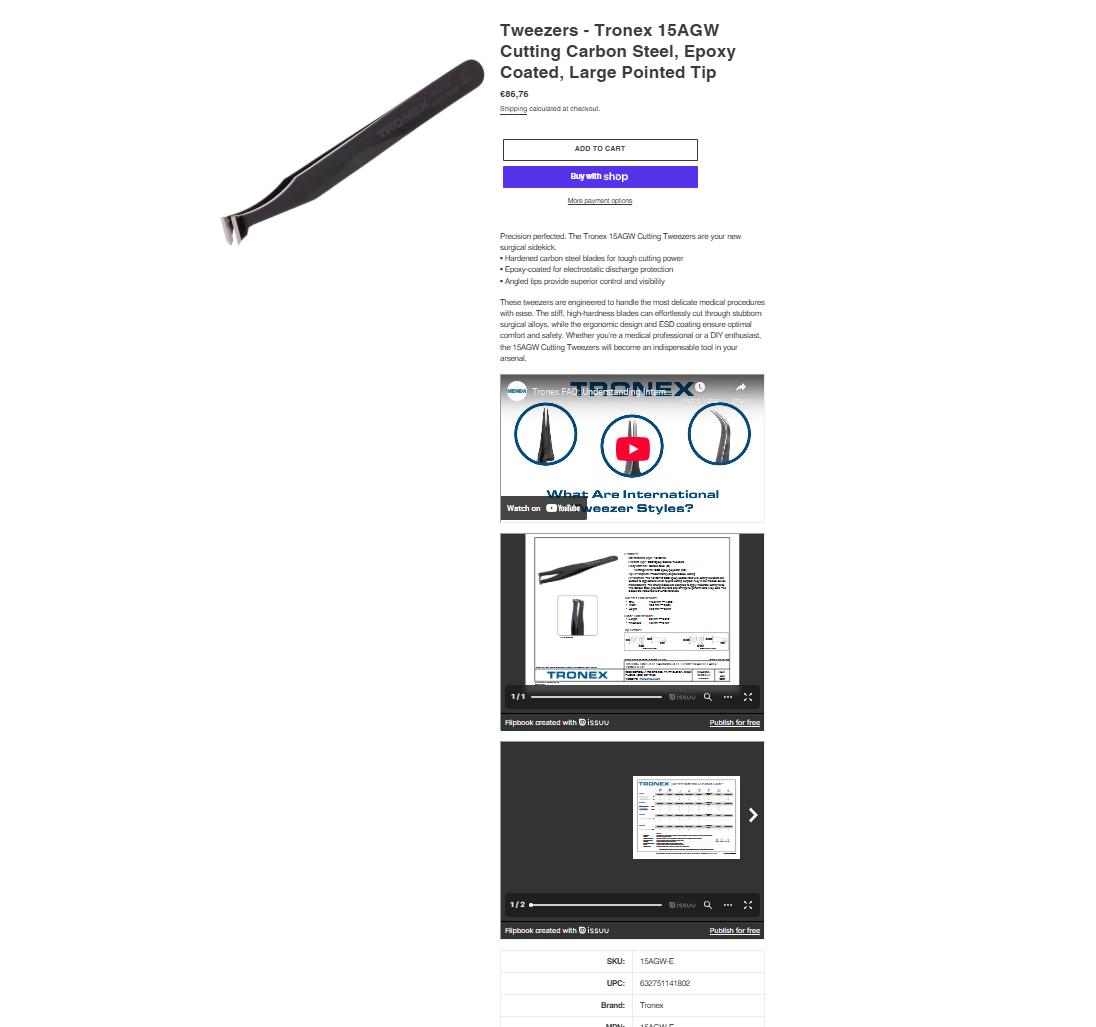
Using EmbedAny, Tronex Tools integrates two ISSUU flipbooks directly inside every product description:
- Specification Document: Detailed technical specs in a structured flipbook format.
- Feature & Guide Flipbook: A more visual, user-friendly guide with images and explanations.
Example: Tronex 15AGW-E Product Page
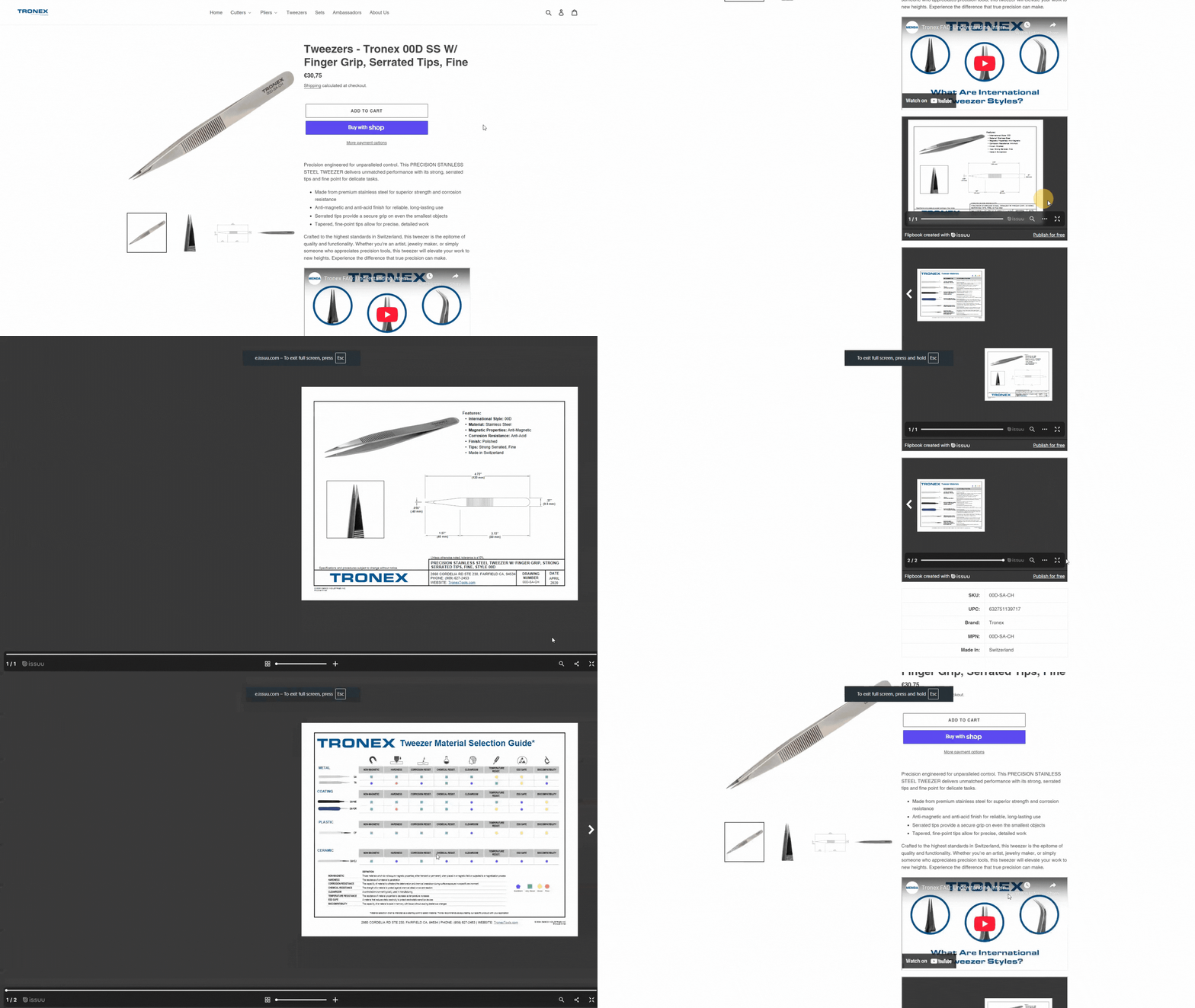
Visitors can flip through, zoom in, or view in full screen without leaving the product page.
The Results
- Simplified buyer research: Customers get all the detailed specs and guides without downloading PDFs.
- Higher trust: Interactive documents demonstrate professionalism and attention to detail.
- Better user experience: Content is engaging and easy to navigate compared to walls of text.
- Reduced support queries: Buyers can self-serve by reviewing spec sheets and guides before purchasing.
Ideas for Other Stores Using ISSUU
Any Shopify store can use ISSUU embeds creatively:
- Fashion & Apparel: Seasonal lookbooks and styling guides.
- Furniture & Home Goods: Assembly manuals and product care brochures.
- Electronics & Hardware: Specification sheets, warranty guides, and installation booklets.
- Food & Beverage: Recipe booklets, ingredient sourcing catalogs.
All it takes is pasting the ISSUU link into your Shopify content and EmbedAny does the rest.
Key Takeaway
Tronex Tools turned heavy documentation into an interactive shopping experience by embedding ISSUU flipbooks on product pages. For any brand that relies on manuals, guides, or spec sheets, this approach transforms boring PDFs into professional, engaging, and conversion-friendly content.
How Fowler Precision is Embedding YouTube Videos in Product Description
About Fowler Precision
Fowler Precision is a manufacturer of precision measuring tools, serving industries where accuracy and reliability are critical. Their customers require complete confidence in the tools they purchase.
The Challenge
Product descriptions alone often aren’t enough to communicate the value of complex measuring instruments. Customers want to see how the product works before investing. Traditional product pages with static text and images lacked the interactive, instructional content needed to build trust and shorten the buying journey.
The Solution with EmbedAny
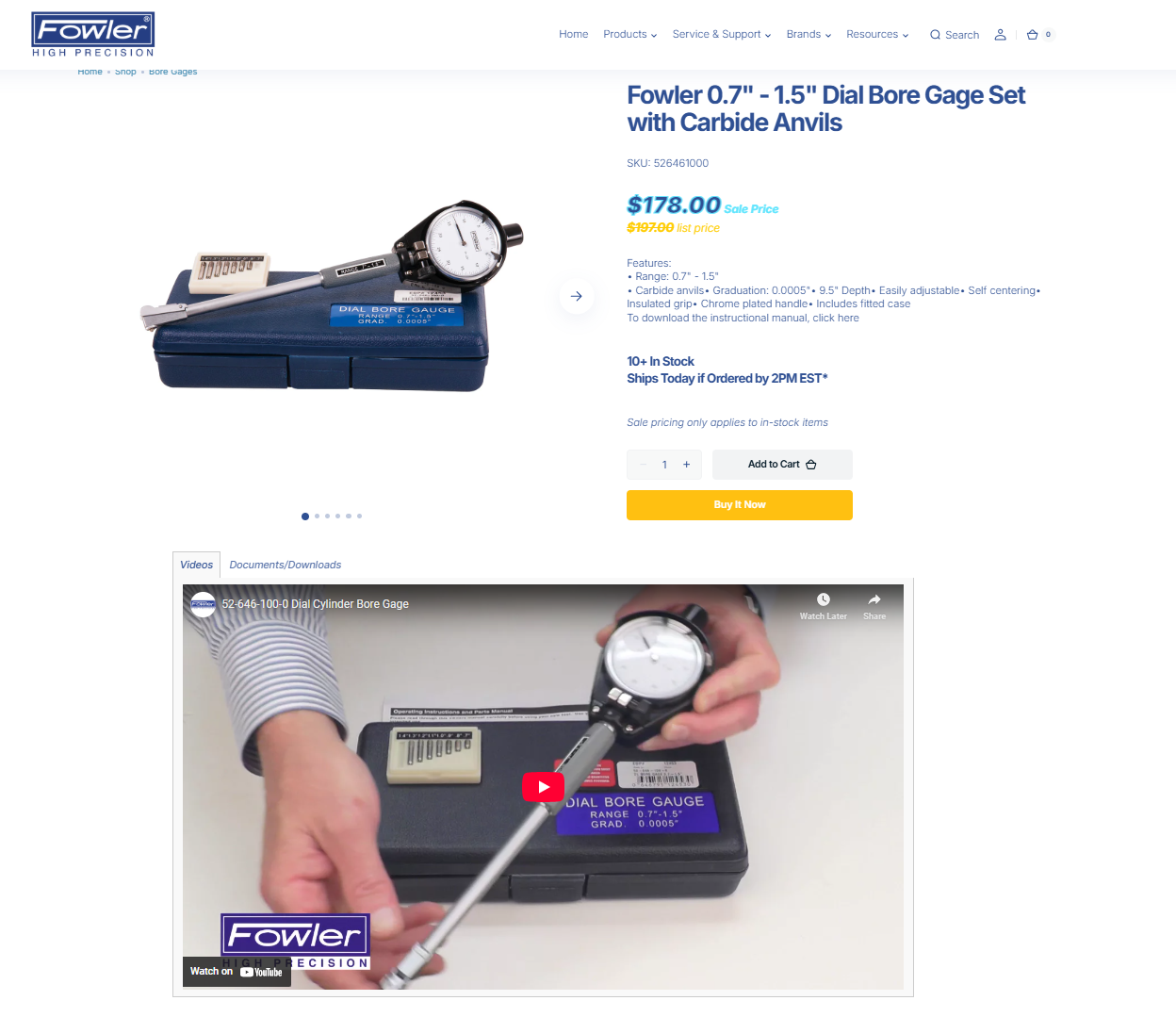
Fowler Precision runs a YouTube channel featuring detailed product demonstrations and tutorials. Using EmbedAny, they seamlessly integrated these videos directly into product description sections across their Shopify store.
Now, every product page includes an embedded YouTube video showing the tool in action, its features, and how it’s used in real-world settings.
Examples
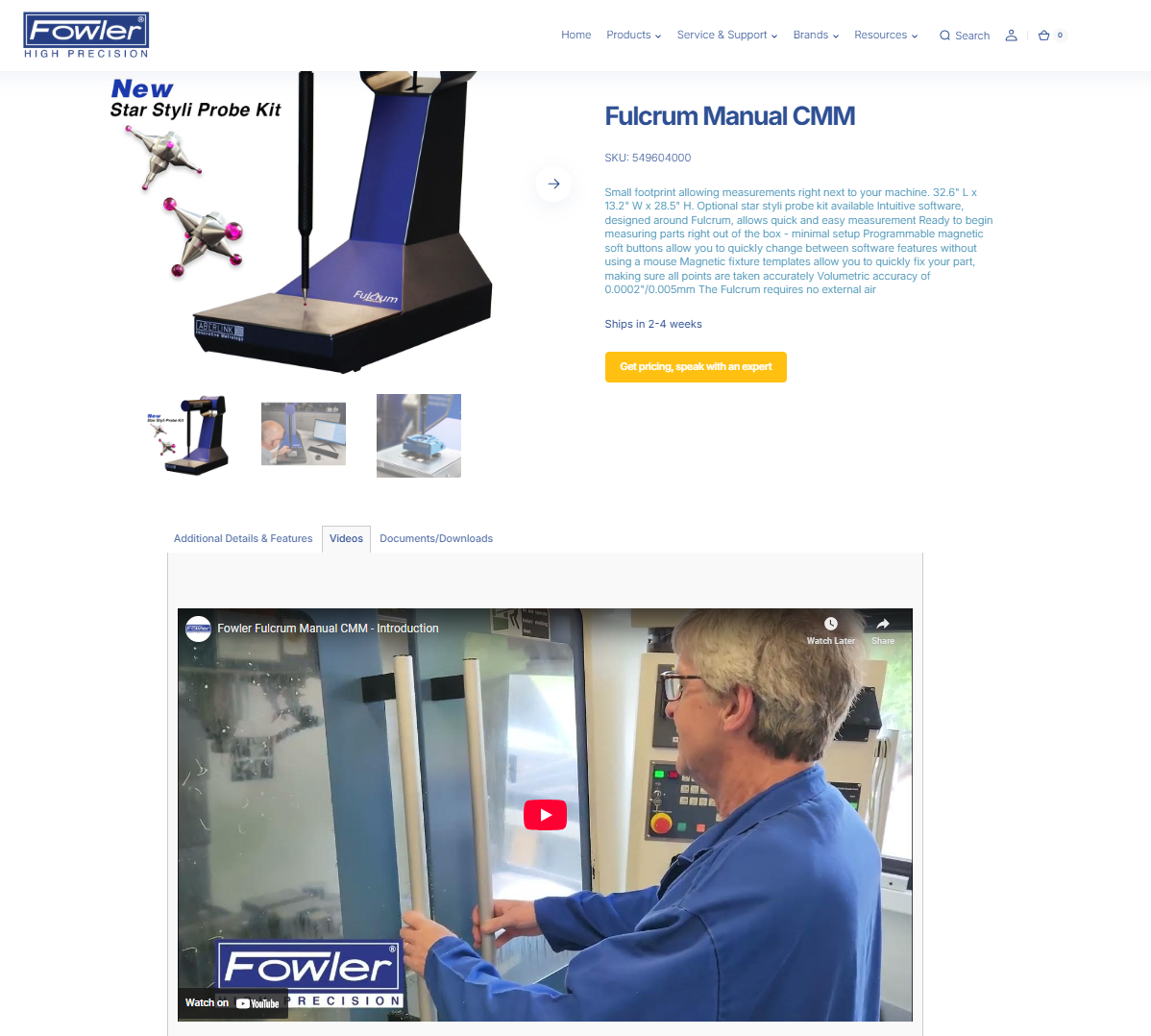
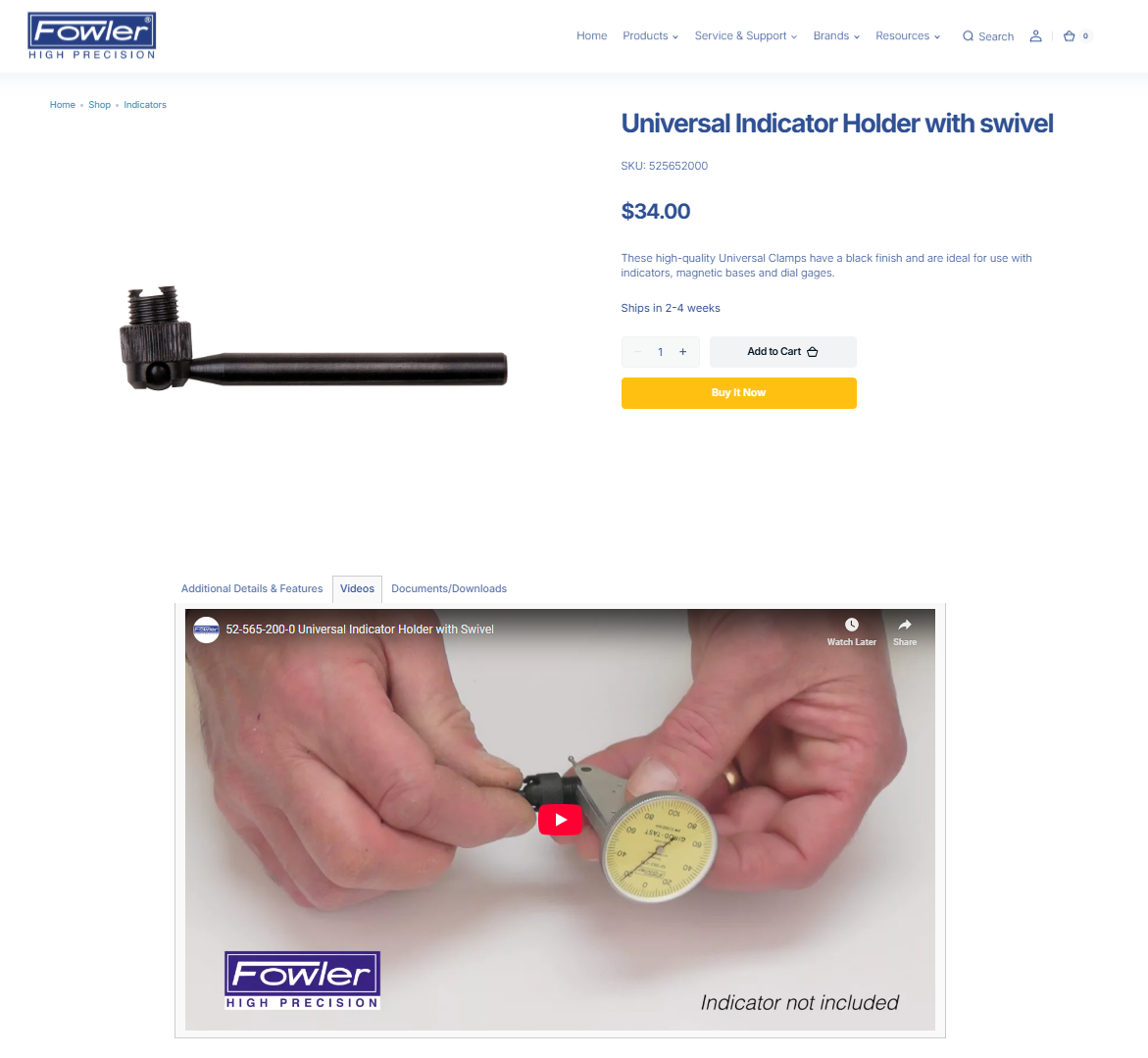
Read Out Guide on How to Embed Content in Product Descriptions
The Results
By embedding videos, Fowler Precision transformed product pages from static catalogs into interactive demos. This:
- Builds buyer confidence by showing tools in action.
- Reduces return rates since customers know exactly what to expect.
- Boosts conversions by adding product videos, which can increase purchases by up to 144% for ecommerce.
- Enhances SEO since visitors spend more time engaging on the page.
Key Takeaway
For technical and high-value products, video is often the missing piece that drives trust and sales. With EmbedAny, Fowler Precision turned its existing YouTube content into a powerful sales asset directly within Shopify product pages, making it easier for buyers to choose the right tool with confidence.
How POPSEWING is Embedding Instagram UGC on Their Product Pages
About POPSEWING Store
POPSEWING is a DIY leather craft brand that empowers customers to create their own handbags, wallets, and accessories. Each kit includes all the pieces and tools needed, plus guided tutorials, so customers can craft a professional-quality product at home.
The Challenge
For a DIY product, the experience doesn’t stop at checkout. Potential buyers want to see real results from other customers, like finished bags, in-progress reels, and tutorials that prove anyone can do it. POPSEWING needed a way to bring customer-generated content and tutorials directly onto their product pages to inspire and reassure new buyers.
The Solution with EmbedAny
Using EmbedAny, POPSEWING seamlessly embeds:
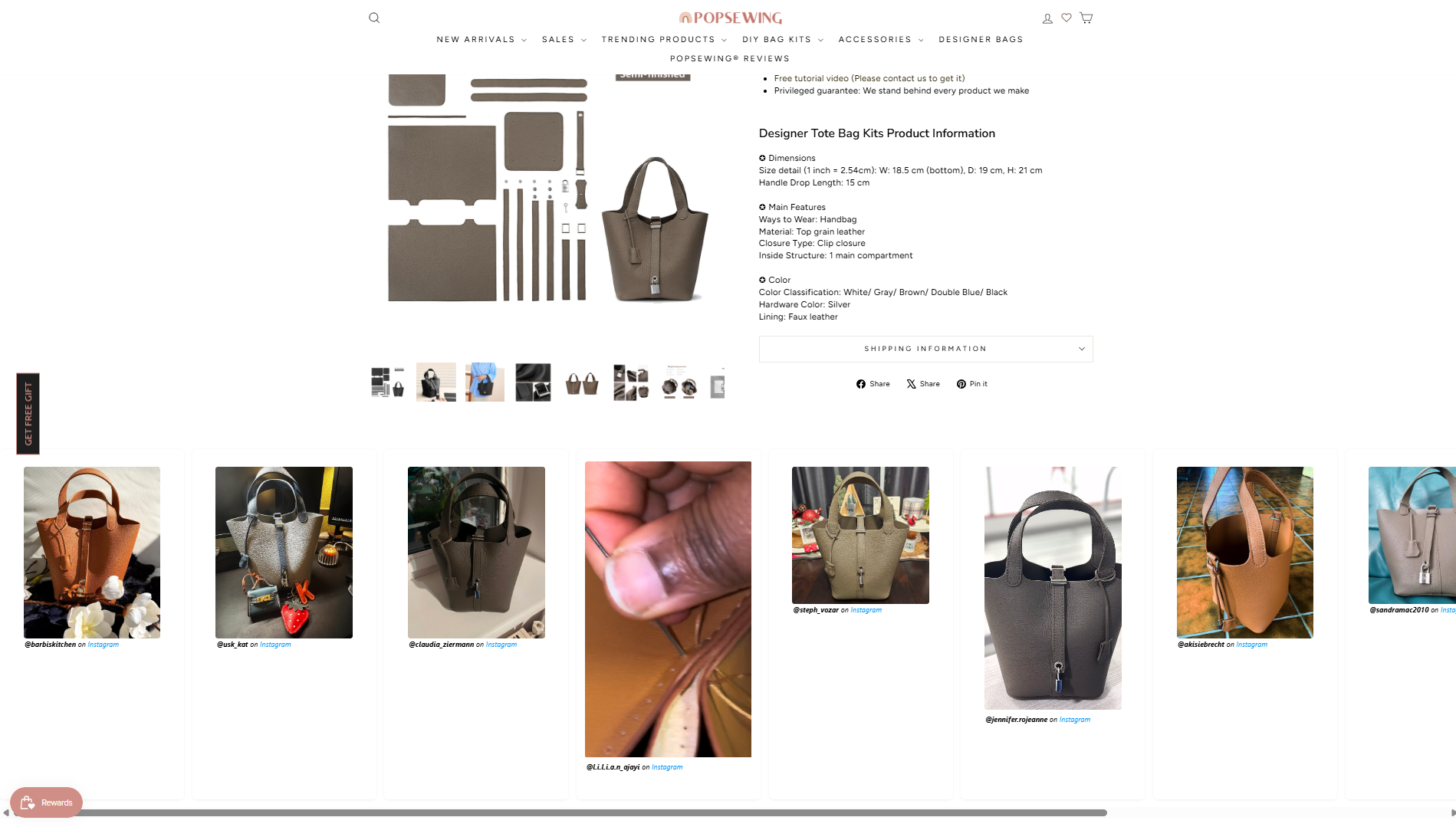
- Instagram UGC sliders showcasing finished bags from happy customers.
- Customer reels showing the process of assembling their kits.
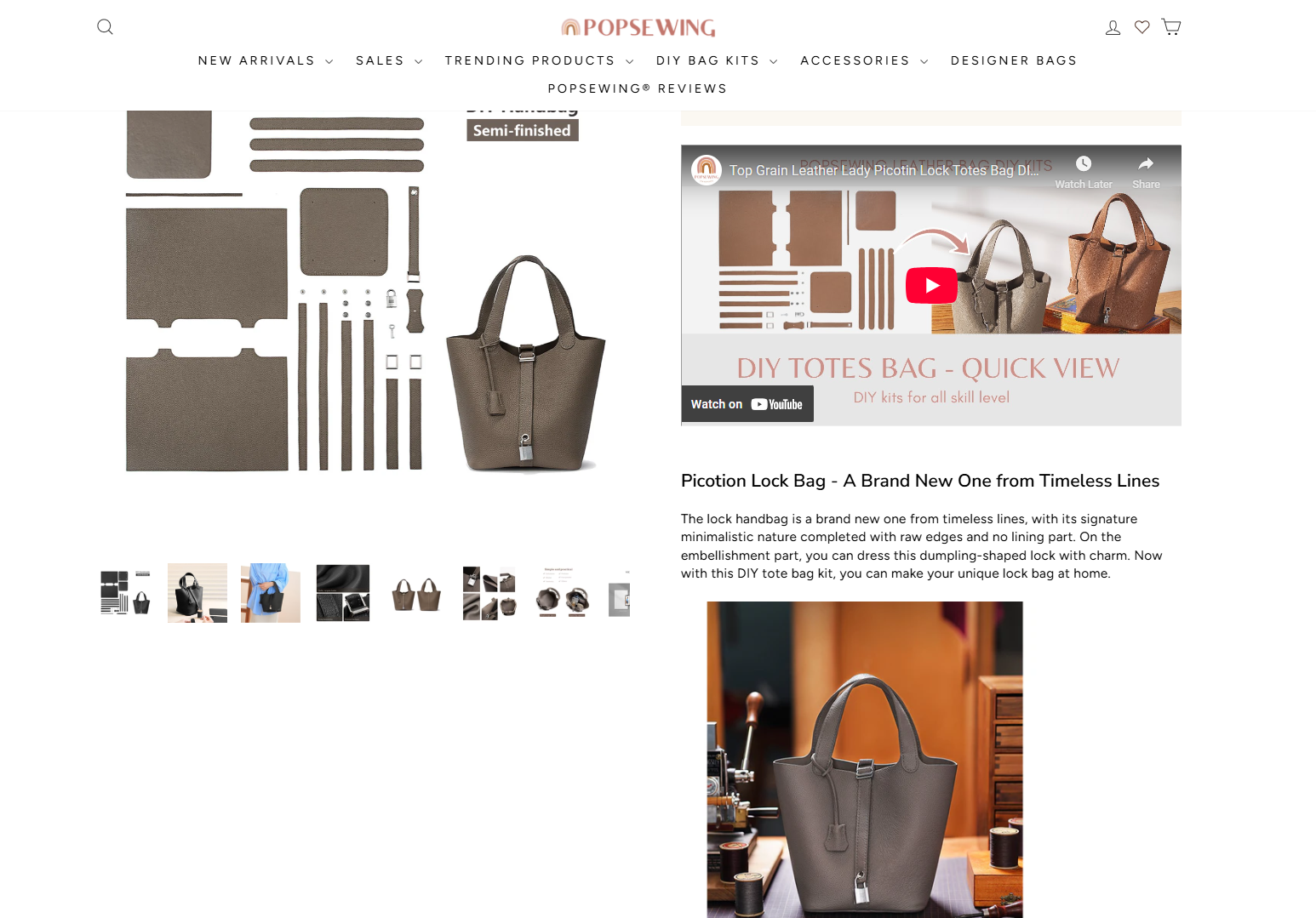
- Tutorials from YouTube in select product descriptions for extra guidance.
This creates an interactive, visual layer of authenticity that’s far more powerful than photos alone.
Examples
-
YouTube tutorial embedded directly in the description
-
Horizontal UGC slider under each product
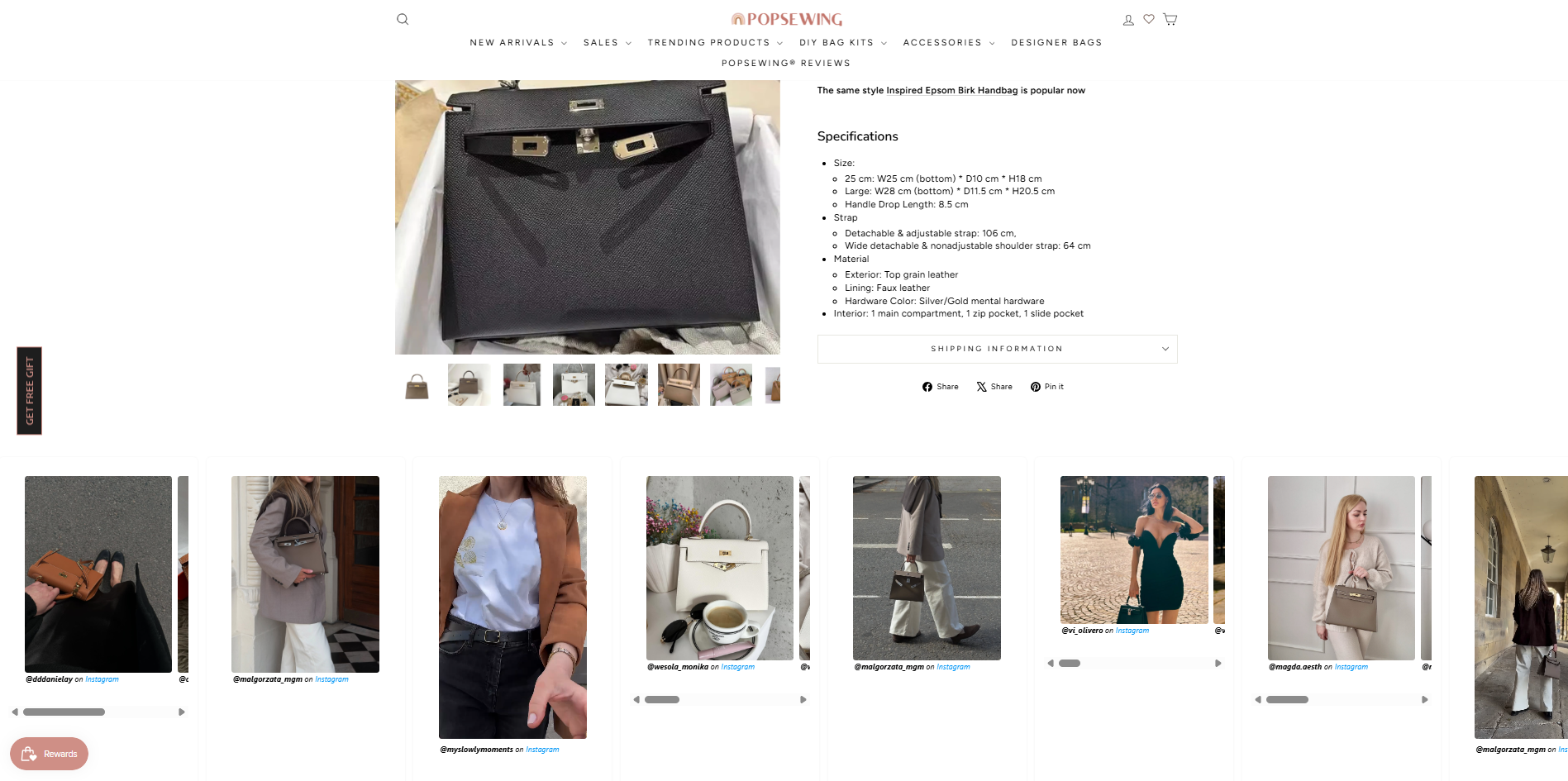
The Results
- Social proof on every page: Customers see others succeeding, which reduces hesitation.
- Higher engagement: Video and UGC grids keep visitors browsing longer.
- Boost in conversions: Seeing peers complete the DIY kits builds trust that “I can do it too.”
- Brand community growth: Customers are motivated to share their own results, fueling a cycle of organic content.
How You Can Do It Too
Any Shopify store can replicate this. You can either use multicolumn, create a grid-style slider using Shopify’s AI (or custom code it yourself), and then just put links in each section and make them italic. See this tutorial to understand how you can do it.
This approach is especially powerful for DIY, fashion, lifestyle, or beauty brands where results and transformations matter most.
Key Takeaway
POPSEWING transformed their store into a showcase of creativity by embedding UGC and tutorials directly into product pages. By combining social proof and learning content, they’ve built both trust and community, turning customers into advocates.
How Source Audio is Embedding YouTube DEMO Videos in Multicolumn in Shopify
About Source Audio
Source Audio is a boutique audio equipment brand that creates high-end pedals and sound design tools for musicians. Guitarists, producers, and sound engineers rely on product demos to hear and compare tones before buying.
The Challenge
Musicians rarely buy pedals without hearing them first. While Source Audio had an active YouTube presence, sending customers off-site to watch videos risked distractions and lost sales. They needed a way to showcase multiple demos right on their product pages in a clean, organized format.
The Solution with EmbedAny
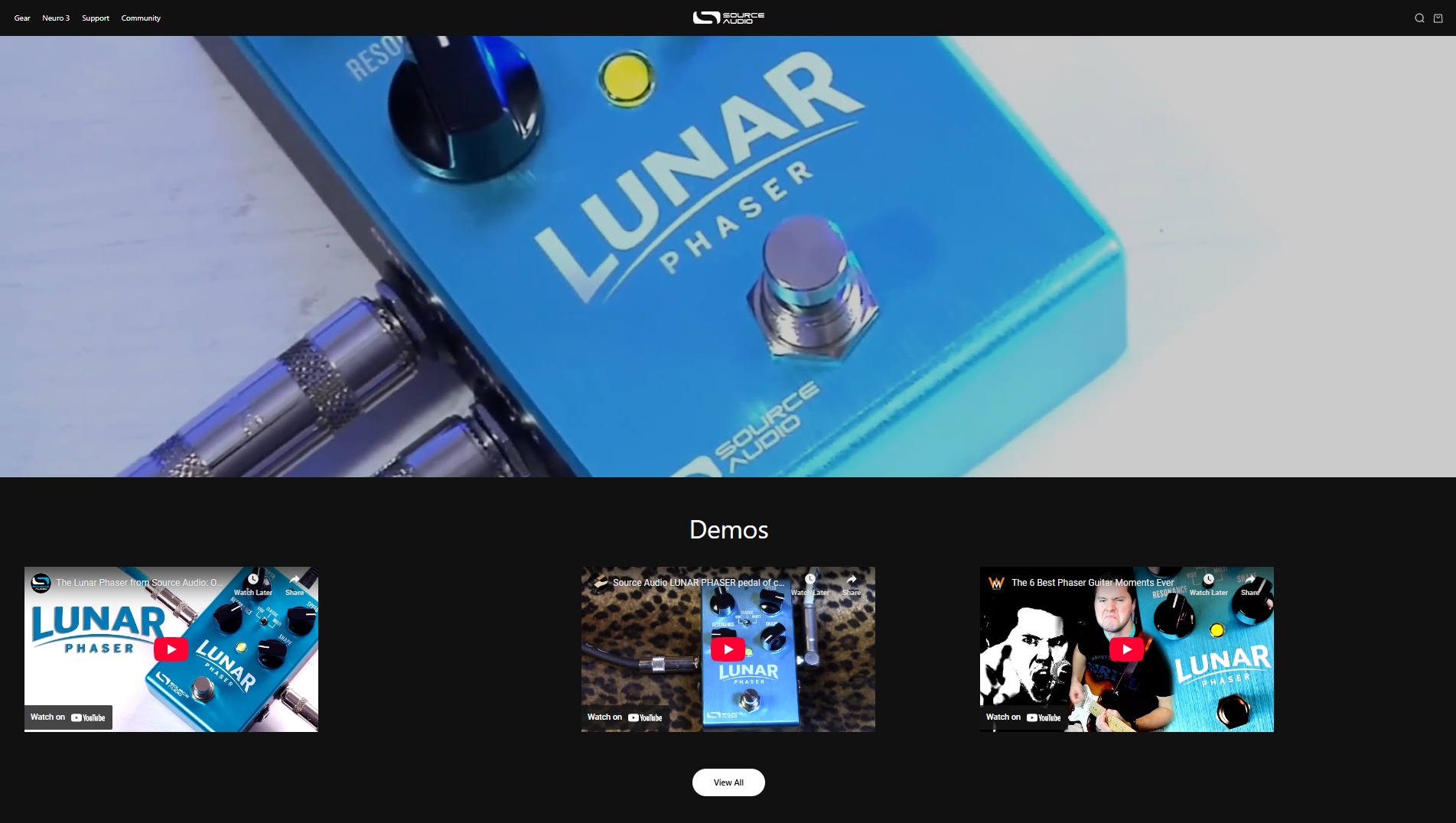
Using EmbedAny, Source Audio integrates YouTube demo videos directly into a multicolumn “Demo” section under each product description. Each product features several videos—official brand demos, influencer reviews, and user-generated sound clips—arranged neatly in columns.
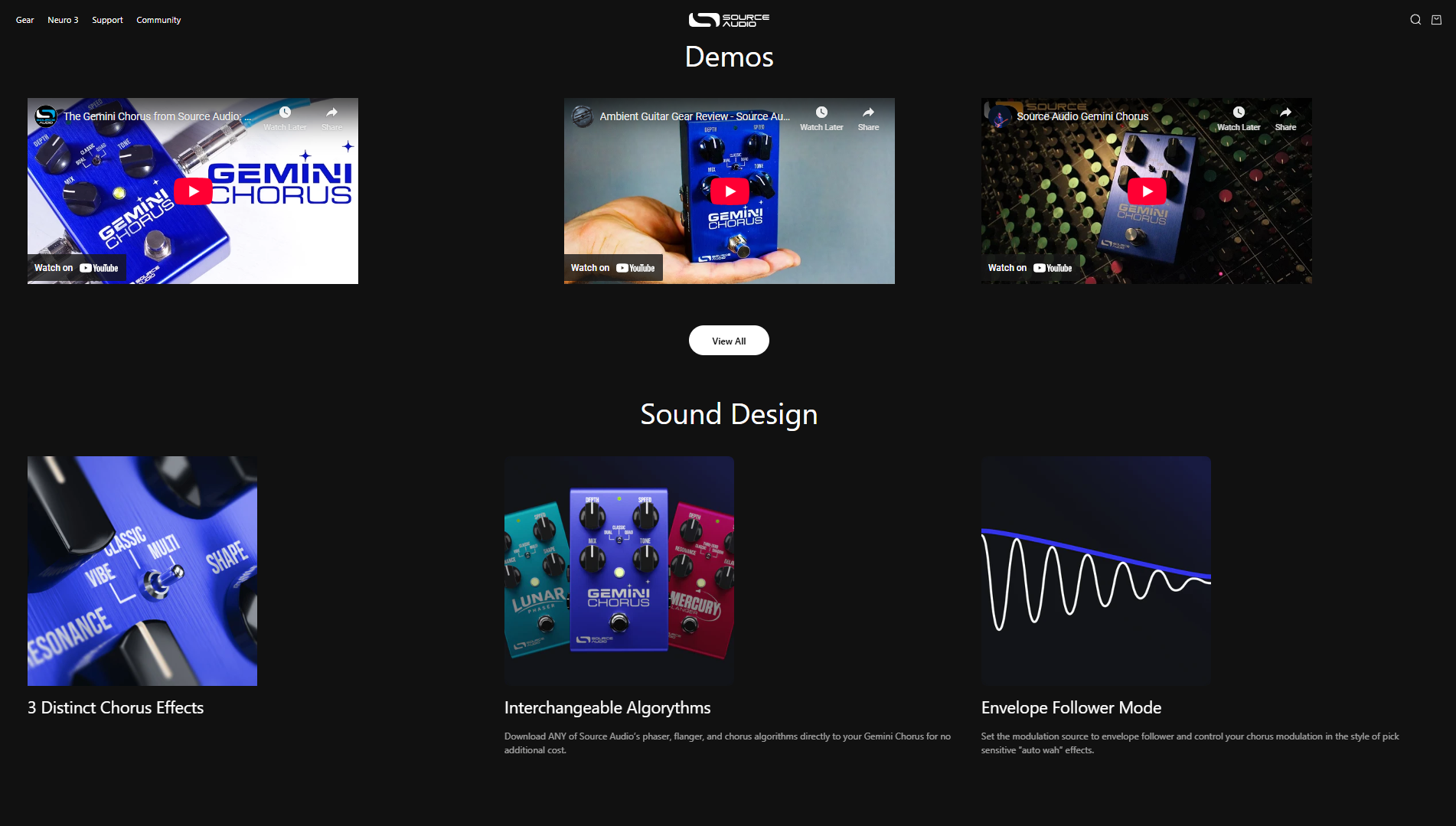 For example, their Lunar Phaser pedal product page features three demo videos side by side, giving potential buyers an instant feel for the pedal’s sound. Visitors can watch without leaving the page, explore multiple perspectives, and even dive deeper by clicking “View All.”
How to Create This in Your Store
In your Shopify dashboard, go to your theme editor and add a multicolumn block. In each multicolumn, paste the link to your content and make it italic (ctrl+i). When you save, we will convert all three links into widgets. As a result, you get a 3-video grid of content using EmbedAny and multicolumn. Watch the full tutorial
The Results
- Improved engagement: Multiple videos keep musicians on-page longer.
- Higher buyer confidence: Hearing different demos before purchase reduces hesitation.
- Stronger conversion rates: Customers don’t have to leave Shopify to explore sound quality.
- SEO Benefit: Embedding YouTube videos in a website helps with the website’s SEO and drives more traffic to YouTube content, pushing it higher in YouTube results. Win-Win.
- Better organization: Multicolumn layout prevents clutter while offering rich content.
Key Takeaway
Source Audio transformed their Shopify product pages into immersive sound showrooms by embedding demo videos in multicolumn layouts. For brands in music, electronics, or any industry where “seeing and hearing is believing,” embedding YouTube demos directly into the buying journey drives both trust and sales.
Embed Forms for Product Customization & Lead Surveys
If you want to capture leads or collect order details directly on your Shopify store, we’ve got a method.
With EmbedAny, you can embed forms from various platforms, including Fillout, Formaloo, Zoho Forms, HubSpot Forms, Formstack, Microsoft Forms, Google Forms, and many others.
Where to Use the Forms on Shopify
- Collect customer information or leads for your business.
- Gather emails for a newsletter.
- For print-on-demand or customization services, allow customers to add details about their order — such as their name, preferences, or even upload files.
How to Embed Forms in a Shopify Store
-
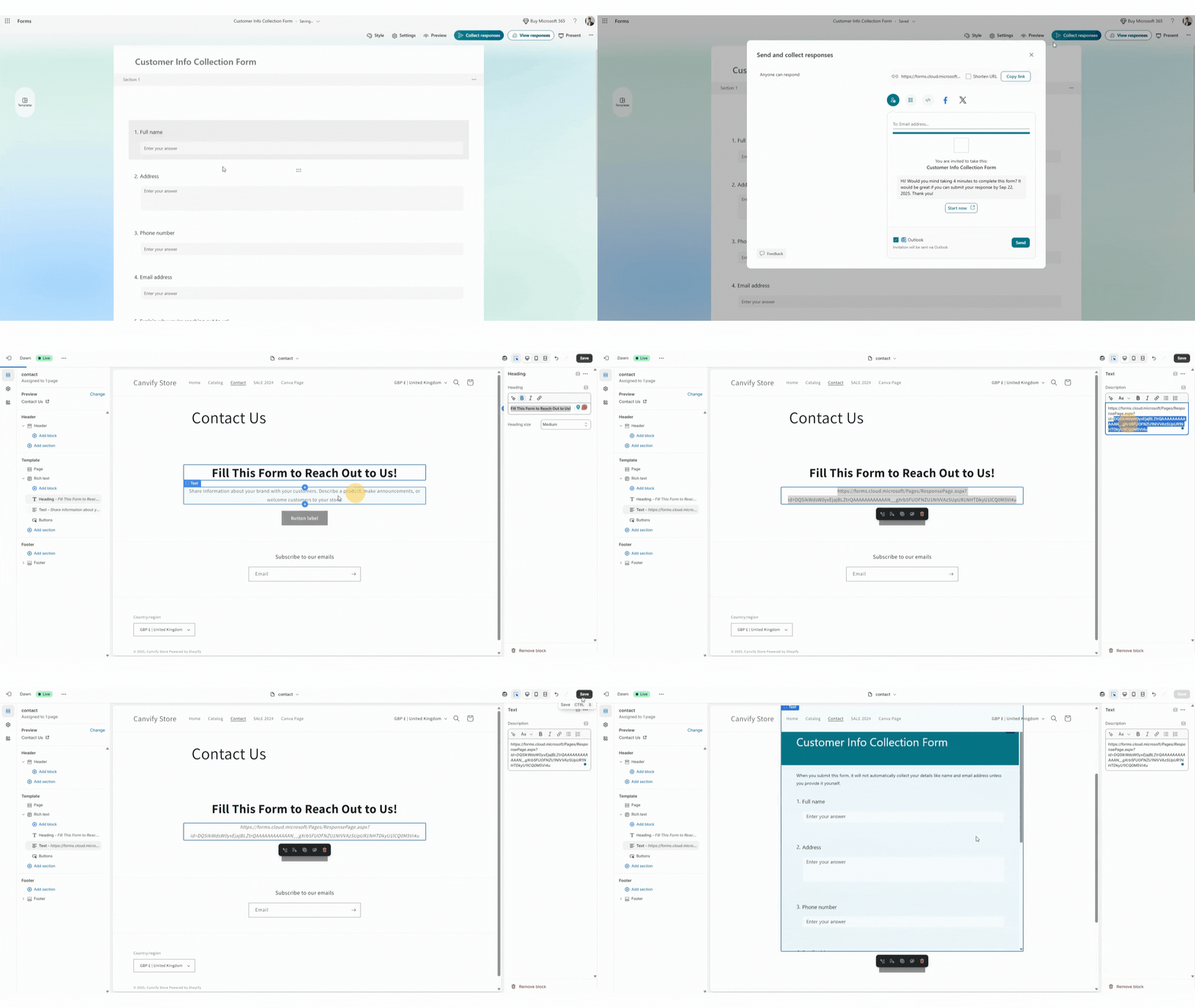
Create a form in your preferred platform and, in the sharing settings, make it publicly accessible for viewing (not editing).
-
Copy the share link of your form.
-
To embed in a product page: paste the link in the product description of the specific product.
To embed in a landing or contact page: go to the theme editor > contact page and paste the link there.
-
Select the pasted link and make it italic.
-
Save your changes. The link will now be converted into a live form embed.
Alternative Method: App Block
You can also use the app-block method to embed into a landing or content page if you don’t have any text fields available.
👉 Learn about the app-block method in this guide.
Still have questions? Drop us an email at [email protected].
Embed Maps & Calendar Bookings to Shopify
Adding interactive elements to your Shopify store is a great way to make your site more useful and engaging for customers. Instead of just showing text and images, you can give shoppers tools they can actually use.
With EmbedAny, you can:
- Show a map for your store’s location, service areas, or event venues.
- Embed Calendly or Google Calendar so visitors can instantly book appointments, demos, or consultations without leaving your store.
This makes your site more professional, convenient, and customer-friendly.
1. Embedding Maps in Shopify
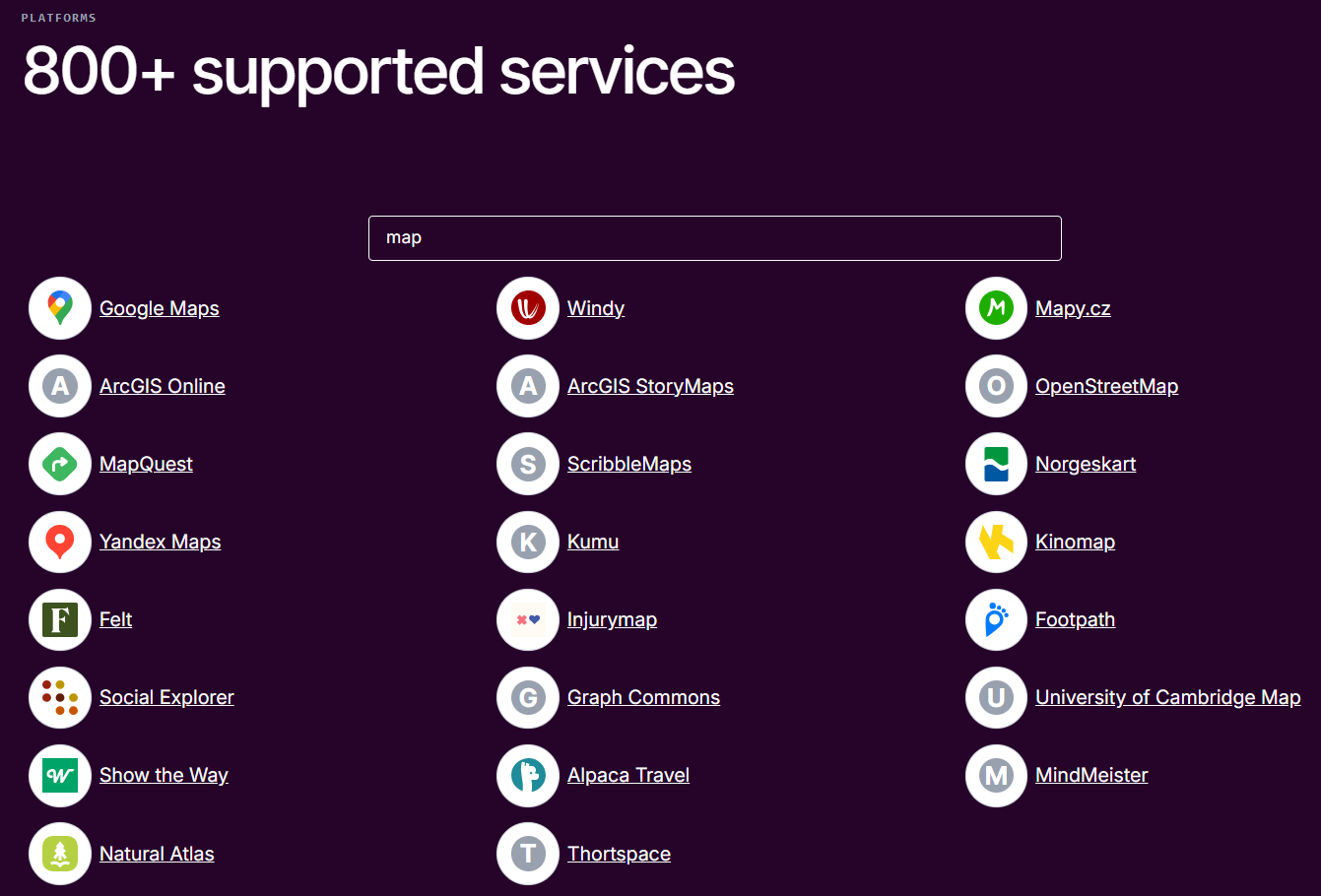
Add a Google Maps link (or similar) to:
- Show your store or office location.
- Highlight service coverage areas.
- Provide directions for events.
- Embed hiking trails, EarthView, and other map technologies related to your use case.
How to do it?
- Copy the map’s share link.
- Paste it into your product description, landing page, or blog in Shopify.
- Highlight and italicize it (Ctrl+I on Windows / Cmd+I on Mac).
- Save.
EmbedAny will turn it into a live, interactive map.
👉 Learn more in the embedding widgets in Shopify using EmbedAny guide.
2. Add Calendar Bookings to Shopify
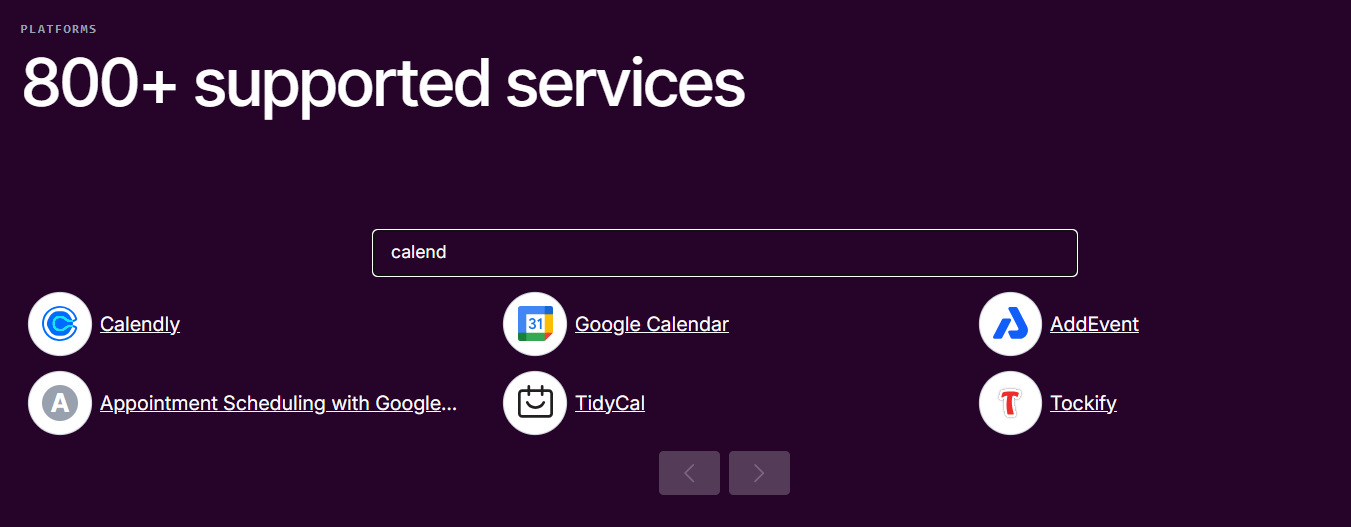
Make scheduling effortless by embedding tools like Calendly, Google Calendar, and more:
- Allow customers to book consultations or demos.
- Offer appointment scheduling for services.
- Promote upcoming events with a live calendar.
How to do it?
- Copy the calendar or booking link.
- Paste it into the section on your store where you want.
- Italicize the link.
- Save.
EmbedAny converts it into a working booking widget directly on your site. You can paste it into a text field on your landing page, Contact Us page, or anywhere else.
👉 Learn more in the embedding widgets in Shopify using EmbedAny guide.
✨ With maps and calendar embeds, you can help customers find you and book time with you, all without leaving your Shopify store.
How to Embed Widgets in Your Blog Posts
Want to make your Shopify blog page and posts more engaging and increase SEO score? By embedding helpful and relevant content.
With EmbedAny, you can add videos, podcasts, slides, or even documents to your blog.
So let’s explore how.
Embed Content Inside Individual Blog Posts
To embed content widgets inside specific articles, follow these simple steps.
-
- In your Shopify Dashboard, go to ‘Content’ and select ‘Blog Posts’.
-
- Open the blog post you want to add content to.
-
- Copy the link to your content (just the link, not the embed code), and paste it into your content.
-
- Make the link italic and save.
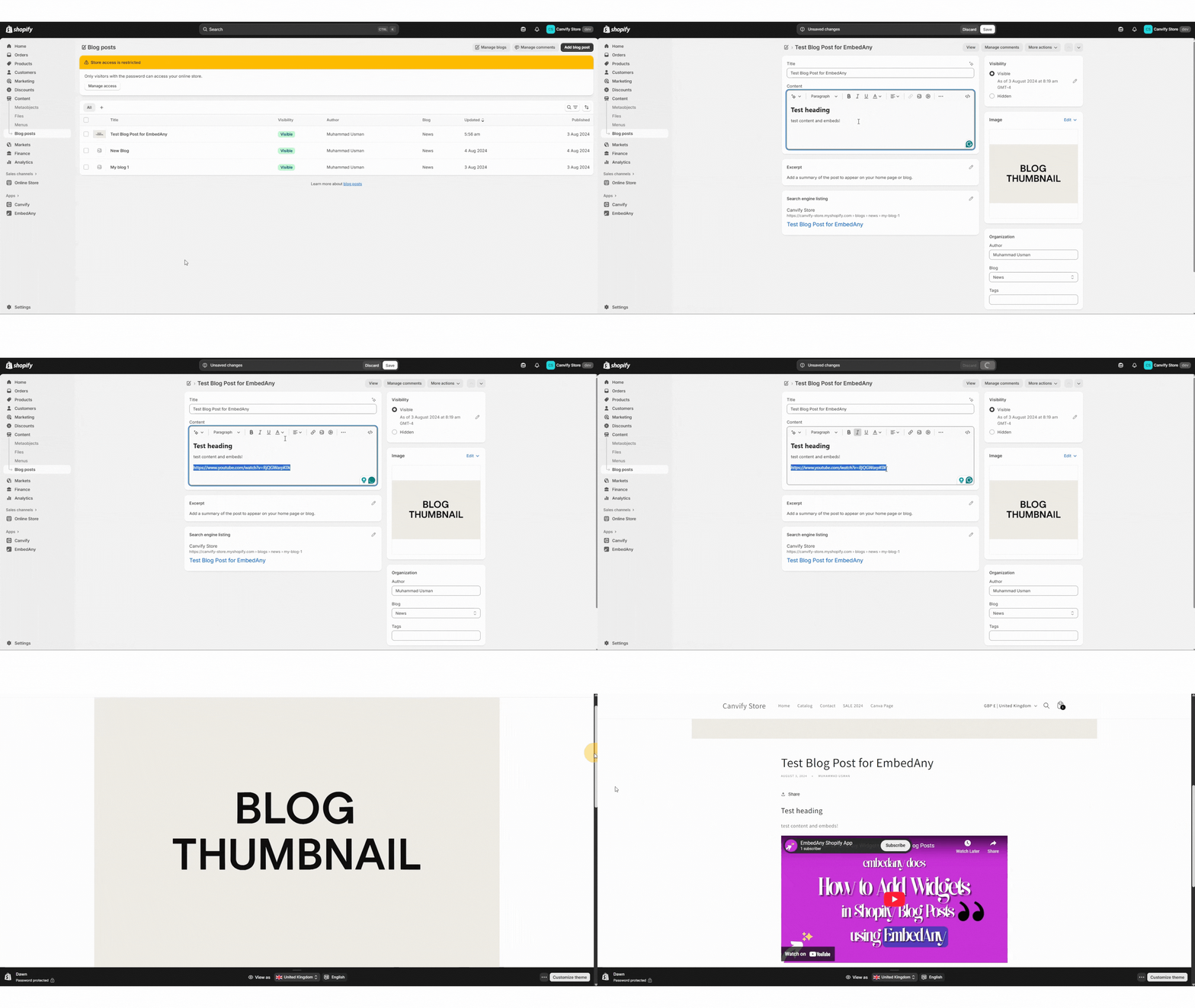
EmbedAny will automatically convert that link into a live widget inside your blog post.
Bonus: Add a Poster or Announcement on Your Main Blog Page
This method is great if you want a banner-style embed (like a YouTube trailer, event poster, or podcast player) that appears on your main blog page (not the individual posts).
To add this, follow these steps:
- Go to Online Store → Themes → Customize.
- In the page selector, choose Blog pages.
- Add a block → Apps → EmbedAny.
- Paste your link (YouTube, Spotify, Slides, etc.).
- Click Save.
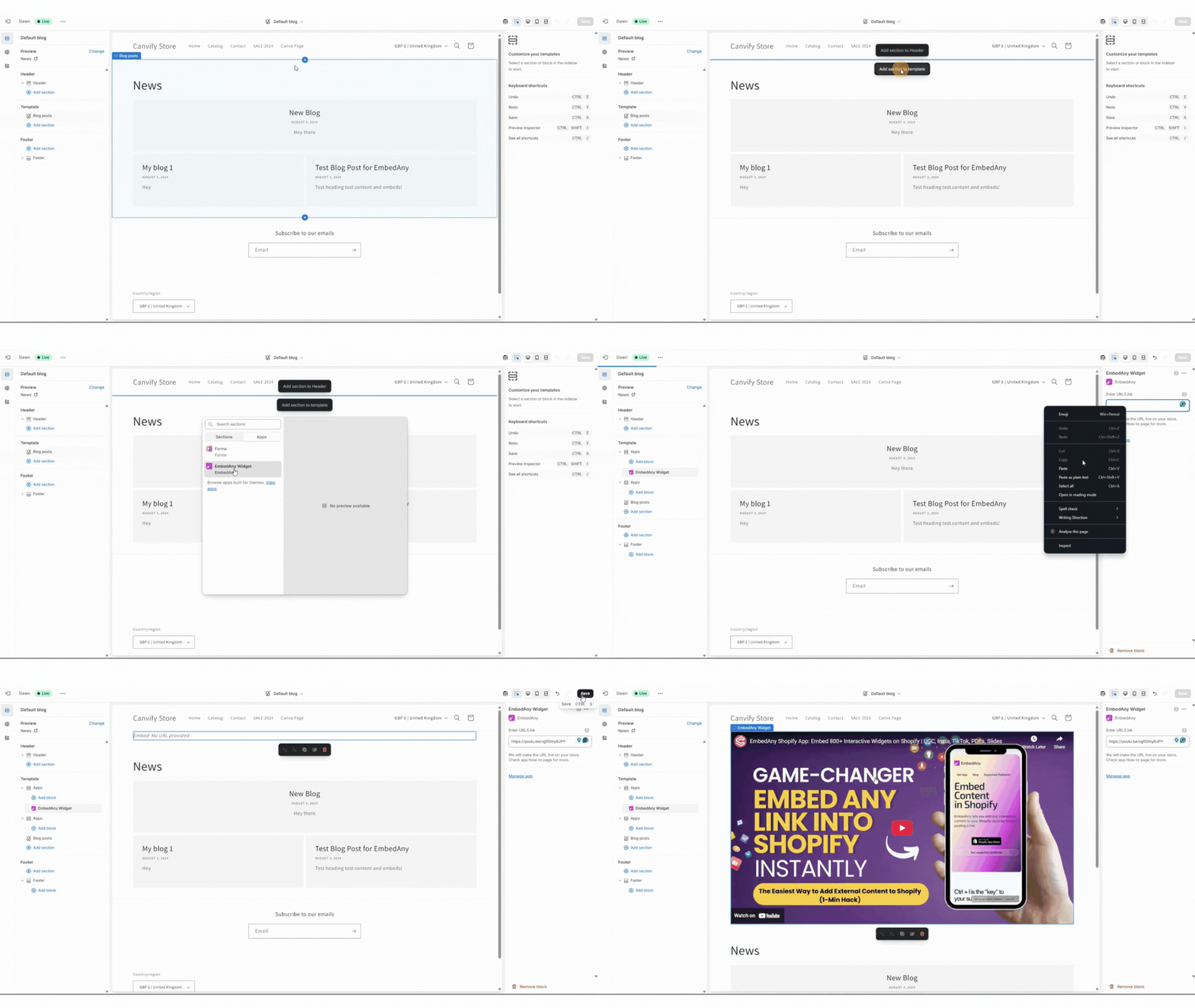
Now, every visitor to your blog page will see the embedded content.
✨ With these two methods, you can showcase podcasts, tutorials, product demos, or announcements right in your blog, making your content more interactive and engaging.
How to Embed PDFs, Docs & Slides for Product Manuals
Sometimes you need to give customers access to extra product information, like a PDF manual, a slide deck, or a document. With EmbedAny, you can add these directly into your product descriptions.
Method: Use the Product Description
The product description is the best place to add unique embeds for each product. To do this, follow these steps.
- Go to Products in your Shopify dashboard.
- Open the product where you want to add a manual or guide.
- Paste the link to your PDF, document, or slides in the description box.
- Highlight the link and italicize it (Ctrl+I on Windows or Cmd+I on Mac).
- Save your changes.
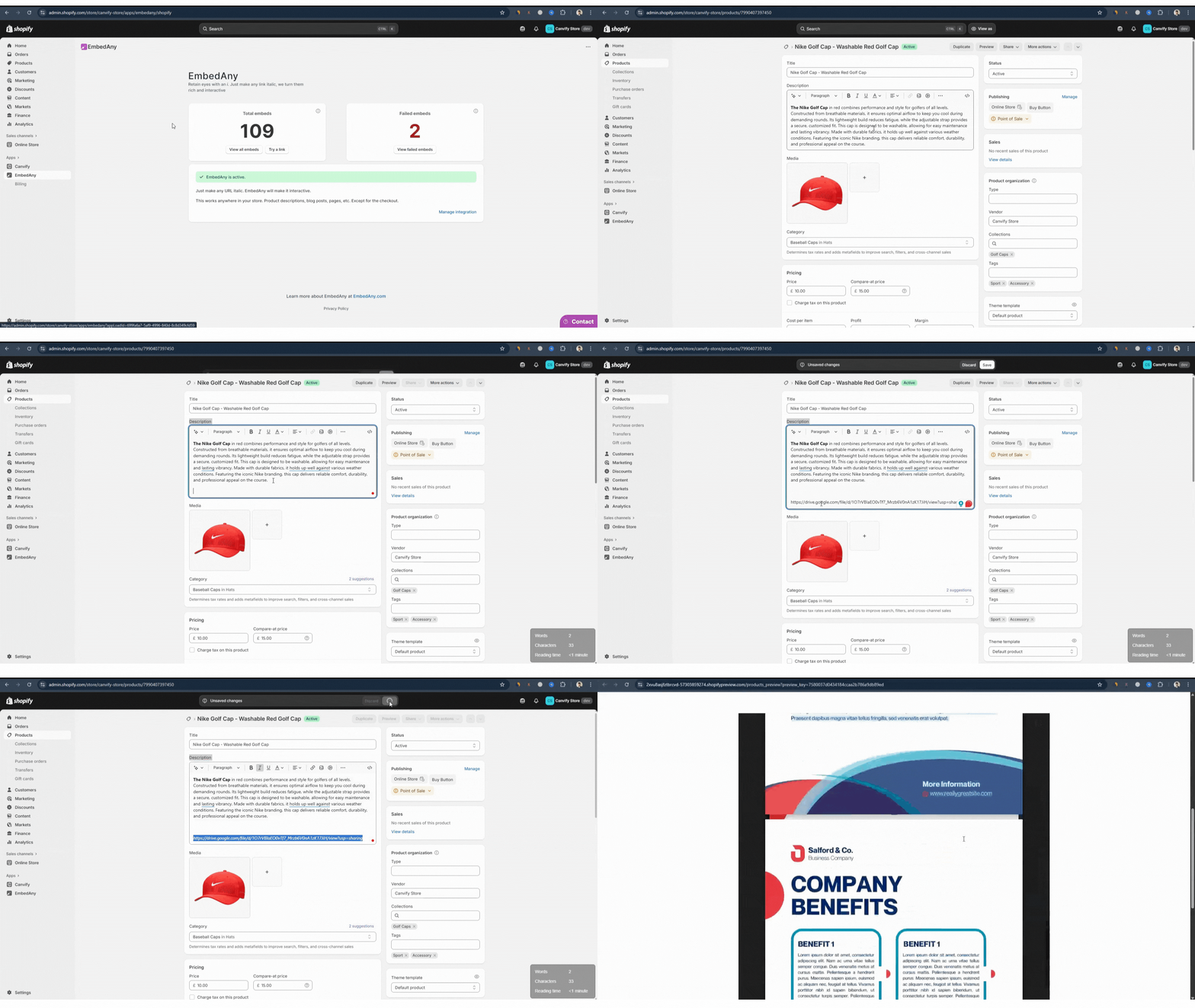 EmbedAny will automatically convert the italicized link into a live, interactive widget inside your product page.
✨ This way, each product can have its own unique manual or resource embedded directly in the description. Embed-Any supports all major platforms for storing PDFs, slides, and docs.
Why Not Use Theme Editor Blocks?
It’s important to understand the difference between using the theme editor and product descriptions:
- Theme editor blocks apply to the entire product page template.
- This means if you add an EmbedAny block in the template, the same embed will show up on all product pages.
- That makes it impossible to have unique PDFs or slides per product using theme blocks.
✅ Product descriptions are product-specific, so embeds placed there only appear on the product you edit.
Using the product description ensures each product page can have its own distinct documents, manuals, or presentations, giving your customers the right information for the right product.
How Enoksen Uses Shopify File Uploads in Their Shopify Store
Enoksen, a luxury watch brand, found a creative way to make their Shopify product pages more engaging by combining Shopify’s built-in file upload feature with EmbedAny.
How It Works
Shopify allows you to upload files directly from the admin dashboard:
- Go to Content → Files in your Shopify admin.
- Click Upload, and add your media like a video, PDF, image, or presentation.
- Once uploaded, copy the file link.
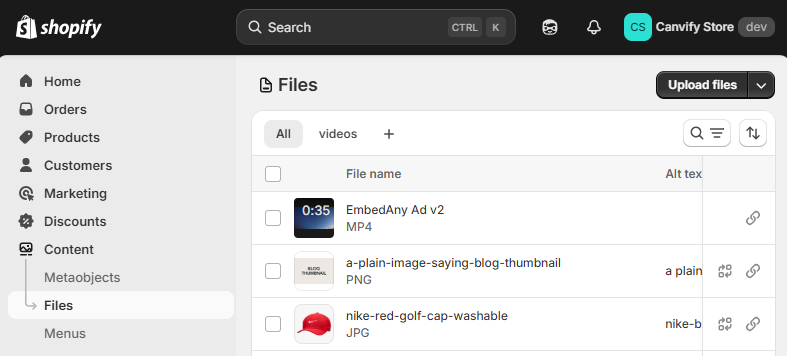
With EmbedAny, you can now take that link and embed it anywhere in your Shopify store, including product descriptions, blogs, or custom pages, without writing a single line of code.
Why This Matters for Product Descriptions
Normally, Shopify only allows embedded videos in product descriptions (you can’t directly upload and add like images). Moreover, you can’t embed slides, PDFs, GIFs, or other content. With EmbedAny, you can do it by pasting the link and italicizing it.
With EmbedAny, the process is much simpler:
- Upload your content to Shopify’s Files section.
- Copy the link.
- Paste it into your product description.
- Highlight the link and make it italic (Ctrl+I on Windows / Cmd+I on Mac).
That’s it. EmbedAny will automatically turn that link into a live, interactive widget inside your Shopify page.
You can upload and embed:
- PDFs for product manuals.
- Slides for presentations or guides.
- Videos for product demonstrations.
- Images for galleries or lookbooks.
Enoksen’s Unique Use Case
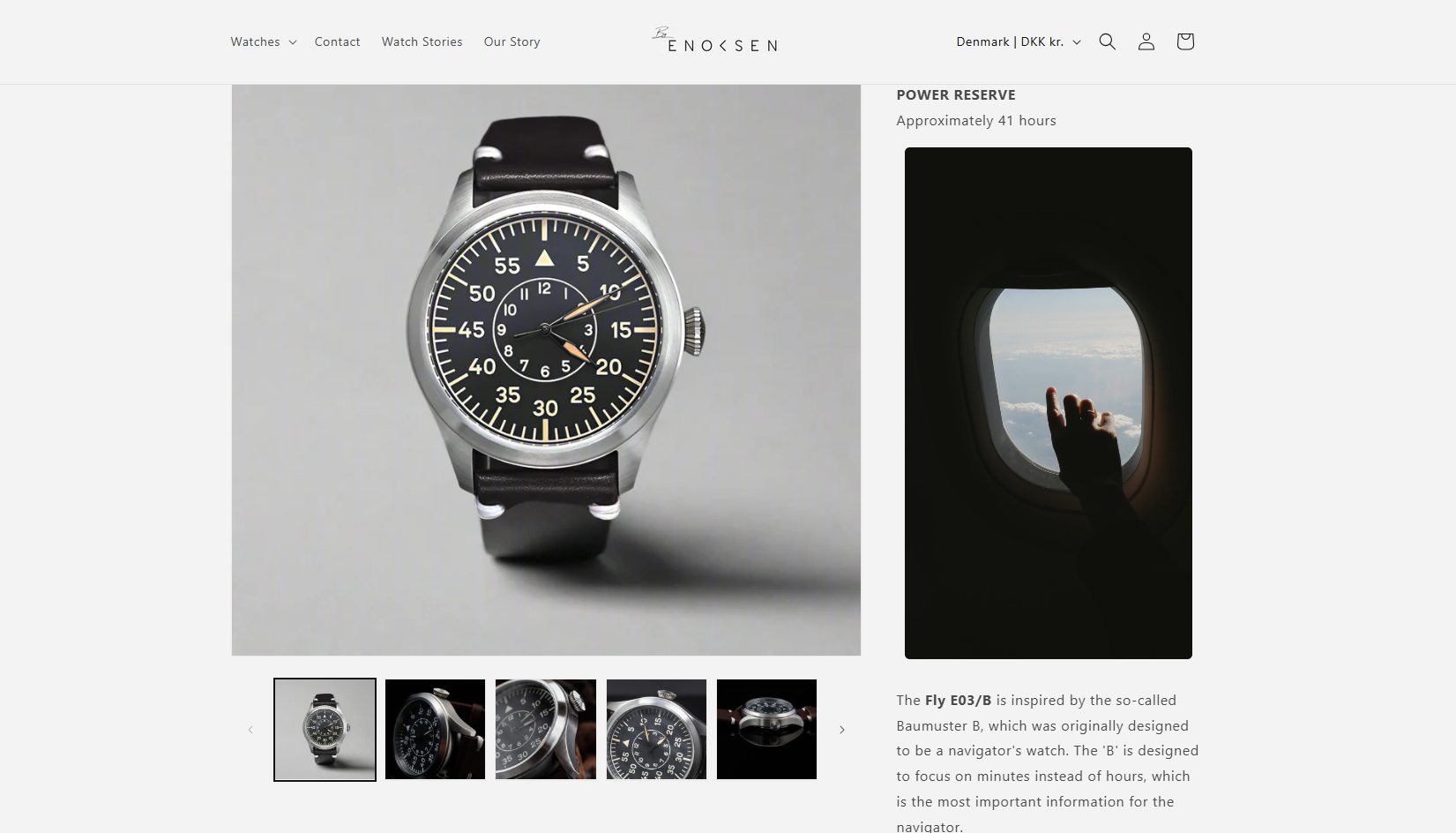
Enoksen uses this method to embed a looped video directly on their product page. The video showcases their watch in motion, giving visitors a dynamic, real-world feel of the product.
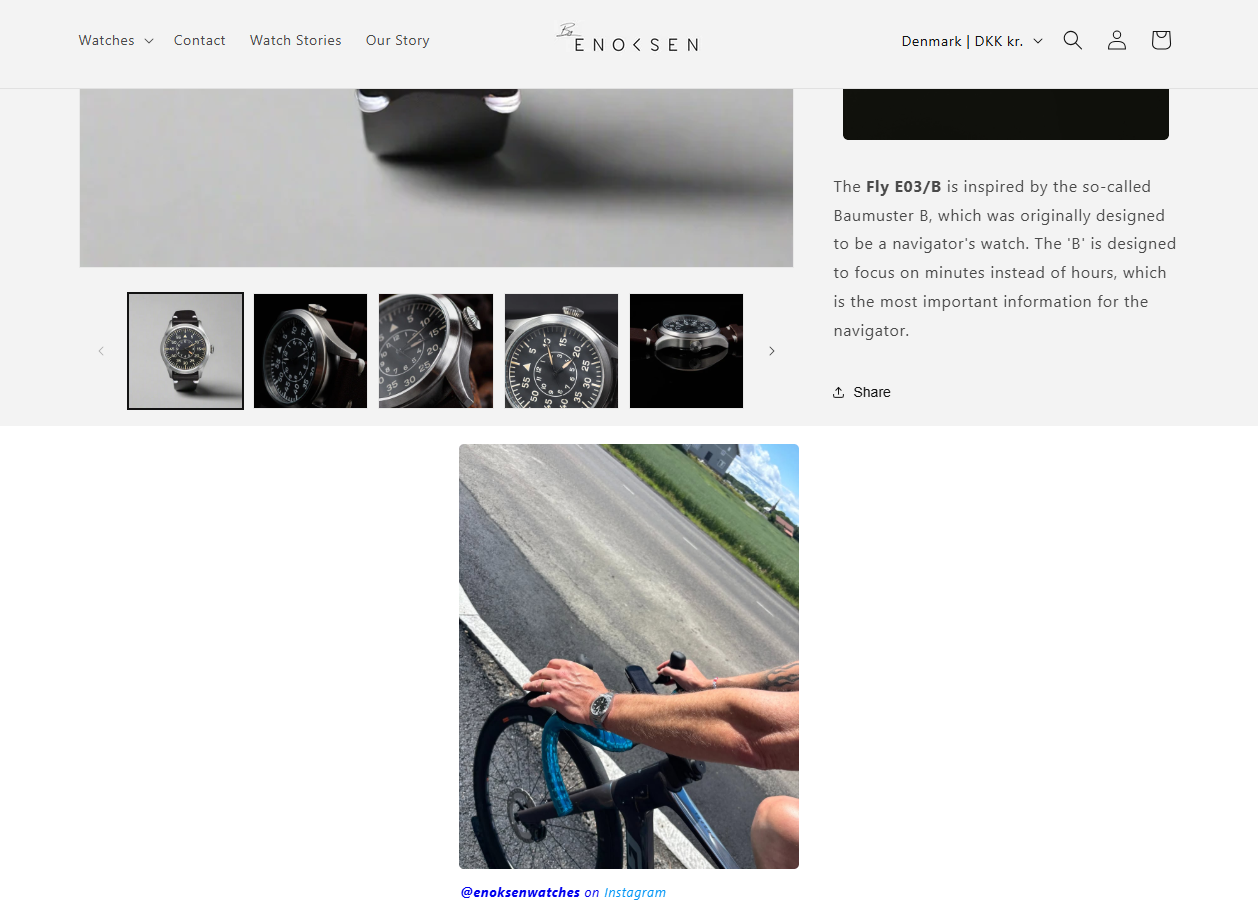
 Beyond videos, Enoksen also uses Instagram embeds to display authentic lifestyle content and social proof.
But their most innovative use is leveraging Shopify’s file upload feature to host and embed their own videos, keeping everything within Shopify’s ecosystem while using EmbedAny to display it beautifully.
Takeaway
By combining Shopify’s native file uploads with EmbedAny, you can host and embed almost any kind of content, like videos, slides, PDFs, or images, directly inside your store and create an interactive, high-end product experience.
Getting Started: How to Make Your First Embed
Thanks for installing EmbedAny! 🎉
Let’s make your store pop by embedding exciting content.
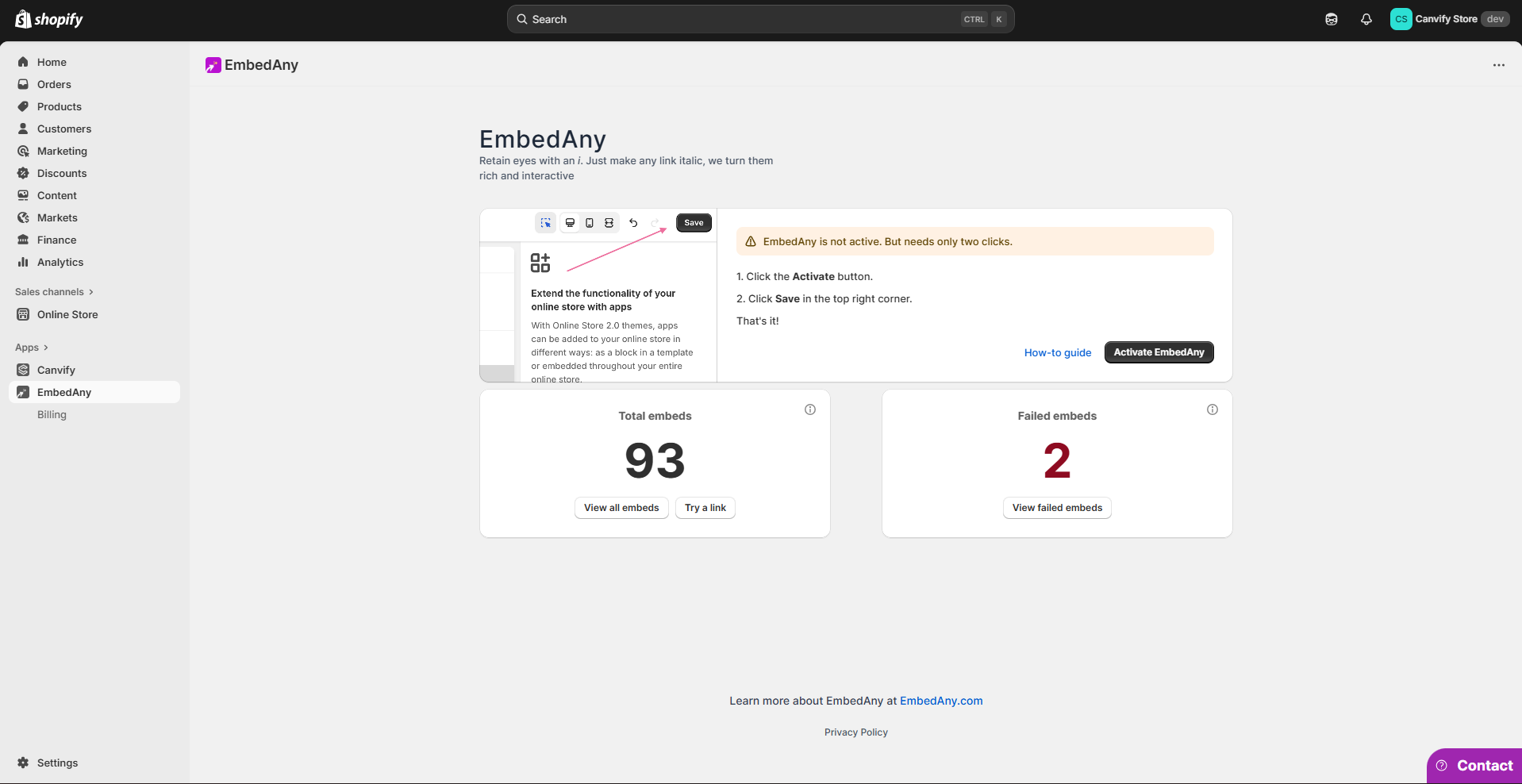
EmbedAny is the simplest tool to embed content in Shopify.
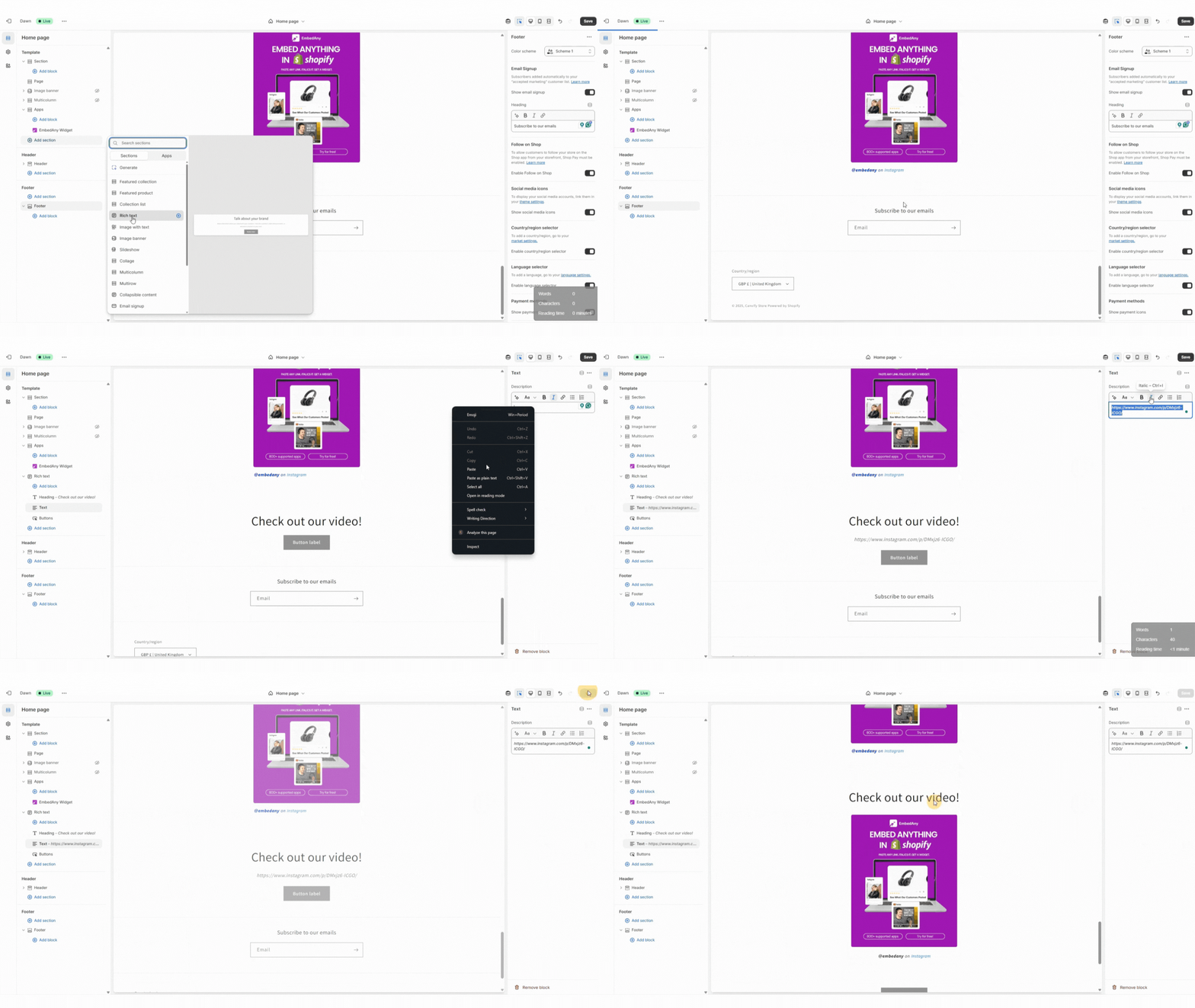
Step 1: Copy the link you want to embed
Use the normal share URL (YouTube, TikTok, Google Drive, Slides, PDFs, Forms, etc.). No embed code needed. Just copy the link and come back to your theme.
Step 2: Make your link italic
- Open any text field (product description, page, blog, rich text, or even a custom-coded section that has text fields).
- Paste your link, select it, and make it italic (Ctrl+I on Windows / Cmd+I on Mac).
- Save. We auto-convert the italic link into a live widget on your site.
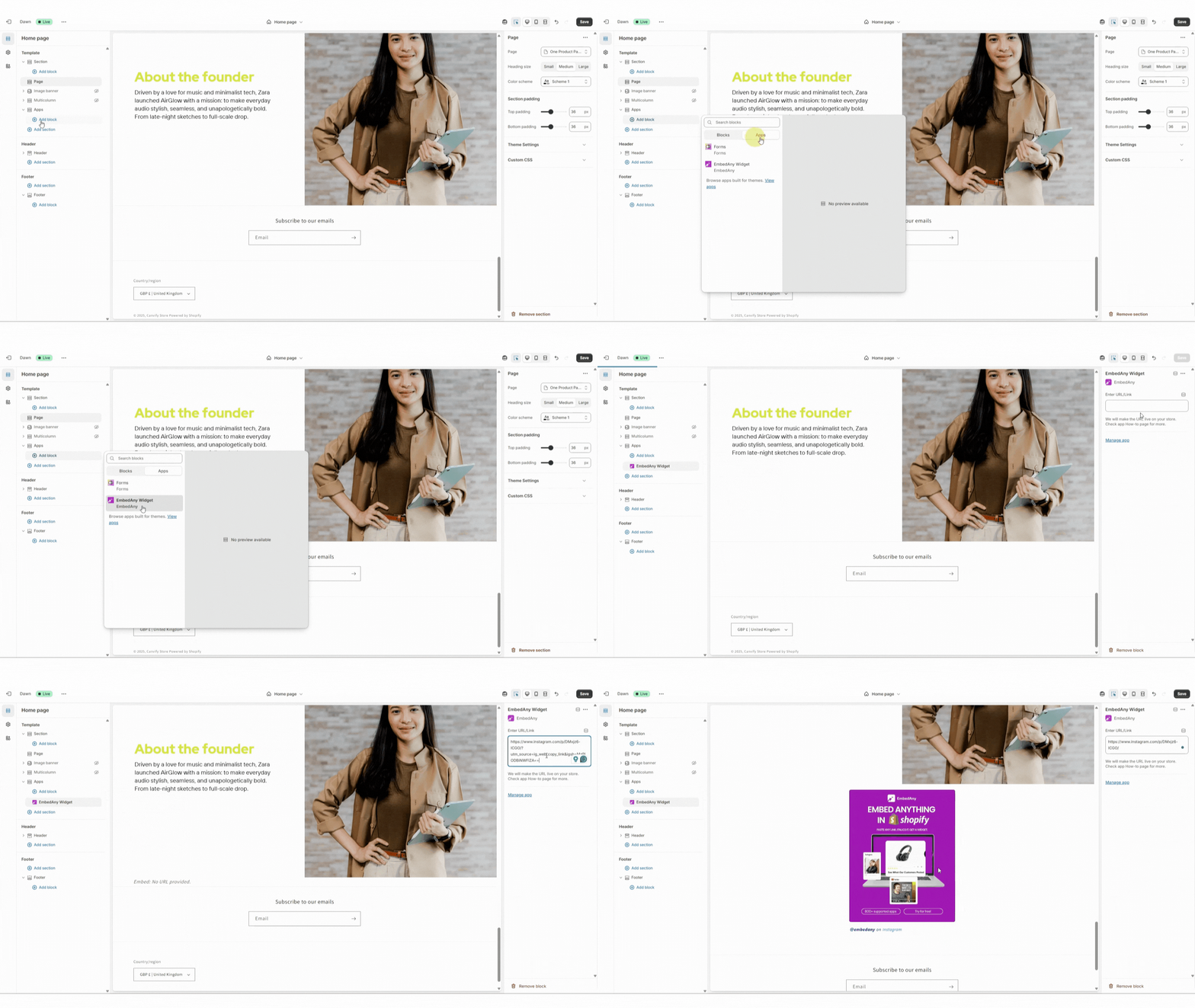
Bonus Method: Create an EmbedAny Section
Here is another way you can make embeds if you are not embedding in a text field. In this method, you don’t need to make your link italic. Just paste it in the EmbedAny app field on the right.
- In your theme editor, open the page/section where you want the embed.
- Add block → Apps → EmbedAny.
- Paste your link and Save.
That’s it!
Still having issues? Just drop an email to our customer support.
How Idemefa Embeds Facebook, TikTok, and YouTube Content to Their Product Pages
About Idemefa
Idemefa is an online store specializing in professional dentistry instruments. Their audience includes dental students, practitioners, and clinics who need both quality tools and clear guidance on how to use them effectively.
The Challenge
Medical and dental instruments are highly specialized. Buyers want to see real-world usage before making a purchase decision—whether that’s a product demonstration, tutorial, or review from other professionals. Traditional product descriptions and static images weren’t enough to communicate the practicality and trustworthiness of Idemefa’s tools.
The Solution with EmbedAny
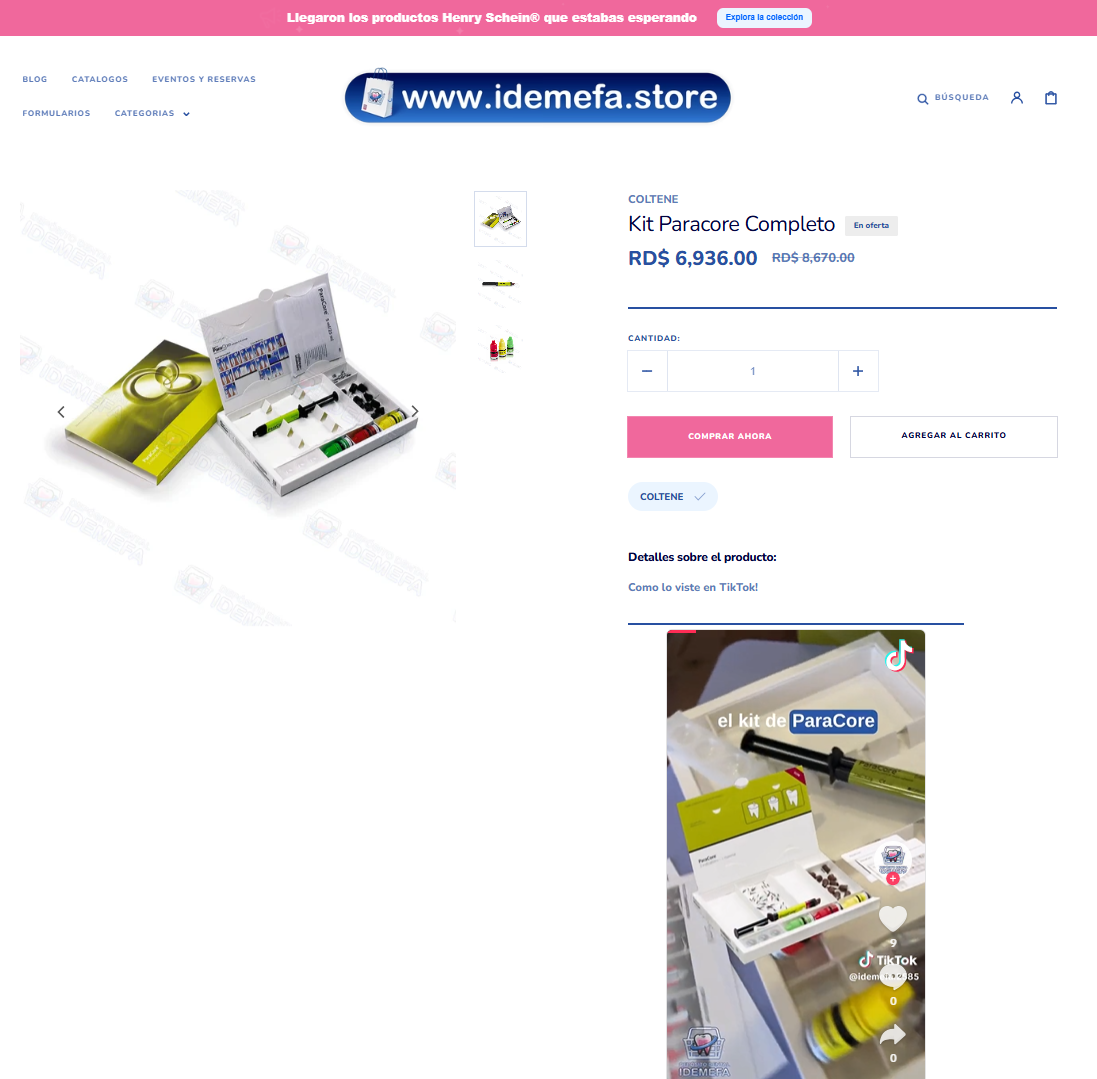
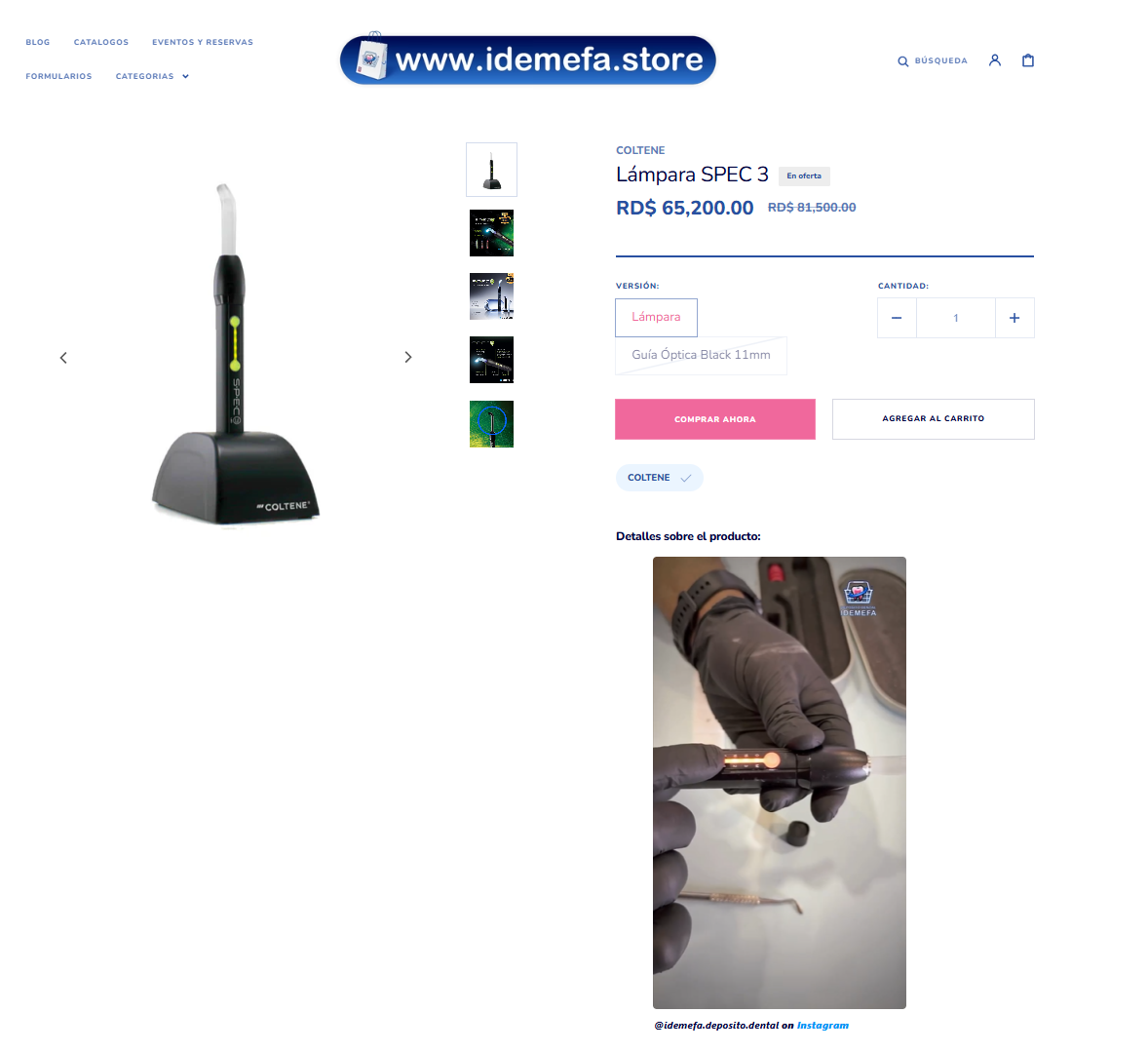
Idemefa leverages EmbedAny to integrate content from multiple platforms directly into product descriptions:
-
Facebook review and explainer videos.
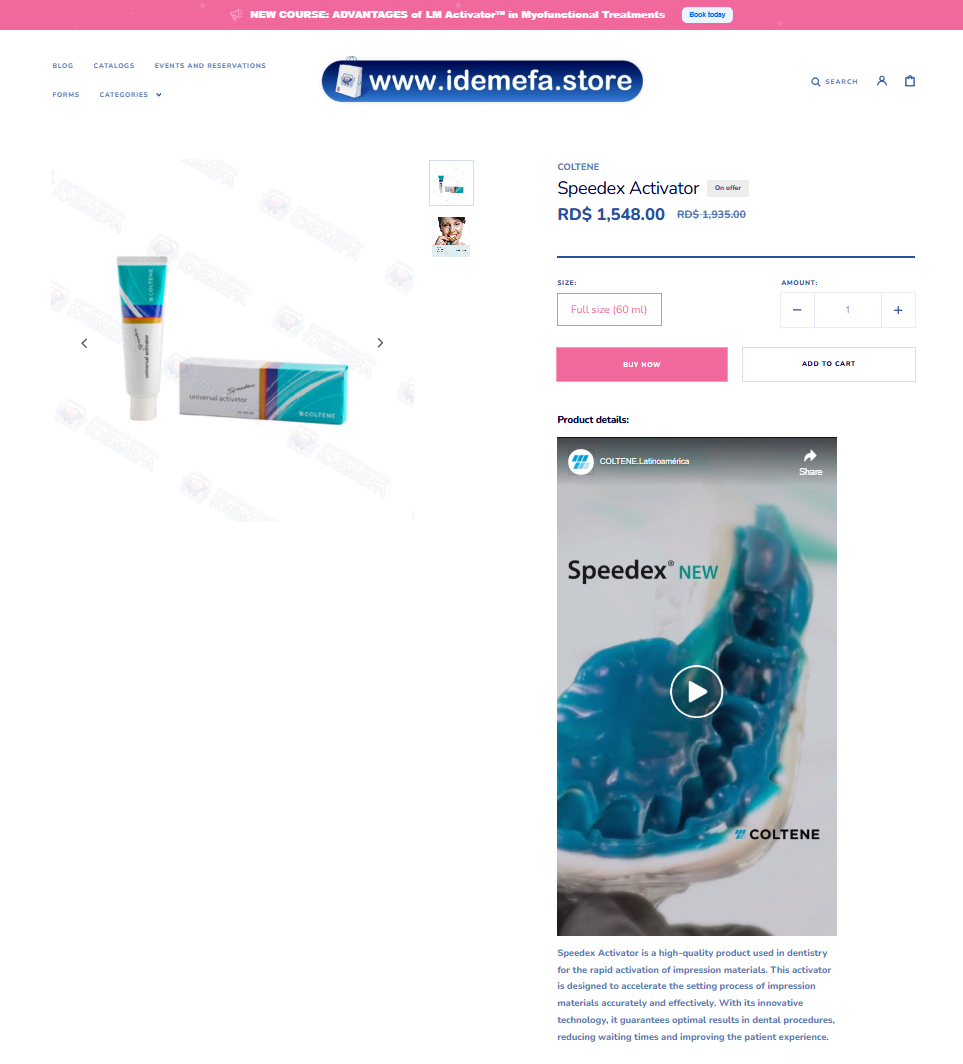
-
TikTok short-form demos and quick guides.
-
Instagram customer showcases.
-
YouTube tutorials and detailed walkthroughs.
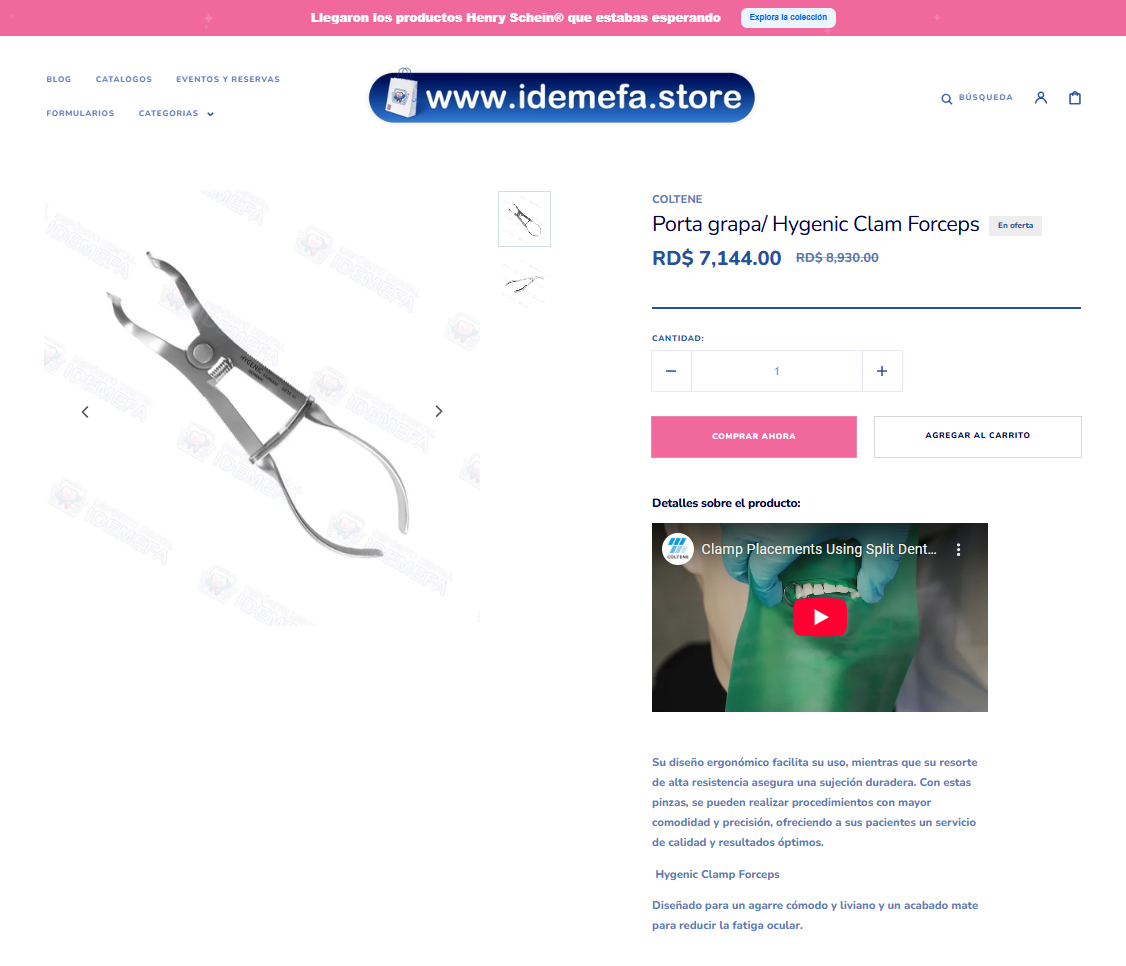
This mix of video and social embeds makes each product page feel like a mini learning hub, building trust while keeping visitors engaged.
The Results
- Increased buyer confidence: Videos show tools in use, reducing uncertainty.
- Improved engagement: TikToks and reels keep visitors scrolling and interacting.
- Stronger social presence: Embeds highlight Idemefa’s multi-channel reach.
- Higher conversions: Customers feel more informed and reassured when purchasing technical products.
Key Takeaway
By embedding videos from Facebook, TikTok, Instagram, and YouTube, Idemefa transformed static product pages into interactive experiences. For any brand selling technical or specialized products, bringing multi-platform content directly into the store builds trust, educates buyers, and drives sales.
EmbedAny Documentation
EmbedAny How-To Guide
Get the most out of EmbedAny, human written, step-by-step guides with screenshots and videos.
Getting Started: How to Make Your First Embed
How to Embed Content in Product Descriptions
How to Embed Widgets in Your Blog Posts
How to Embed PDFs, Slides, & Docs in Product Pages for Manuals
Notes on Social Feeds
EmbedAny may not be the best tool for embedding a social feed or collection. Though, it supports feeds like Instagram profile, Pinterest profile etc.
But EmbedAny shines at embedding single posts or videos with extreme ease. And you can embed as many as you want, anywhere in your store.
However, you can embed multiple posts in each line or column like normal. This will make it look like a curated feed instead of something you don’t have control over.
EmbedAny Case Studies
See how our top customers are using EmbedAny to add interactive content to their stores. Frequently use EmbedAny in your store to get featured in our case studies and earn your store a backlink!
How Fowler Precision Embeds YouTube Videos in Product Description
How POPSEWING Embeds Instagram UGC on Their Product Pages
How Idemefa Embeds Facebook, TikTok, and YouTube Content to Their Product Pages
How Tronex Tools Embed ISSUU Flipbooks For Their Products
How Source Audio Embeds YouTube DEMO Videos in Multicolumn in Shopify
How Enoksen Uses Shopify File Uploads in Their Shopify Store
Need Help?
If you encounter any issues or have questions about using EmbedAny, we’re here to help!
Contact Support:
- We literally feel happy to hear from you
- Reach out through the app dashboard or email [email protected]
- We take pride in going above and beyond
Tips for Success:
- Make sure EmbedAny Integration is enabled from the app dashboard
- First-time embeds may take a few seconds to load as content is imported
- After initial load, embeds will display smoothly
- Embeds will not slow down your store as they are loaded only when/before user interacts with them
- Talk to a real human - use the contact form or email us directly
Ctrl + I Magic
Make sure EmbedAny Integration is enabled, from onboarding page. Now anywhere in your Online Store, paste a link/URL. Then make it italic.
And view the page. You will see the link is converted to an interactive content. We support 800+ services or sites. Check the list. If the link is not supported, it will be converted to a card. Please note, first time you view it, it may take a few seconds to load as it will be imported. Will be smooth after that. Please contact us if you face any issues. We literally feel happy to hear from you.
Adding to Theme as a Section
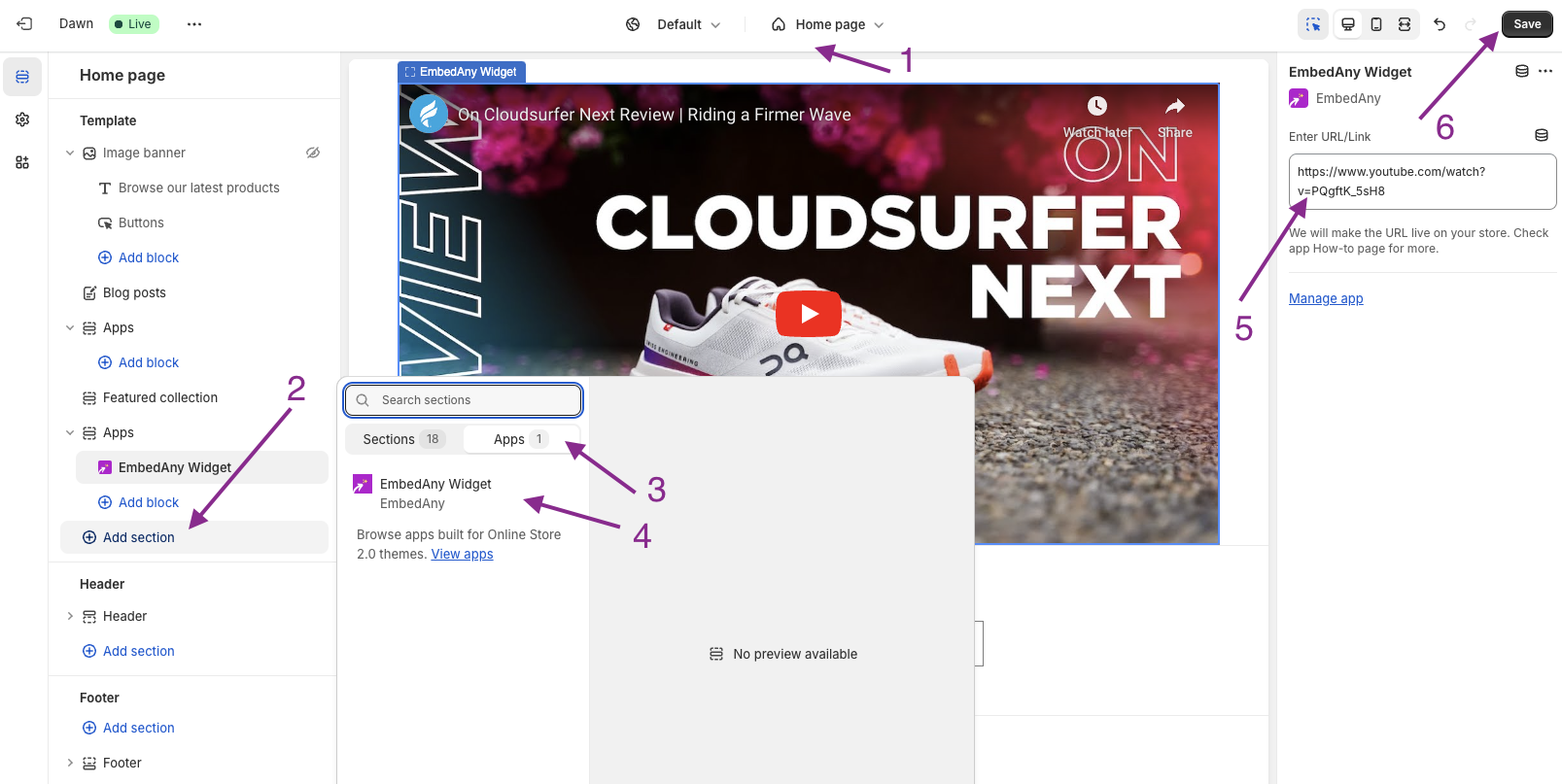
You can add the EmbedAny Integration to your theme as a section. Don’t worry, about i button, it’s not needed when adding as a section.
- Go to your Shopify Admin.
- Click on Online Store > Themes > Customize.
- Select the template, for example “Home page”.
- Click on Add Section, where you want to add a “live link”.
- Select Apps > EmbedAny Widget.
- Paste the URL/link and Save.
- That’s it! You will see the link is converted to an interactive content.
Ps. if you’re using a Vintage Shopify theme, this section feature will not be available. But you can still make links italic and this works charm.
Embed a social feed
EmbedAny may not be the best tool for embedding a social feed or collection. Though, it supports feeds like Instagram profile, Pinterest profile etc.
But EmbedAny shines at embedding single posts or videos with extreme ease. And you can embed as many as you want, anywhere in your store.
However, you can embed multiple posts in each line or column like normal. This will make it look like a curated feed instead of something you don’t have control over.
Supported Services
EmbedAny supports over 800 websites and services. Check the full list.
Need Help?
If you encounter any issues or have questions about using EmbedAny, we’re here to help!
Contact Support:
- We literally feel happy to hear from you
- Reach out through the app dashboard or email [email protected]
- We take pride in going above and beyond
Tips for Success:
- Make sure EmbedAny Integration is enabled from the app dashboard
- First-time embeds may take a few seconds to load as content is imported
- After initial load, embeds will display smoothly
- Embeds will not slow down your store as they are loaded only when/before user interacts with them
- Talk to a real human - use the contact form or email us directly