How to Embed Figma Designs on Your Shopify Store: A Complete Guide

Want to showcase your Figma designs directly on your Shopify store? Whether you’re displaying product mockups, interactive prototypes, or design process illustrations, embedding Figma content can enhance your customer experience and boost conversions.
Why Embed Figma on Your Shopify Store?
Embedding Figma designs on your Shopify store offers several benefits:
- Interactive Showcases: Let customers interact with your product prototypes
- Design Process Transparency: Show how products were developed
- Enhanced Visual Experience: Provide richer content than static images
- Professional Presentation: Display your design skills directly on your store
Step-by-Step Guide to Embedding Figma on Shopify
Step 1: Install the EmbedAny App
Before you can embed Figma designs, you’ll need to install the EmbedAny app:
- Visit EmbedAny on the Shopify App Store
- Click “Add app” and follow the installation instructions
- Activate the app on your store
Step 2: Get Your Figma Link
You’ll need a shareable Figma link to embed:
- Open your Figma design
- Click the “Share” button in the top right
- Set appropriate permissions (typically “Anyone with the link can view”)
- Copy the link to your clipboard
Step 3: Add the Figma Link to Your Store
Now it’s time to embed your Figma design:
- Go to the page where you want to embed your design (product page, blog post, etc.)
- Open the rich text editor
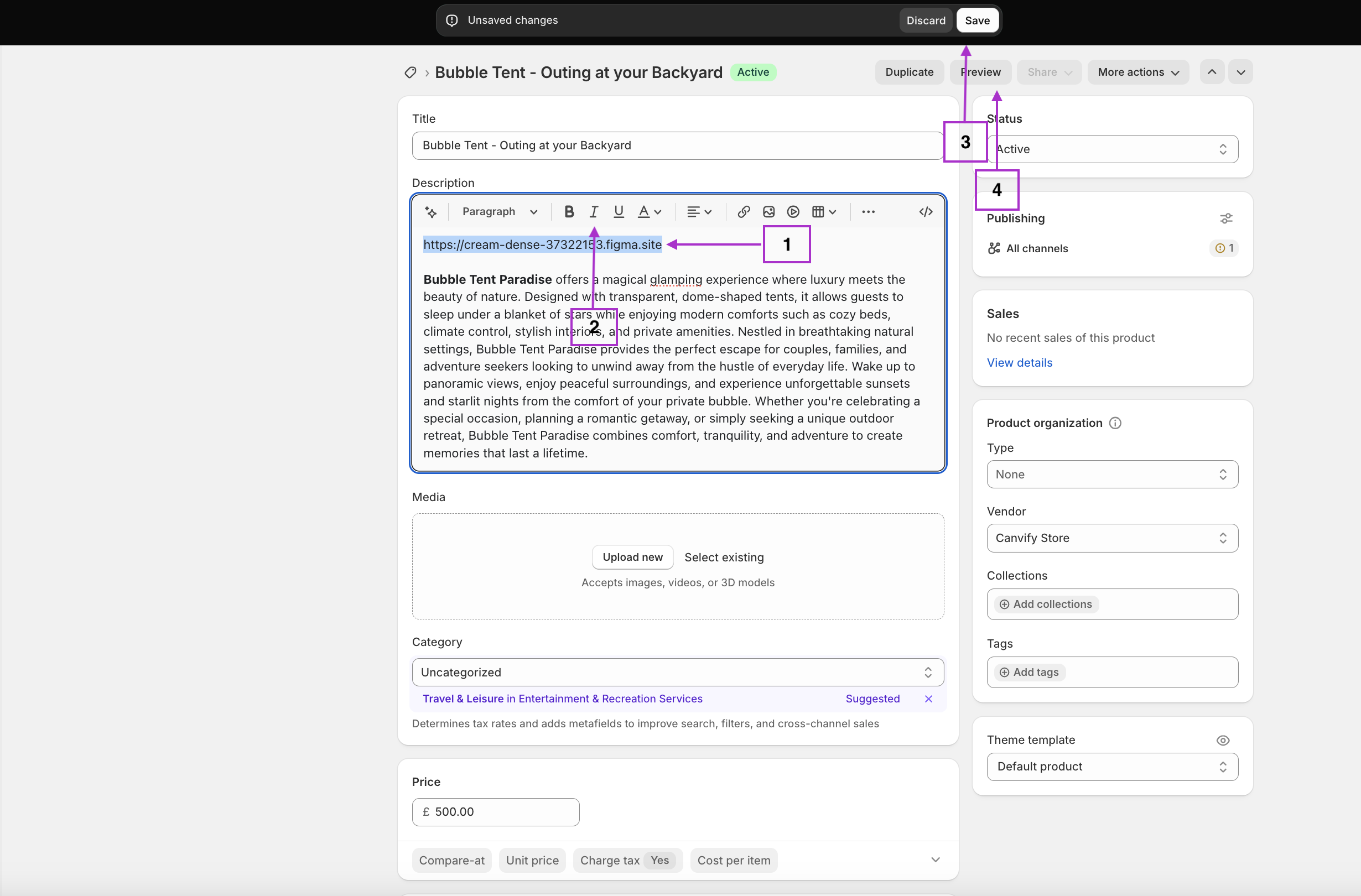
- Paste your Figma link
- Important: Make the link italic by selecting it and clicking the italic button (or using the keyboard shortcut)
- Save your changes
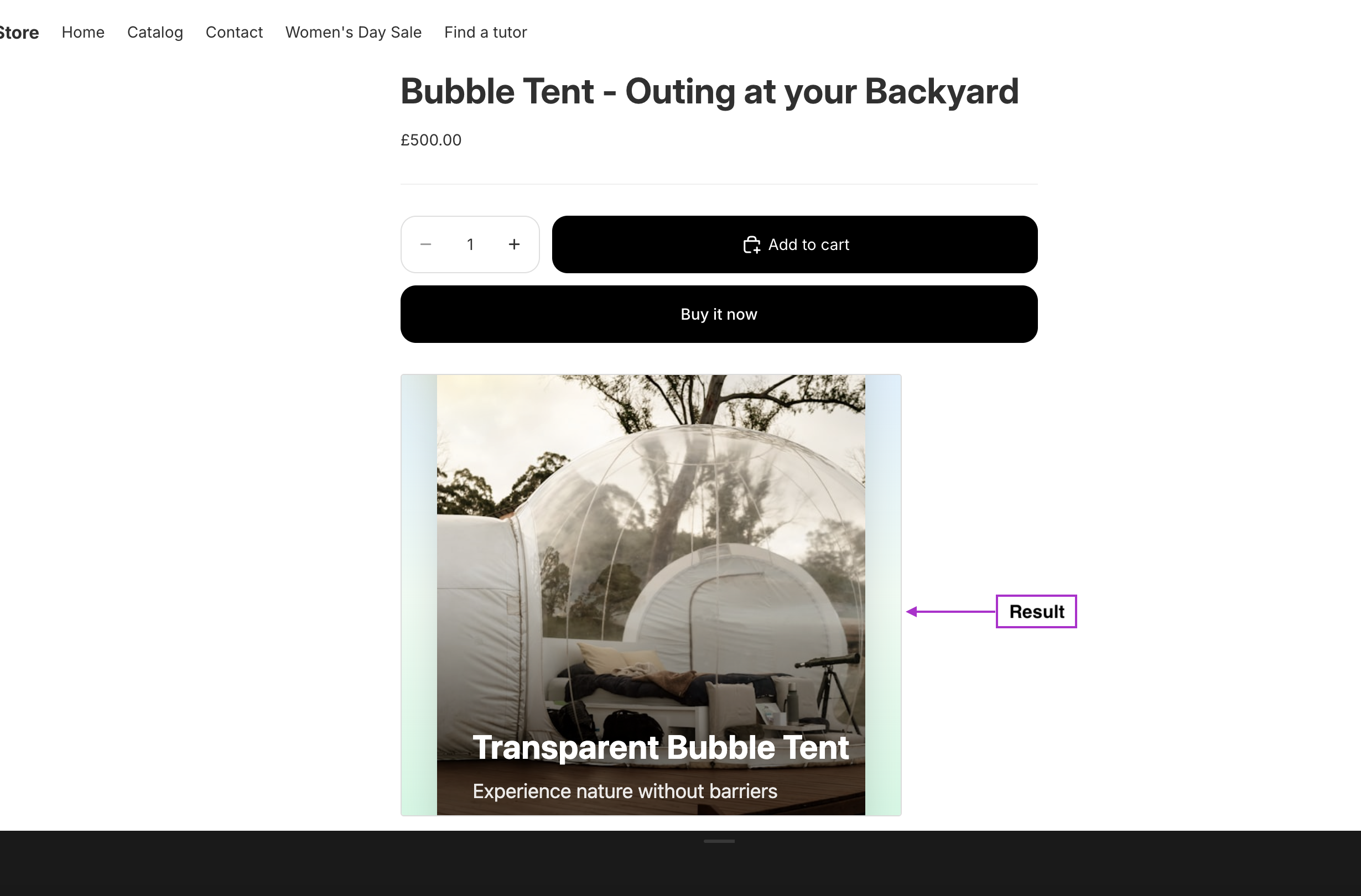
That’s it! EmbedAny will automatically transform your italicised Figma link into an interactive embed that customers can view and interact with directly on your store.
Tips for Effective Figma Embeds
- Choose the Right Content: Embed designs that add value for your customers
- Size Appropriately: Make sure your embedded Figma designs display well on mobile devices
- Loading Speed: Consider the complexity of your Figma designs as very large files may impact page loading speeds
- Contextualise: Add explanatory text around your embeds to help customers understand what they’re seeing
Examples of Figma Embeds on Shopify
- Product prototypes showing how features work
- Design process documentation for custom products
- Interactive colour or material selectors
- Design portfolios within your About page
Embedding Figma designs into your Shopify store is a powerful way to enhance your customer experience with interactive content. Using EmbedAny makes this process simple—no coding required. Just paste, italicise, and save to transform your store with engaging Figma content.