How to Embed Apple Music on Shopify Stores with EmbedAny
Are you looking to showcase your favourite Apple Music tracks, albums or playlists on your Shopify store? Whether you want to create a musical atmosphere for your brand or share playlists that complement your products, embedding Apple Music content can enhance your customers’ shopping experience.
Why Embed Apple Music on Your Shopify Store?
- Showcase playlists that match your brand’s aesthetic
- Share new music releases relevant to your products
- Create themed shopping experiences with curated soundtracks
- Increase dwell time on your pages with interactive music content
Step-by-Step Guide to Embedding Apple Music
Step 1: Install EmbedAny on Your Shopify Store
First, you’ll need to install the EmbedAny app from the Shopify App Store. Visit EmbedAny and click “Add app” to install it on your store.
Step 2: Find the Apple Music Content You Want to Embed
Go to Apple Music and find the track, album or playlist you want to share on your store. Most Apple Music content can be embedded, including:
- Individual songs
- Full albums
- Custom playlists
- Artist profiles
Step 3: Copy the Apple Music Link
Once you’ve found the perfect music content:
- Click the three dots button just beside your Apple Music content
- Select “Copy Link” from the menu
- The link will be saved to your clipboard
Step 4: Add the Link to Your Shopify Store
Now comes the magic part! Navigate to where you want to display the Apple Music content on your Shopify store:
- Open the product description, page, or blog post editor
- Paste the Apple Music link into your content
- Important step: Make the link italic by selecting it and clicking the italic button (or using keyboard shortcuts)
- Save your changes
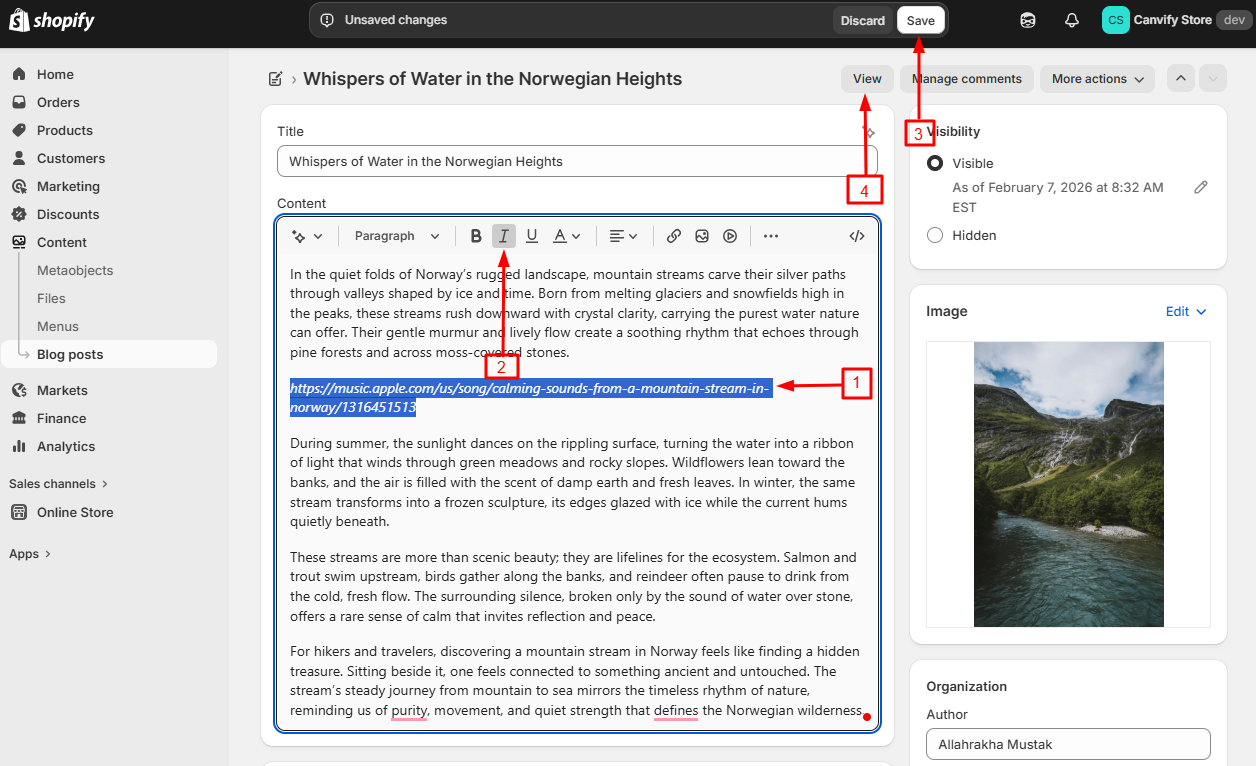
Once you save your changes, the plain Apple Music link will automatically transform into an interactive Apple Music player on your store.
 Your customers can now listen to the tracks directly within your store without having to leave to another site.
Creative Ways to Use Apple Music Embeds
- Create “Shop the Look” collections with matching playlists
- Feature music that inspired your latest product line
- Share seasonal playlists that complement your merchandise
- Add background music suggestions to enhance product usage
That’s it! With EmbedAny, embedding Apple Music on your Shopify store is as simple as pasting a link and making it italic. No coding knowledge required, and your customers will enjoy an enhanced shopping experience with your curated music selections.