
How to Create Custom Embed Sections with Shopify AI
Shopify Sidekick can generate custom sections for your store using simple prompts. When combined with EmbedAny, this becomes a powerful way to create completely custom layouts for your embeds without writing code yourself.
The key idea is simple: Always ask Sidekick to create text fields.
EmbedAny converts italicized links into live widgets. So if Sidekick creates sections that contain text fields, you can paste links into those fields, italicize them, and EmbedAny will automatically transform them into interactive embeds.
Important Prompting Rule: When prompting Shopify Sidekick, always mention that:
- Each item should be a text field.
- The text field should support bold and italic formatting.
To access Shopify Sidekick, follow these steps:
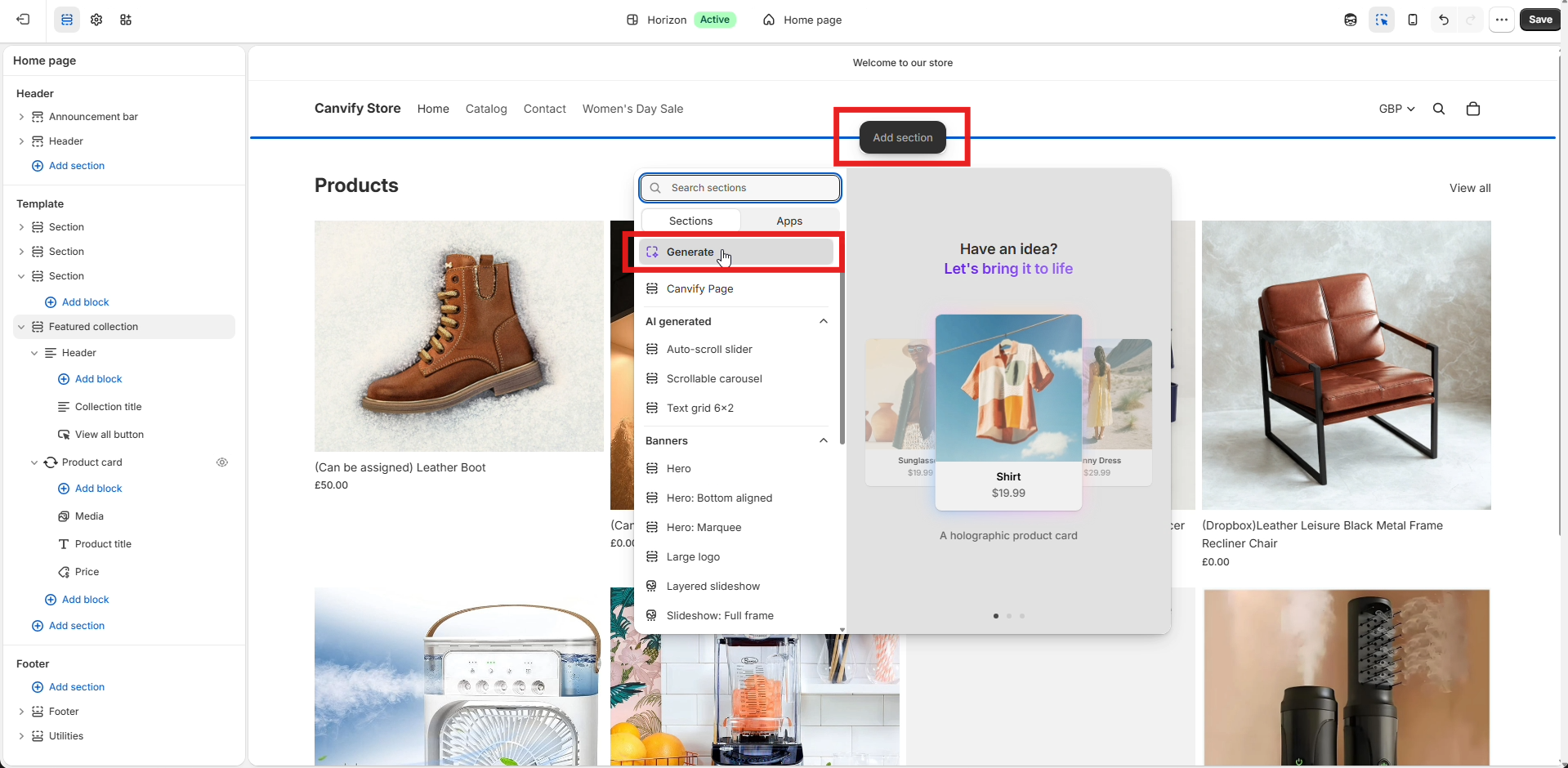
- ‘Add Section’ in theme editor and click ‘Generate’.
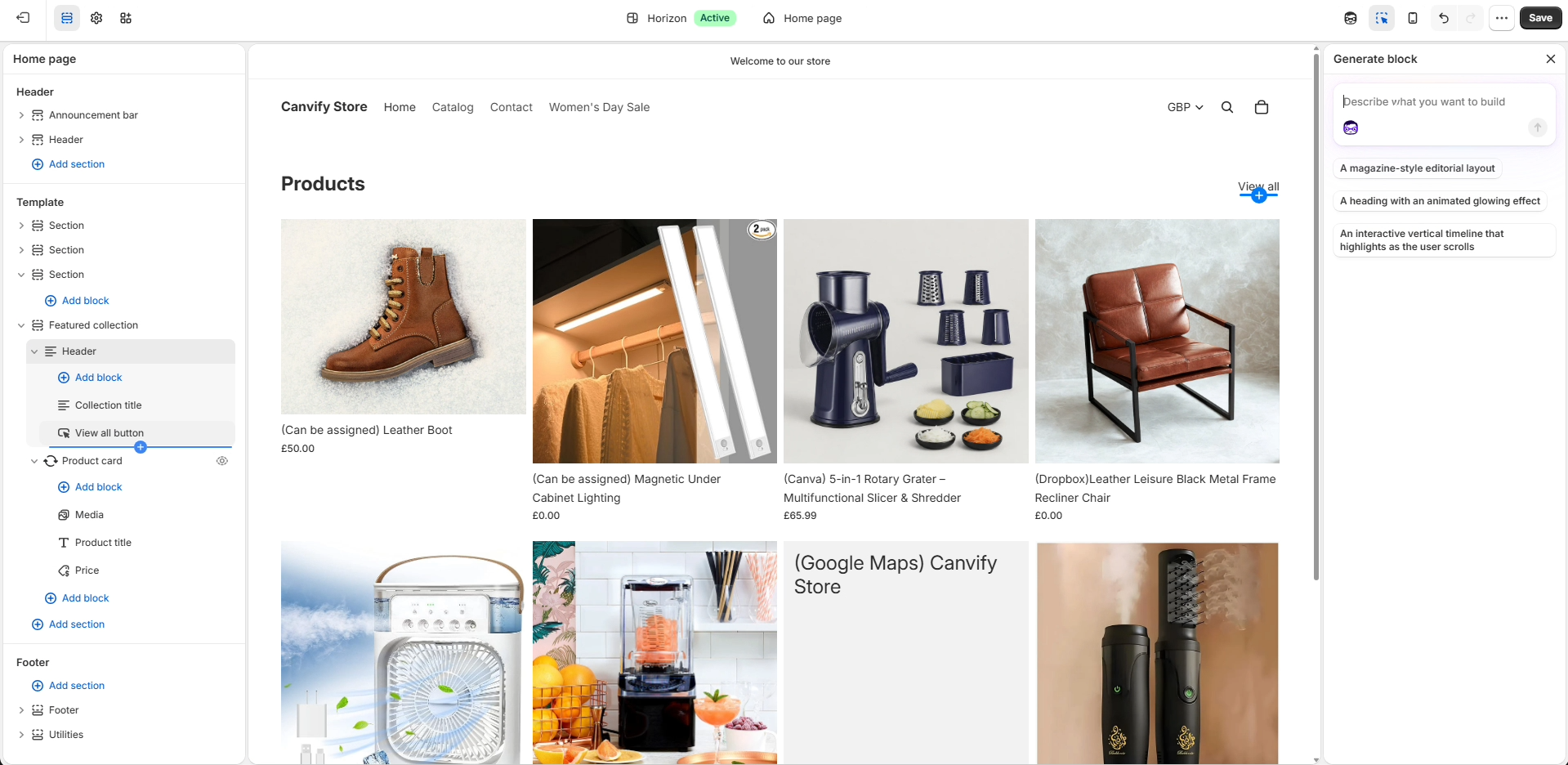
- Type your prompt in chat window on the right.
Example #1: Create Auto-Sliding YouTube Slides
Prompt:
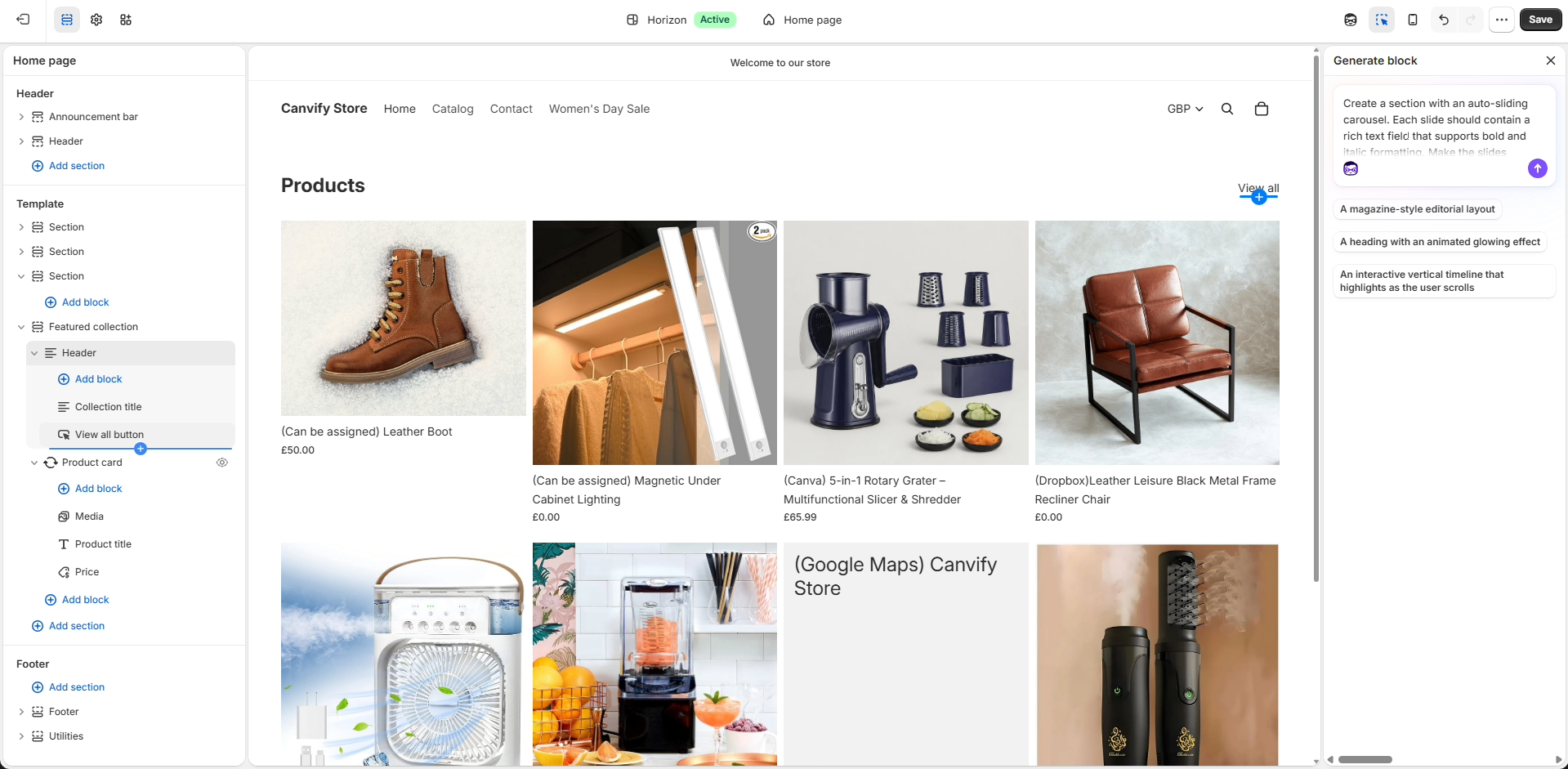
Create a section with an auto-sliding carousel. Each slide should contain a rich text field that supports bold and italic formatting. Make the slides automatically rotate every few seconds.
Once generated:
- Click each slide’s text field.
- Paste YouTube links into the text field.
- Italicize each link.
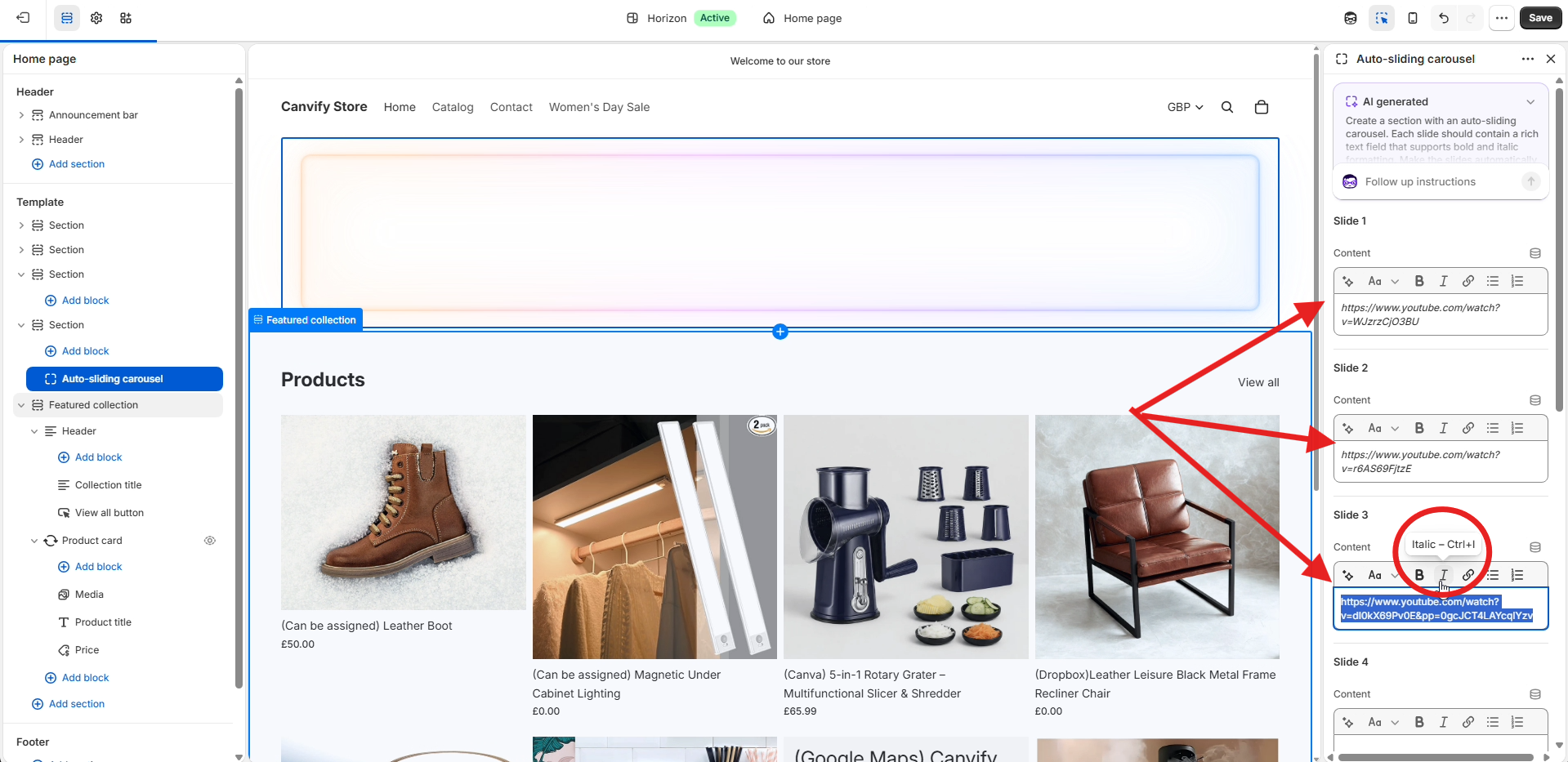
- Save.
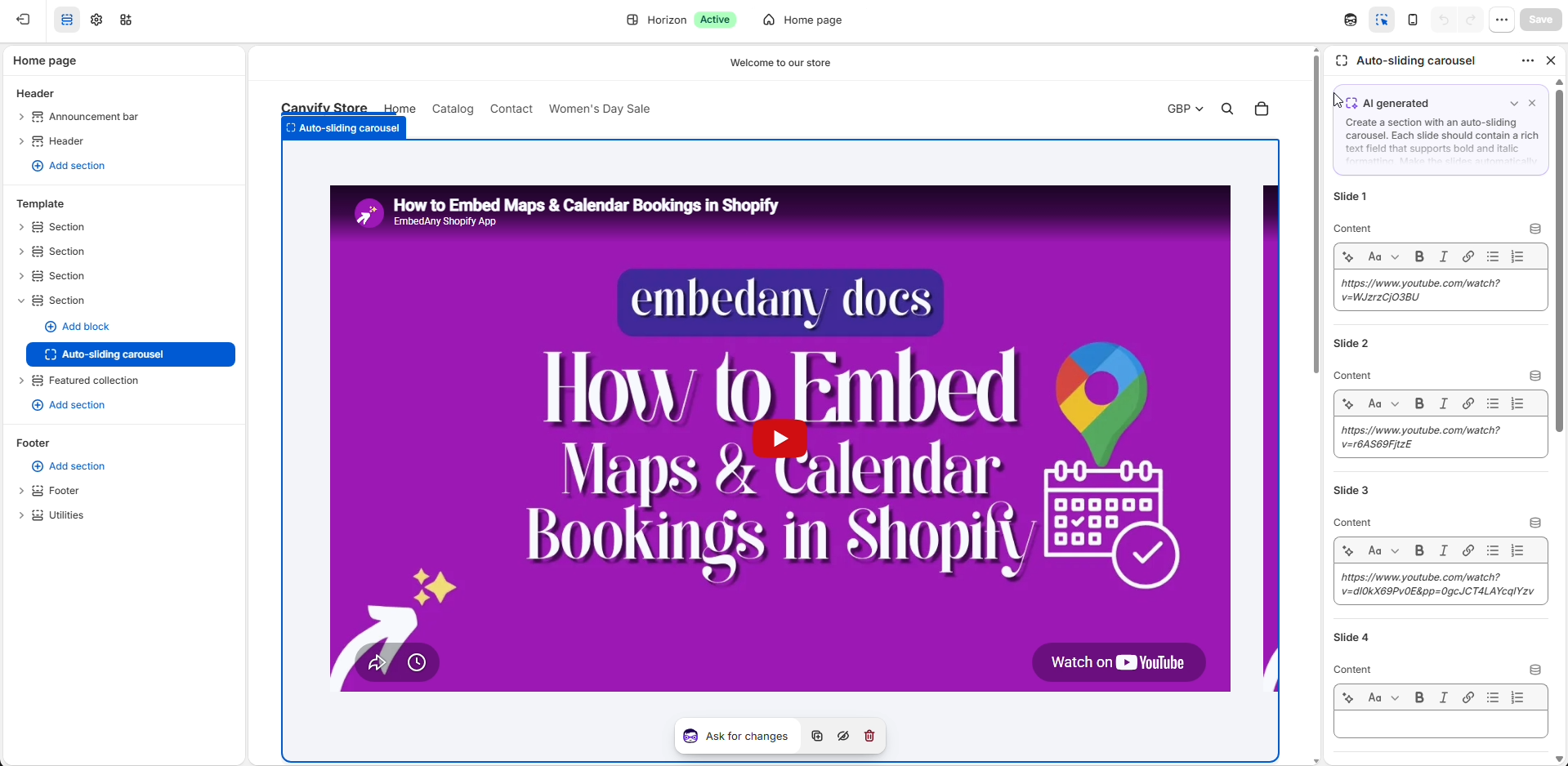
EmbedAny converts the links into video widgets while Shopify handles the carousel.
Example #2: Create a 4×2 Grid Layout
Prompt:
Create a responsive 4 by 2 grid section. Each grid item should contain a rich text field that supports bold and italic formatting.
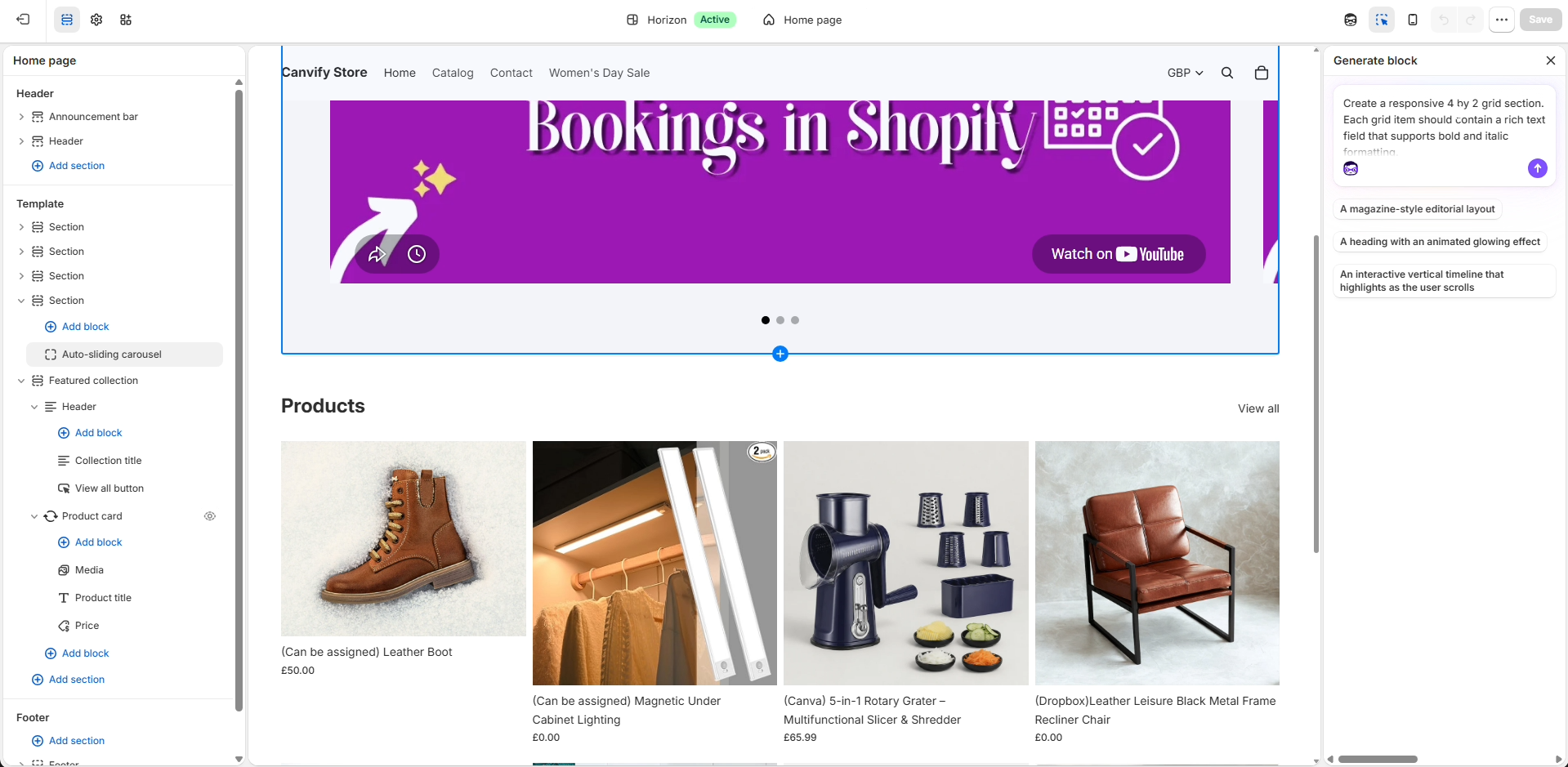
Once generated:
-
Paste links into the grid cells.
-
Italicize the links.
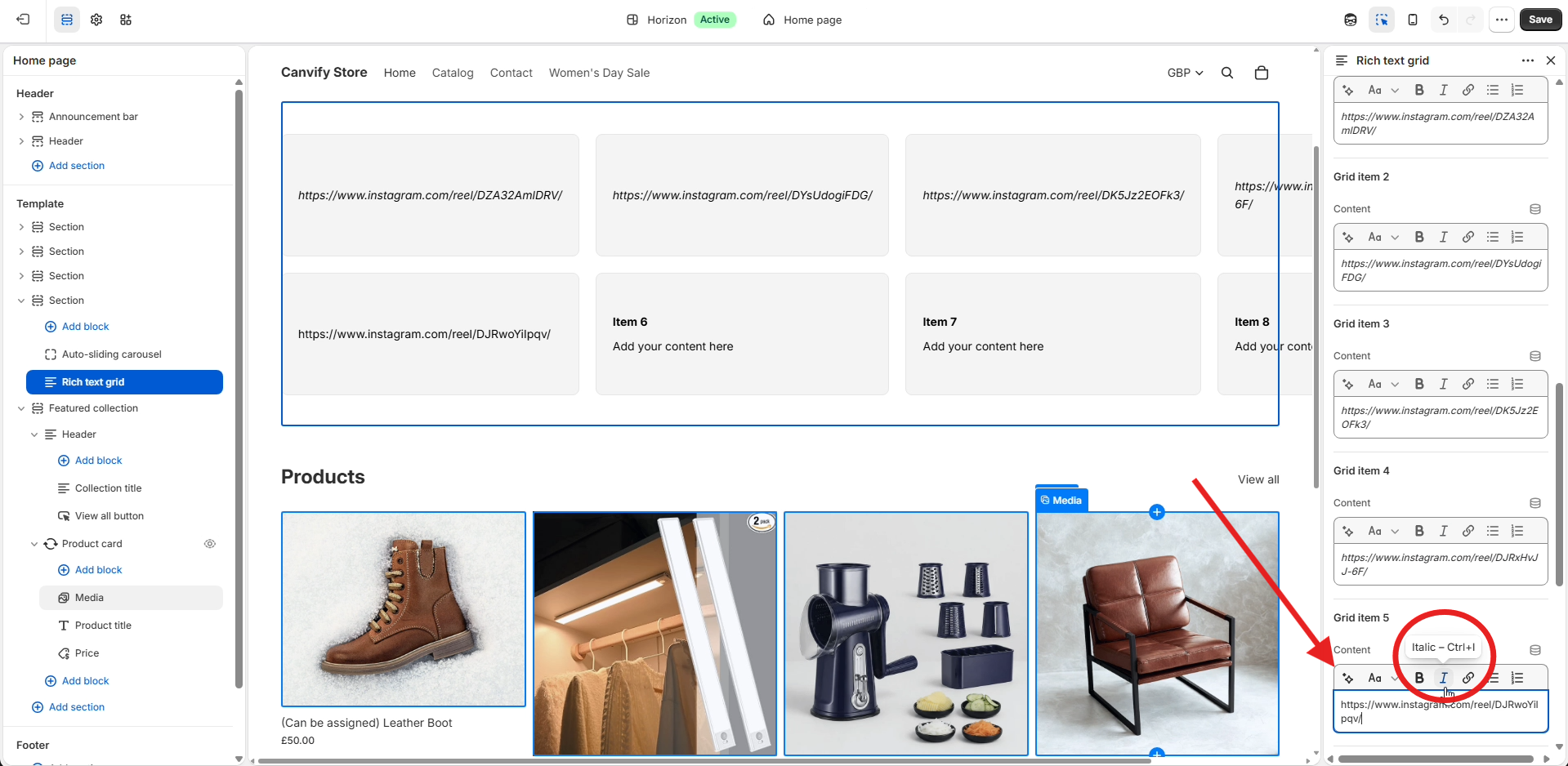
-
Save.
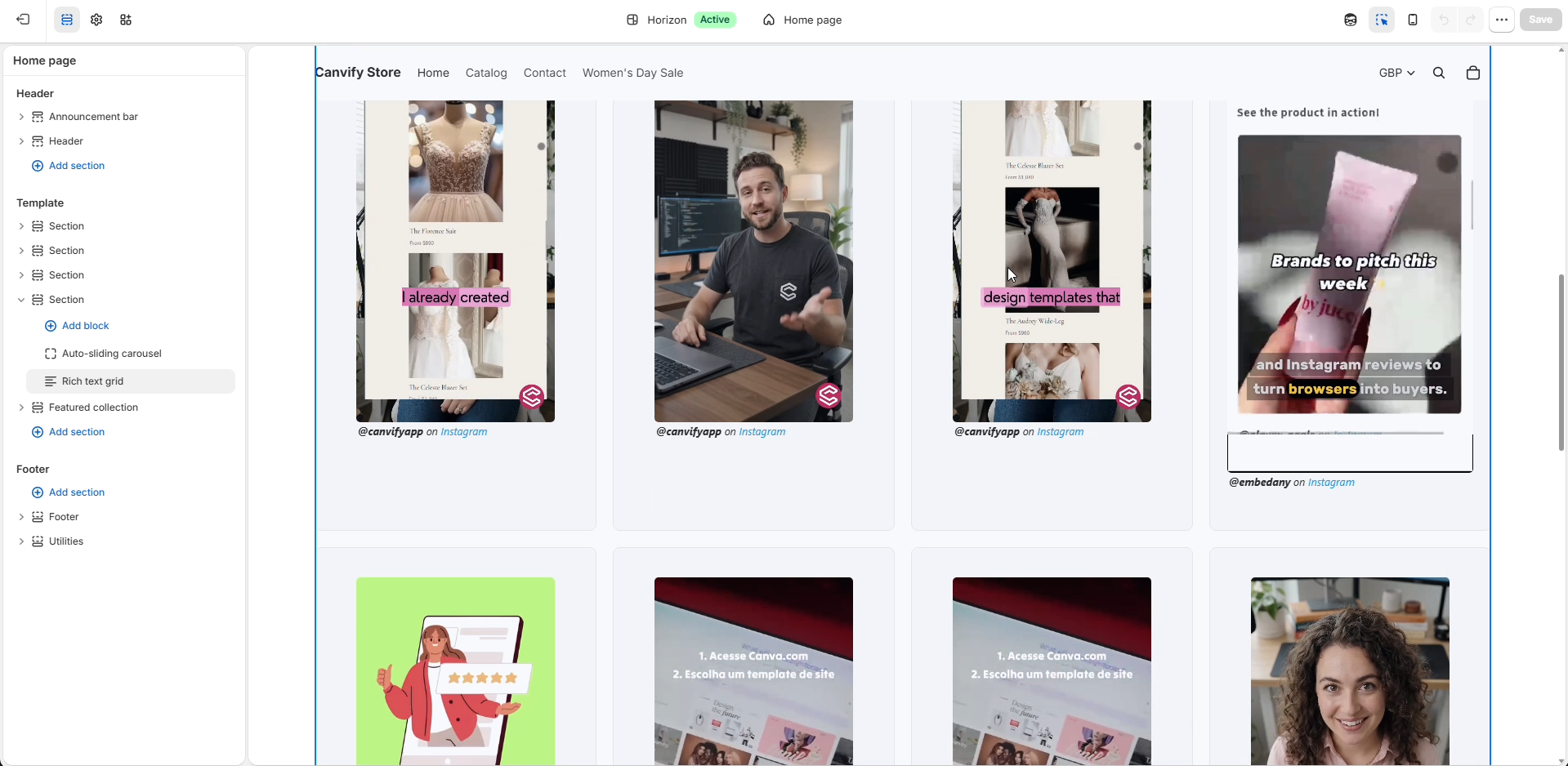
You now have a grid of videos, PDFs, maps, forms, social posts, or any other EmbedAny-supported content.
Example #3: Create a Scrollable Carousel
Prompt:
Create a horizontally scrollable carousel containing 7 cards. The center card should appear in focus and larger than the others. Each card should contain a rich text field with support for bold and italic formatting.
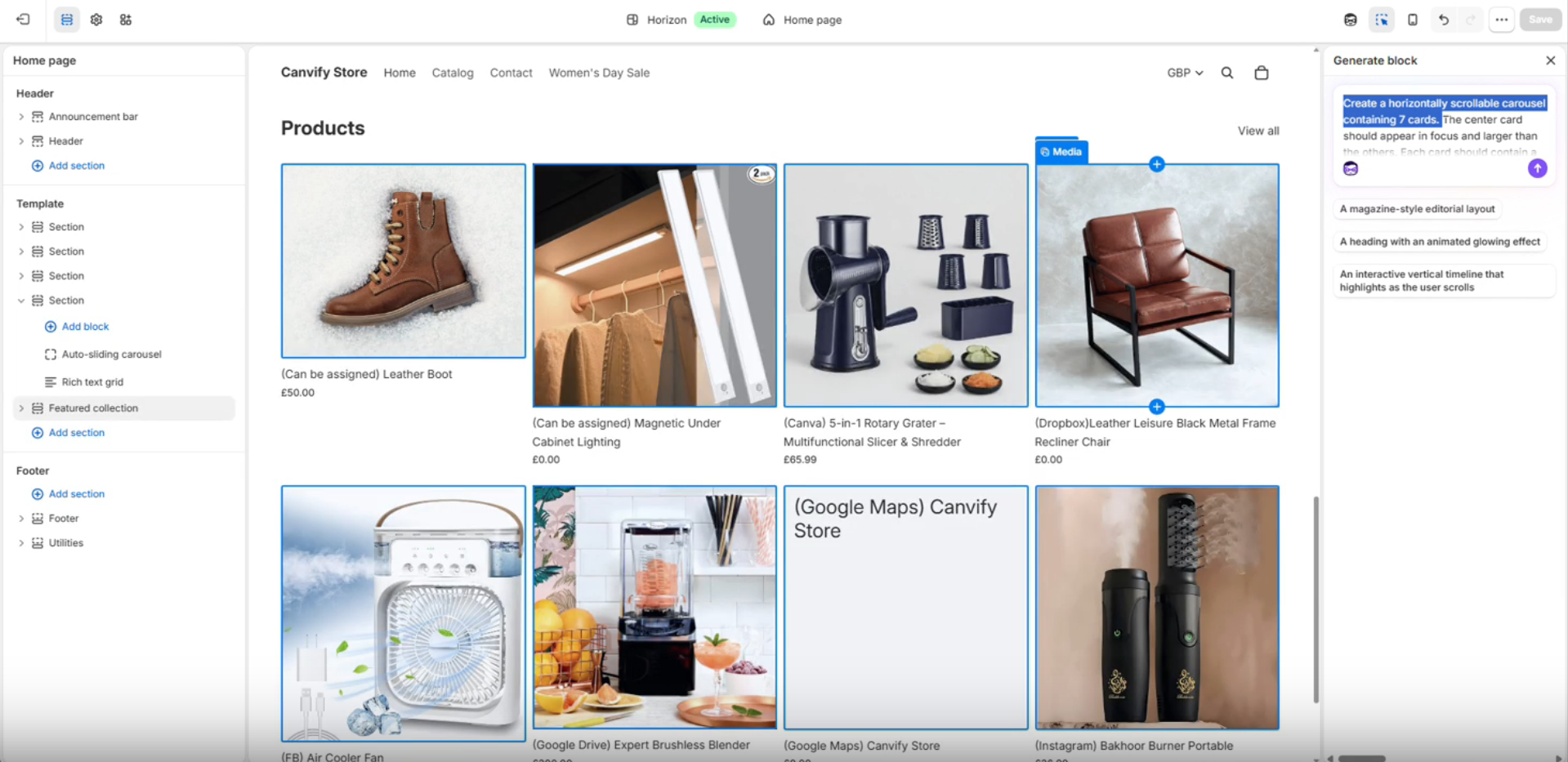
Once generated:
-
Add links to each card.
-
Italicize them.
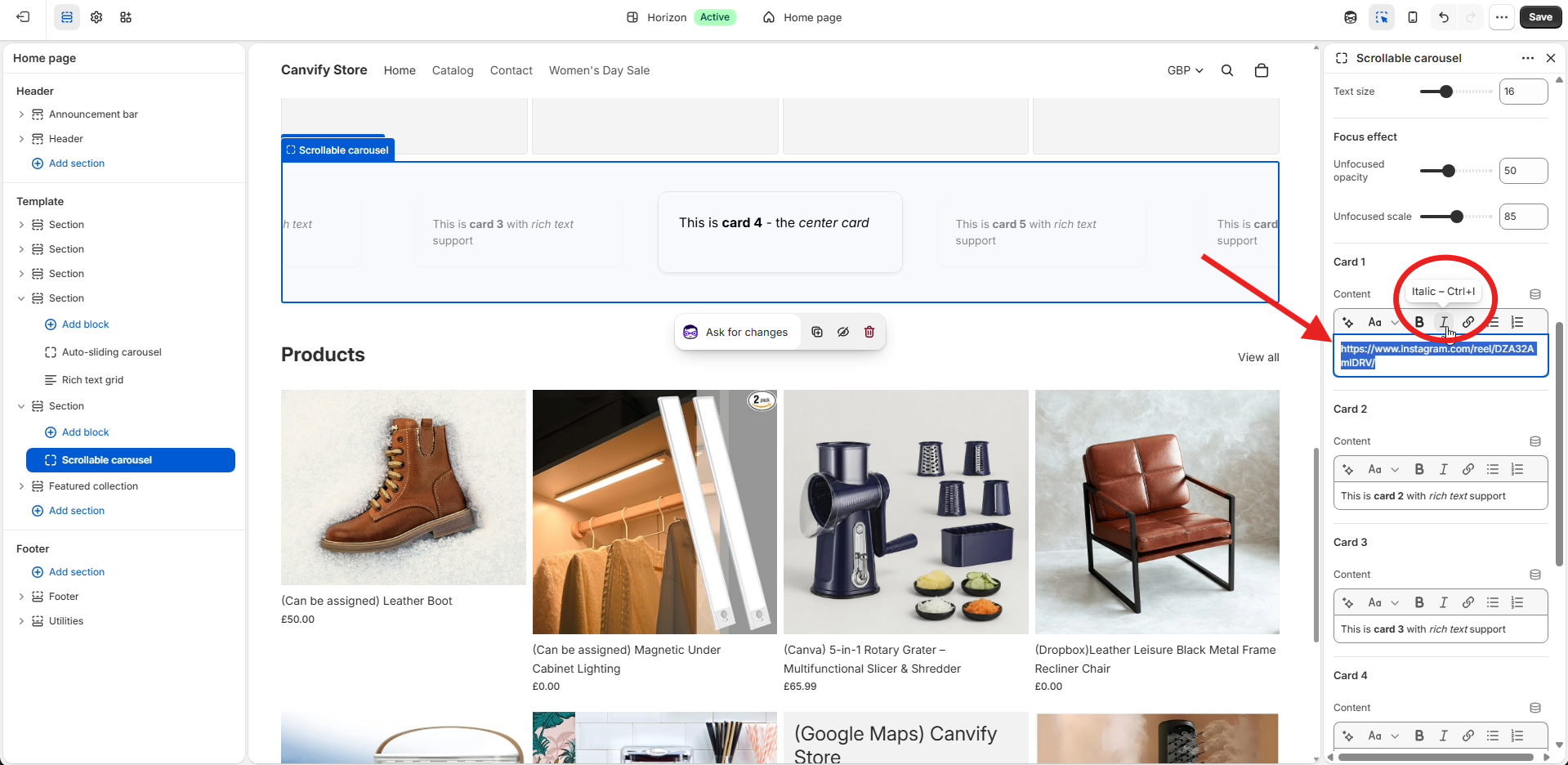
-
Save.
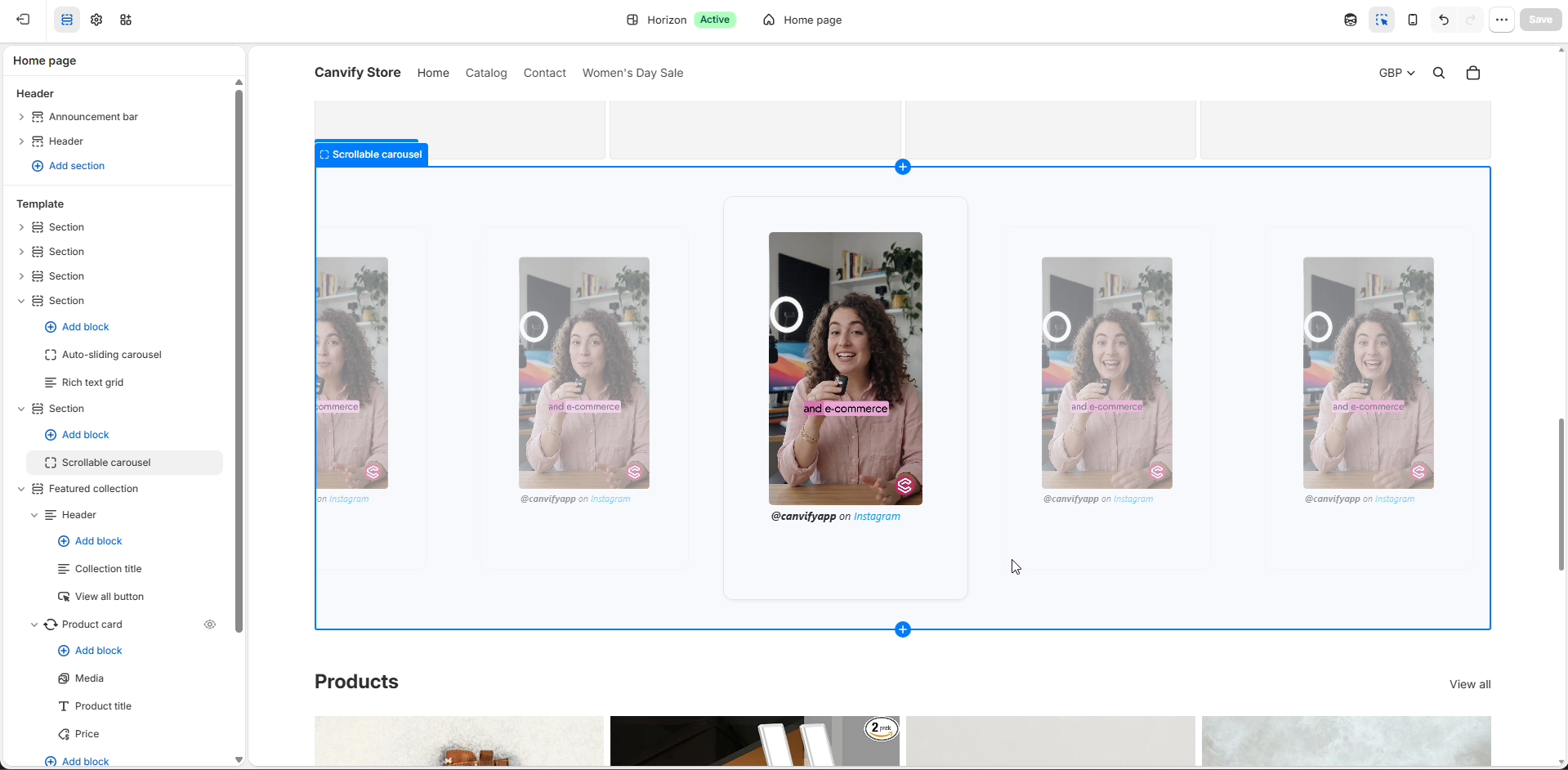
The result is a custom carousel filled with EmbedAny widgets.
Why This Works
Shopify Sidekick creates the layout and EmbedAny provides the content. As long as Sidekick creates editable text fields, you can paste links, italicize them, and instantly transform them into:
- Videos
- Forms
- PDFs
- Slides
- Calendars
- Maps
- Social media posts
- And hundreds of other supported embeds
This allows you to build highly customized Shopify experiences without touching code.