
Shopify Iframe Not Working? Here's Every Fix (And a Faster Way)
 Abdullah Shahid
You paste the embed code. You save the page. You preview it. And nothing loads.
Or worse… you see a blank white box, a spinning loader that never finishes, or that dreaded browser message: “Refused to connect.”
If your Shopify iframe isn’t working, you’re not alone. It’s one of the most common technical complaints I see from Shopify store owners and it comes in about six different flavors, each with its own cause and fix.
In this guide, I’ll walk through every major iframe problem in Shopify, explain exactly why each one happens, and give you the fix. Then I’ll show you why most merchants eventually stop fighting with iframe code entirely and switch to a faster solution.
What Is a Shopify Iframe and Why Does It Keep Breaking?
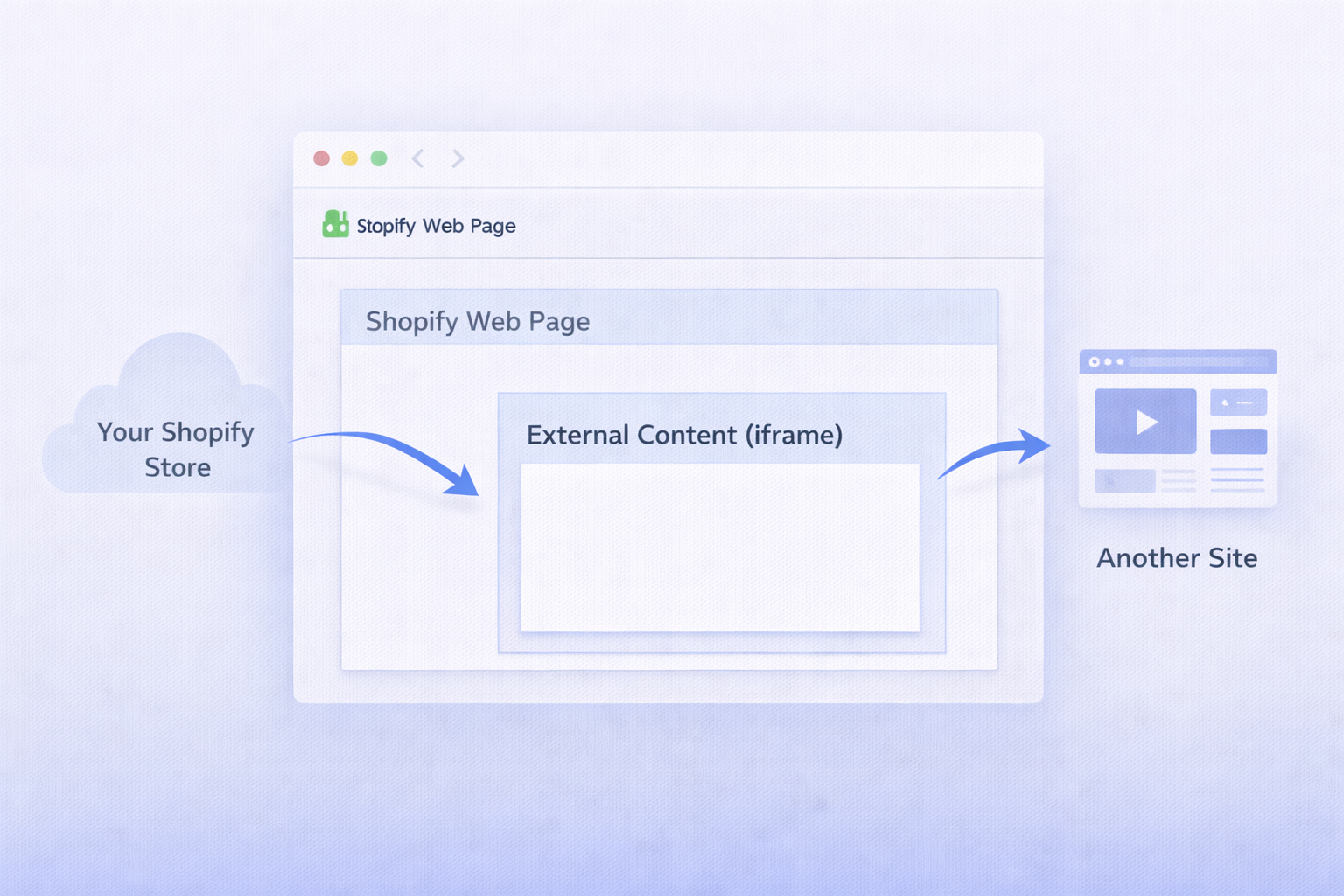
An iframe (short for “inline frame”) is an HTML element that lets you embed content from another website inside your own page. On paper, it’s a simple concept: you paste an embed code, and external content appears on your Shopify store.
In practice, Shopify makes this harder than most platforms. There are two reasons for that.
First, Shopify’s rich text editor actively strips or modifies HTML code it doesn’t recognize as safe, including iframe tags in many cases. Second, browsers and external platforms enforce security policies (called Content Security Policies or CSP) that control what can and cannot be embedded inside a frame.
The result is that raw iframe code that works perfectly on a WordPress site often breaks immediately on Shopify. The fix depends on which specific problem you’re hitting.
Problem 1: “Refused to Connect” or “Frame-Ancestors” Error
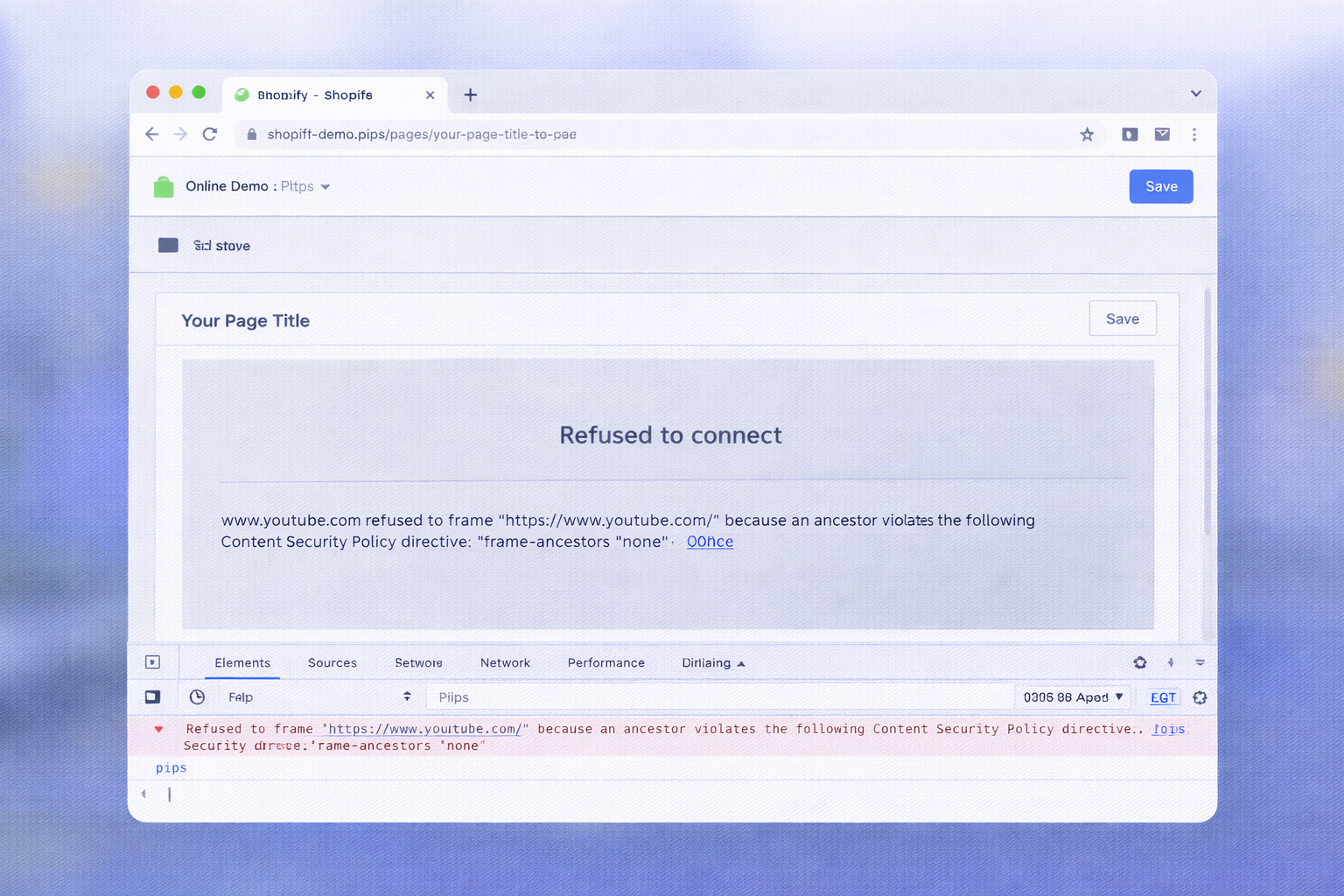
This is the most common Shopify iframe error, and it has nothing to do with your code. When you see a message like “Refused to frame [URL] because an ancestor violates the following Content Security Policy directive: frame-ancestors ‘none’” and what that means is the platform you’re trying to embed has explicitly told browsers not to allow it to be loaded inside any iframe.
Google, Facebook, Instagram, and many other major platforms set X-Frame-Options: DENY as a security measure. It prevents clickjacking attacks, and it also prevents you from embedding their pages directly.
There is no workaround for this on the browser level. If the platform has set frame-ancestors 'none', you cannot load it in an iframe regardless of what code you use or how you configure your Shopify store.
The fix: Don’t try to iframe the platform’s full page. Use the embed widget or share link that the platform specifically provides for embedding. Most social platforms offer this separately from their main URL. YouTube provides /embed/ links. Google Maps has a dedicated embed option. Instagram provides embeddable post links. These are designed to load inside iframes. The main URL of the platform itself is not.
Problem 2: Shopify Stripped My Iframe Code and Now It’s Gone
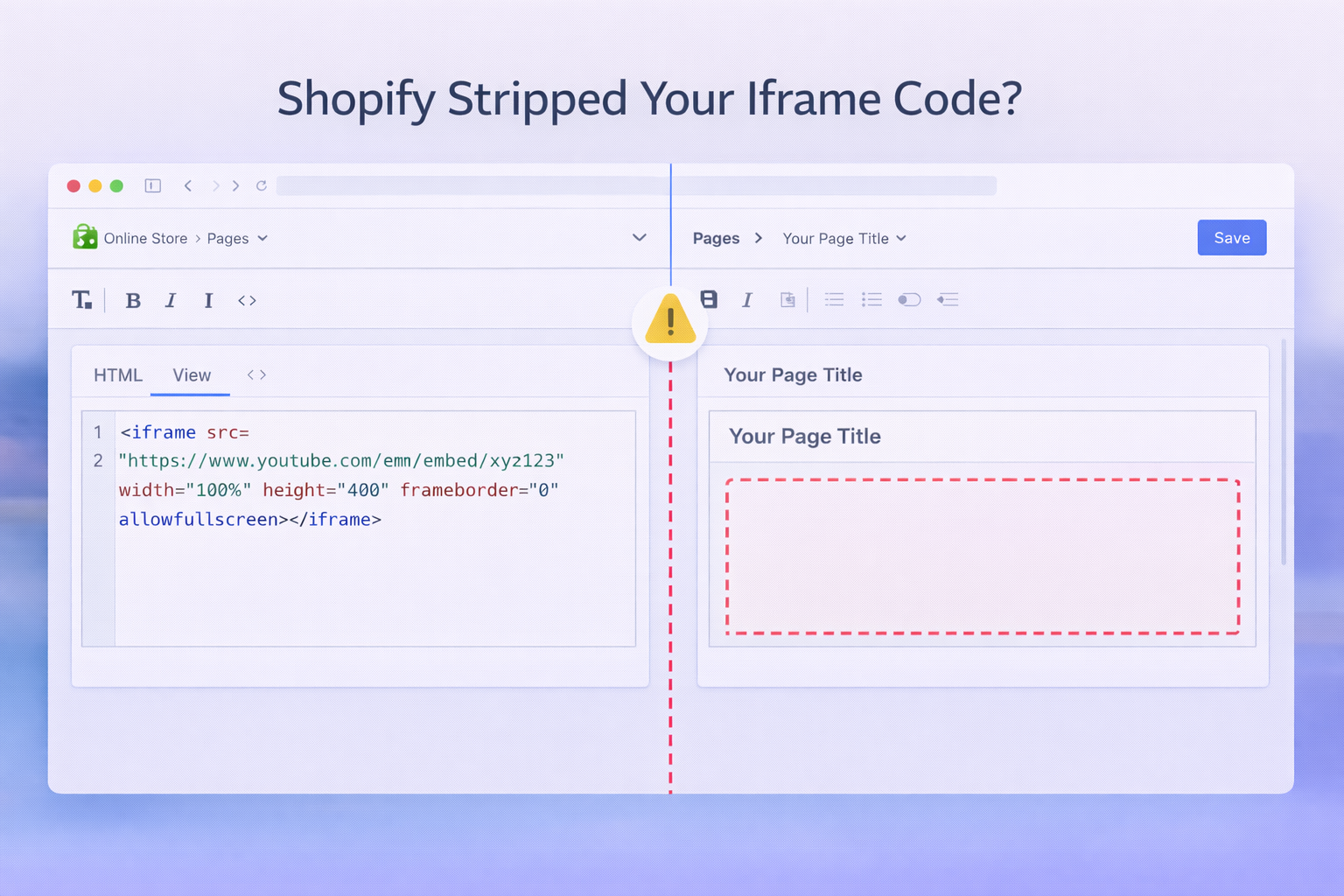
You paste your iframe code into the page editor, save, come back, and the entire <iframe> tag has disappeared. Or it’s been replaced with partial, broken HTML.
This happens because Shopify’s default rich text editor sanitizes HTML for security. It removes tags it considers potentially dangerous, and iframe tags are on that list.
The fix options:
Option A: Switch to the HTML view before pasting. In the Shopify page editor, click the <> icon to switch to HTML mode before pasting your embed code. Never paste iframe code in the visual editor, it will strip or mangle it. Switch to source view first, paste the raw HTML there, then save.
Option B: Use Custom Liquid sections. In the Shopify theme editor (not the page editor), you can add a Custom Liquid section and paste iframe code there directly. This bypasses the rich text sanitizer. Go to Online Store > Themes > Customize > Add section > Custom Liquid.
Option C: Use a code block in your page builder. If you’re using a page builder like PageFly, GemPages, or EComposer, most of them include a raw HTML or code block element that accepts iframe code without stripping it.
Problem 3: The Iframe Shows a Blank White Box
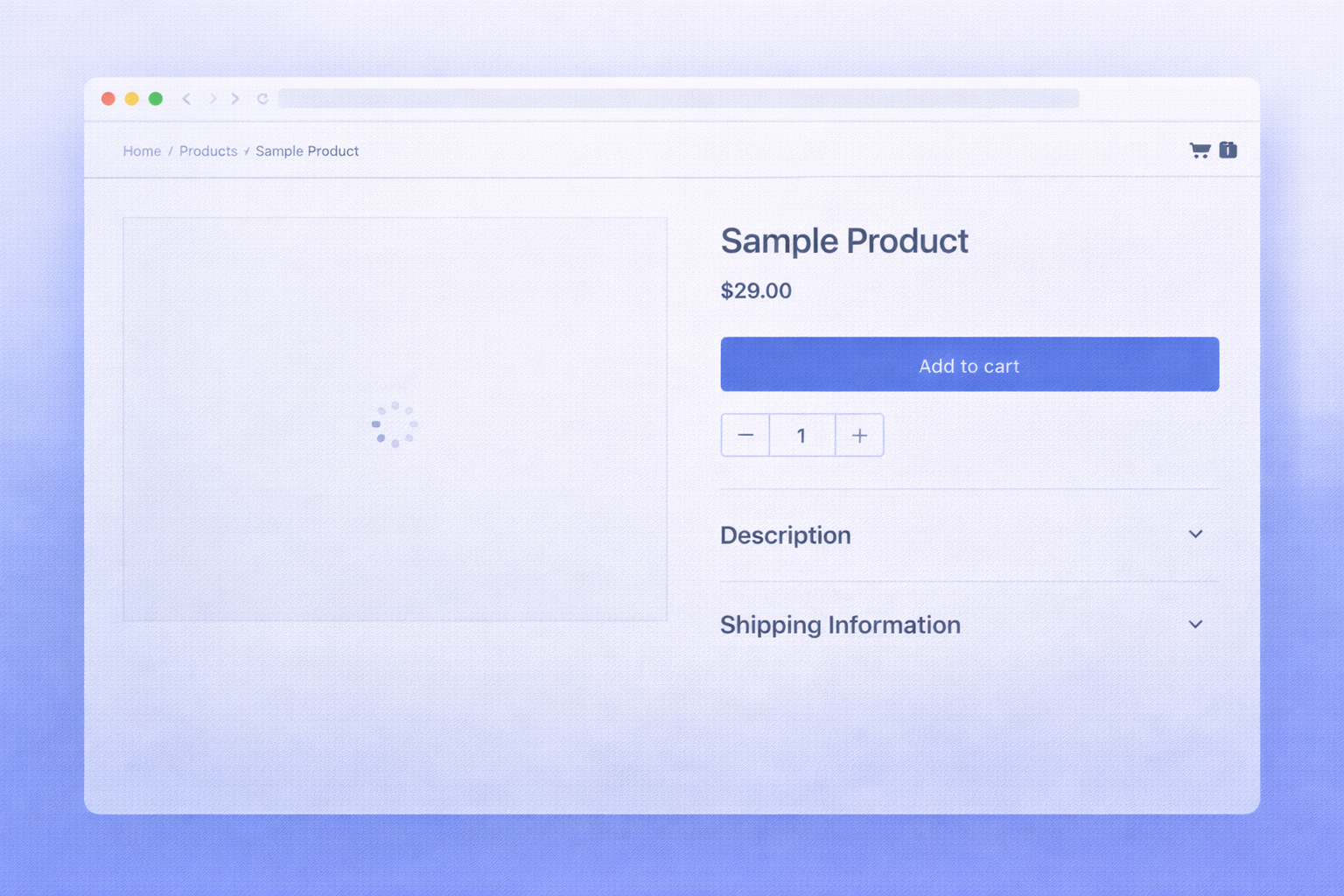
The embed code is there. Shopify didn’t strip it. But the iframe renders as an empty white rectangle on your page.
This usually means one of three things.
The URL is HTTP, not HTTPS. Shopify stores run on HTTPS. Modern browsers block mixed content, they won’t load HTTP resources inside an HTTPS page. If your embed URL starts with http:// instead of https://, it will silently fail. The fix is simple: change the URL in your iframe code to use https://. Most platforms support this now. If the platform only provides an HTTP URL, there’s no clean fix on the Shopify side.
The embedded page requires authentication. If the content is behind a login, the iframe will show blank to anyone not already logged in. This is common with Google Docs set to restricted access, or internal tools embedded via iframe. Make sure the content is set to public view before embedding.
A CORS or third-party cookie issue. Some platforms load content inside iframes using third-party cookies. Browsers increasingly block these by default. If the embedded platform relies on cookies to render, it may show blank in Safari or browsers with strict privacy settings. This is harder to fix at the Shopify level as it’s a browser security behavior.
Problem 4: The Iframe Is Not Resizing Correctly on Mobile
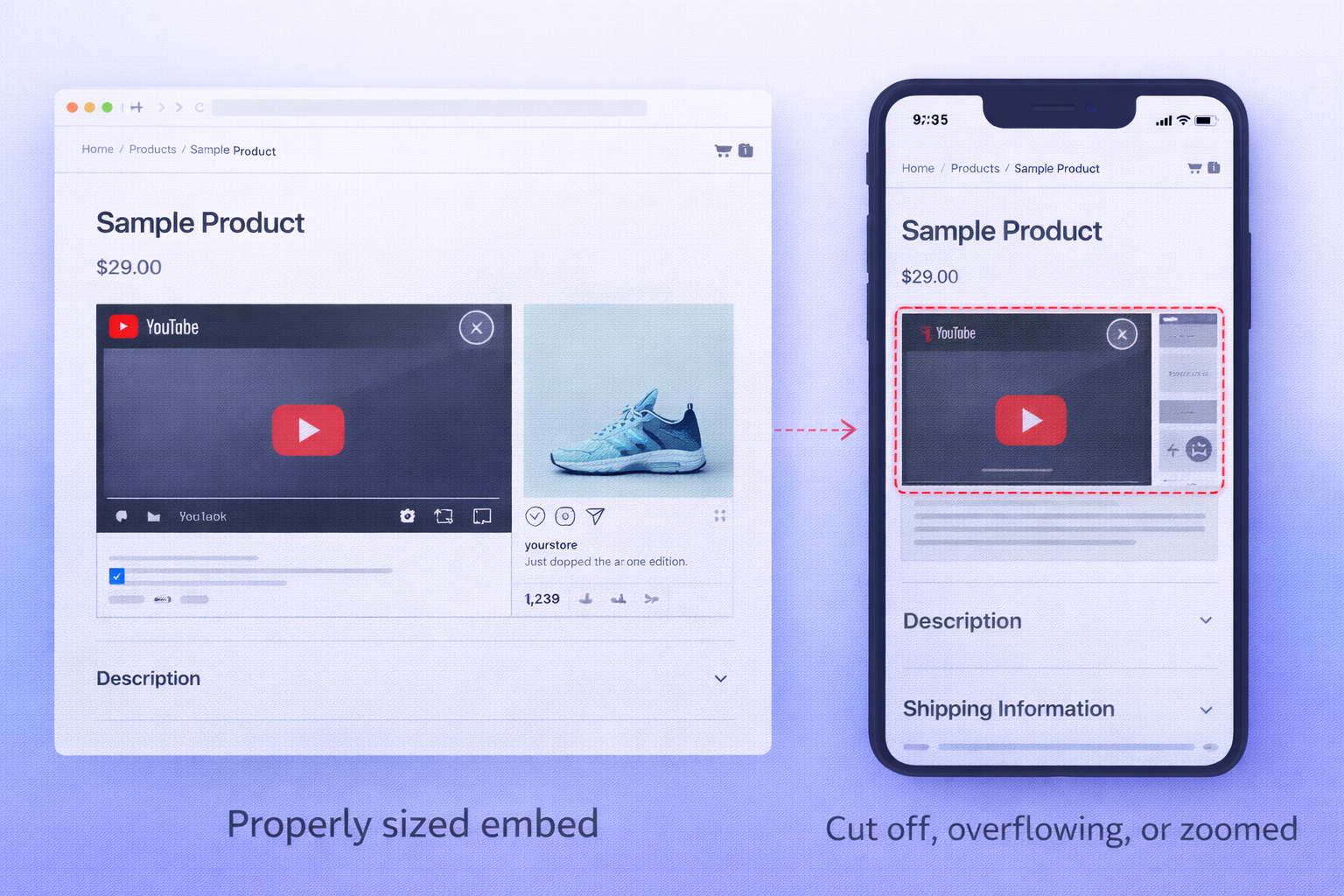
The embed looks fine on the desktop. On mobile, it’s cut off, overflowing, creating horizontal scroll, or collapsing to a tiny box.
This is one of the most annoying iframe problems because it looks like a design issue, but it’s actually a structural one.
Iframes do not automatically resize to fit their parent container. They render at a fixed pixel width and height, and if you’ve hard-coded those values (like width="800" height="400"), they won’t adapt to a 390-pixel-wide mobile screen.
The CSS fix: Wrap your iframe in a responsive container and use percentage-based sizing.
<div style="position:relative; width:100%; padding-bottom:56.25%; height:0;">
  <iframe src="YOUR_EMBED_URL" style="position:absolute; top:0; left:0; width:100%; height:100%;" frameborder="0"></iframe>
</div>
The padding-bottom: 56.25% creates a 16:9 aspect ratio. Change it to 75% for 4:3. This is a reliable way to make video embeds responsive without JavaScript.
For non-video content like forms or maps where the height is variable, you’ll need a JavaScript resize listener or a platform that natively supports responsive embedding. This is where raw iframe code gets genuinely complicated.
Problem 5: The Iframe Works on Desktop but Breaks After a Theme Update
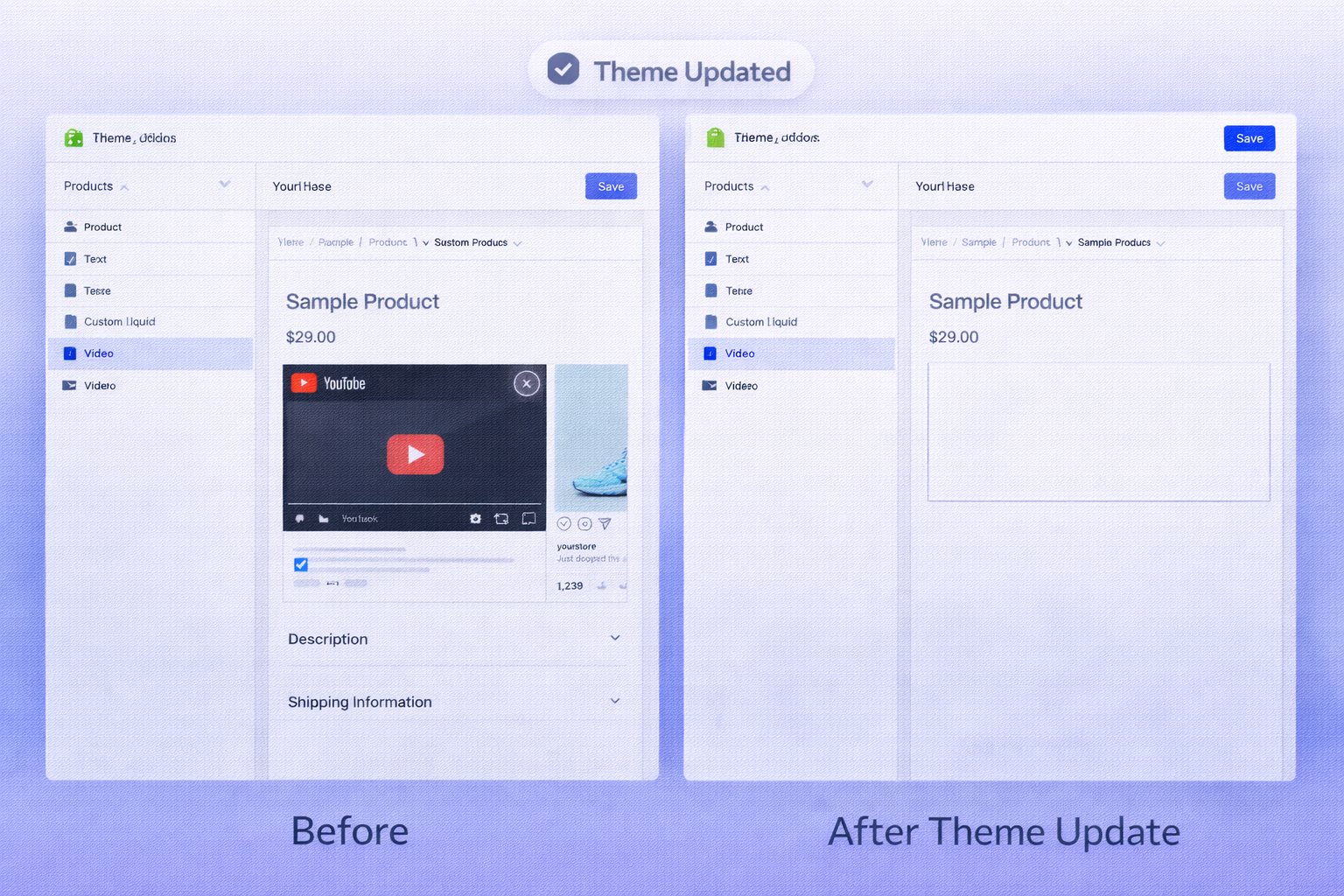
A theme update changes your store’s HTML structure. If your iframe was pasted into a section that got renamed, restructured, or removed during the update, the embed disappears or breaks.
This happens because raw iframe code in Custom Liquid sections or page HTML is not part of Shopify’s structured content system. It’s just raw code sitting in a specific slot. When that slot changes, the code goes with it.
The fix: Keep a record of every iframe embed you add and where you placed it. After any theme update, re-check those placements before going live. There’s no automated system to handle this, it’s manual maintenance.
This is one of the biggest hidden costs of managing raw iframe embeds at scale.
Problem 6: The Embedded Content Slows Down Your Store
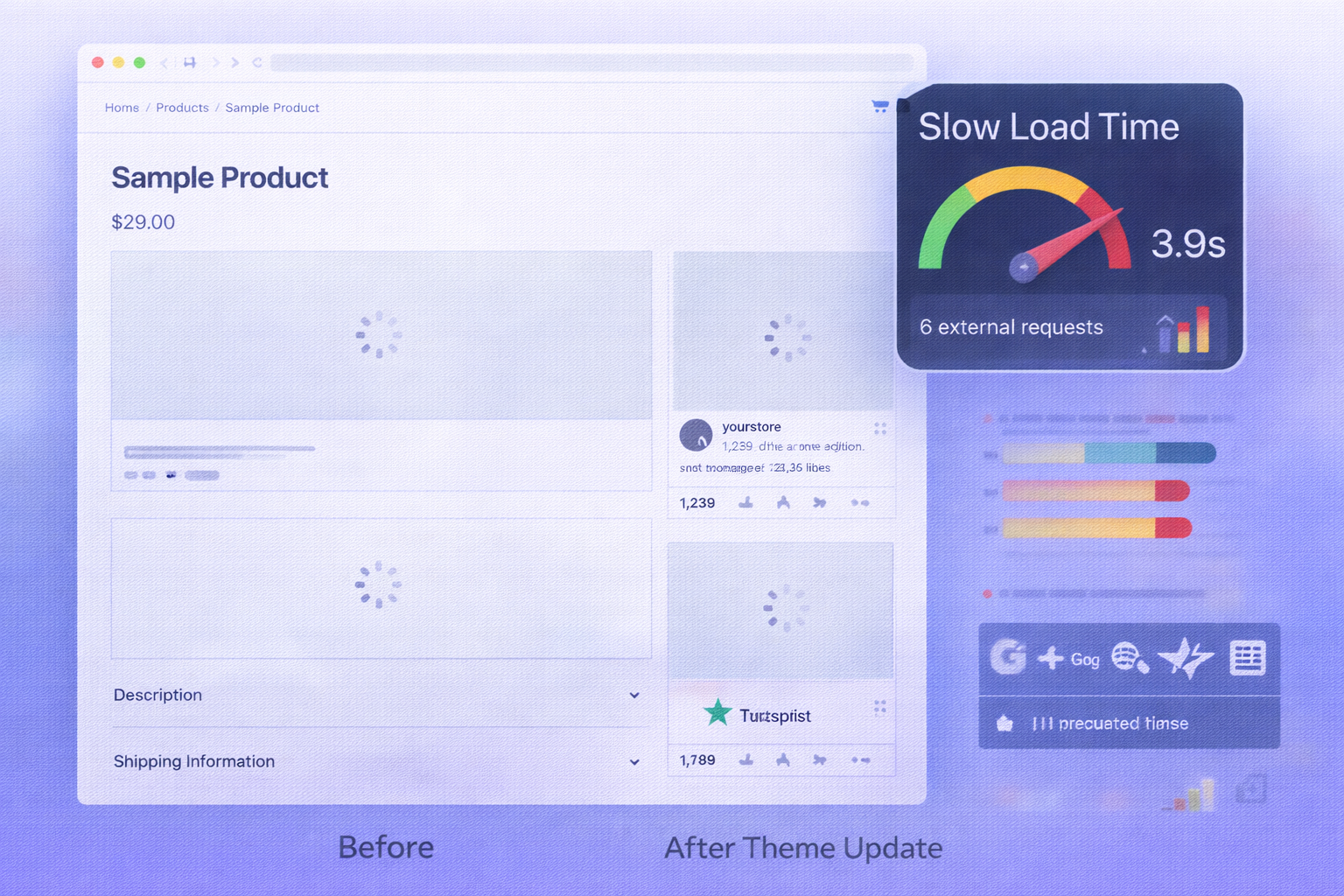
Every iframe on a page loads as a separate document with its own HTTP requests, scripts, and resources. On a product page with three or four iframes, this adds meaningful page weight.
According to research from Google and Deloitte, a one-second improvement in mobile load time increases conversions by approximately 7%. Iframes that load heavy external scripts can cost you multiple seconds.
The approach: Use loading="lazy" on your iframes to defer loading until the element is near the viewport:
<iframe src="YOUR_EMBED_URL" loading="lazy" width="100%" height="400"></iframe>This prevents off-screen iframes from blocking your initial page load. It won’t fix a fundamentally heavy embed, but it reduces the impact on above-the-fold load time.
Why Fighting with Iframe Code Is a Losing Game
I’ve walked through six distinct iframe problems. Each one has a different cause. Each fix requires a slightly different approach. Some require HTML knowledge. Some require CSS. Some require understanding browser security policy. Some have no good fix at all.
And even when you get all of that right, you’re left maintaining raw code across multiple pages, checking it after every theme update, testing it on every device, and debugging it when something silently breaks.
There’s a reason most Shopify merchants eventually stop trying to manage raw iframe code and look for a different solution.
The Faster Fix: EmbedAny

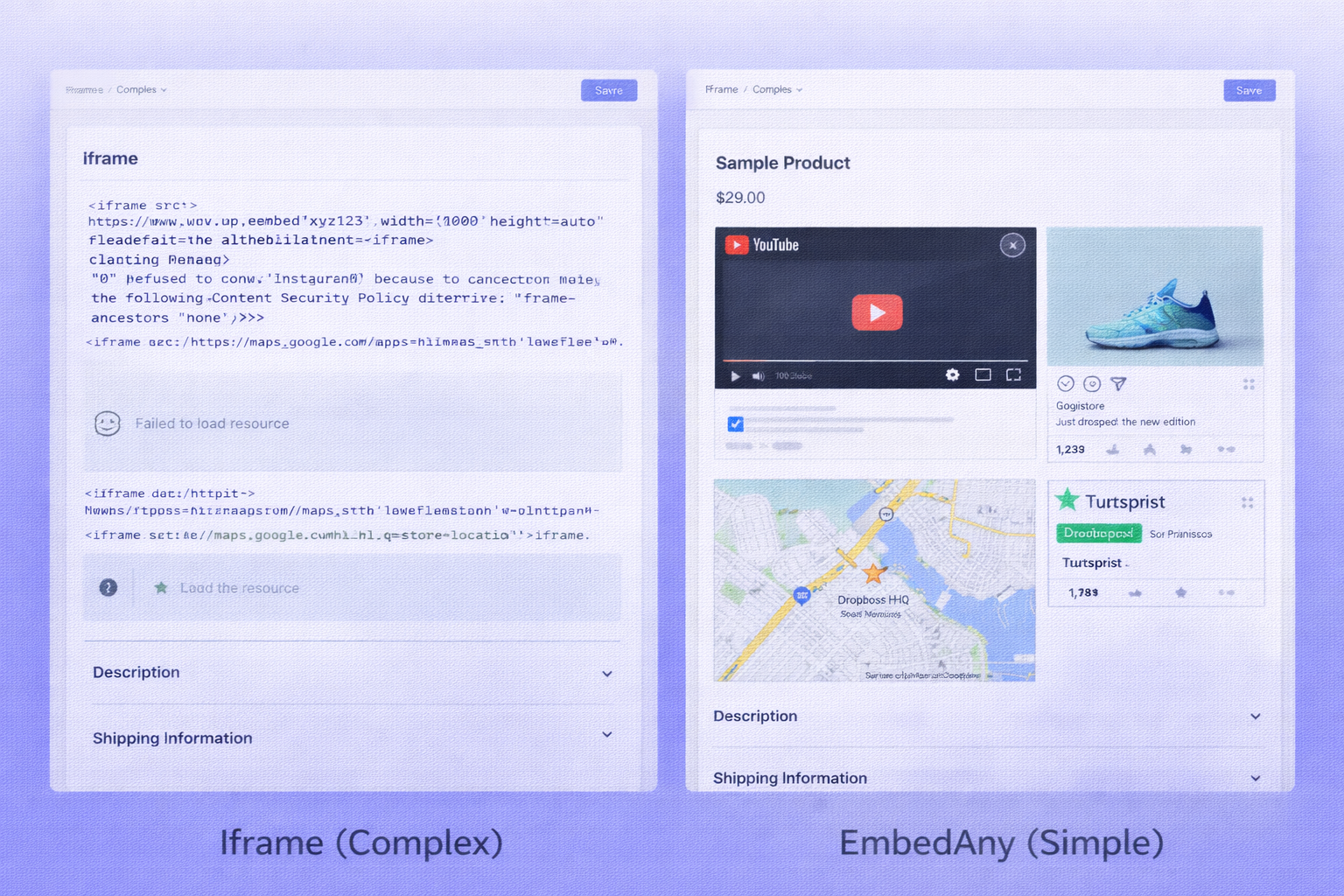
EmbedAny is a Shopify app that handles all of this without iframe code.
The workflow is simple. Instead of copying an embed code and pasting it into Shopify’s HTML editor, you copy the URL of the content you want to embed like an Instagram post, a YouTube video, a Google Review, a Spotify track, a PDF, a Trustpilot page, a Google Slides deck and paste that link anywhere in your Shopify store.
EmbedAny converts it into a live, interactive widget automatically.
No iframe code. No CSP errors. No stripping by the editor. No manual resize logic. No theme update breakage.
Here’s why it’s faster and more reliable than managing iframes manually:
It handles the CSP problem for you. EmbedAny doesn’t try to load external pages inside a raw iframe tag. It uses each platform’s official embed API, the same underlying mechanism as the “Share > Embed” button on YouTube or Instagram which is specifically designed to work inside third-party pages. That means the refused to connect error doesn’t apply to content types EmbedAny supports.
It works inside the Shopify editor. EmbedAny adds a native section to your Shopify theme editor. You paste a URL into that section’s settings, save, and the content renders live. There’s no need to switch to HTML view, no risk of the editor stripping your code, and no Custom Liquid section required.
It stays responsive by default. Embeds added through EmbedAny are responsive without any CSS wrapper code. They adapt to mobile and desktop automatically without the padding-bottom trick or a fixed height value.
It survives theme updates. Because EmbedAny is a structured Shopify app section rather than raw pasted code, it persists through theme updates the same way any native section does.
It supports 800+ platforms. YouTube, Instagram, TikTok, Vimeo, Spotify, Google Maps, Google Reviews, Trustpilot, Substack, Soundcloud, PDFs, Google Slides, Google Forms, Calendly, HubSpot forms, and hundreds more. Instead of installing a separate iframe tool for each content type, EmbedAny covers them all from one install.
On the Shopify App Store, EmbedAny carries the Built for Shopify badge, meaning it has been reviewed and approved by Shopify for performance, design, and integration standards. One merchant review: “You can embed 800 different kinds of content with this single app. Considering that it can replace many of your paid apps, $8.70/month is a small price.”
You can see a full breakdown of how this works in our guide on 3 easy ways to add any iframe in Shopify, including when raw iframes make sense and when EmbedAny is the faster path.
When Raw Iframes Still Make Sense
To be fair: there are situations where a raw iframe is the right call.
If you’re embedding a single, specific tool that EmbedAny doesn’t support. A proprietary booking system, an internal dashboard, or a custom widget your team built, raw iframe code is still your option. In those cases, follow the troubleshooting steps above, use Custom Liquid sections in Shopify’s theme editor, and add the loading="lazy" attribute.
But for the vast majority of content merchants that actually want to embed social media, reviews, video, audio, maps, forms, documents, EmbedAny removes the complexity entirely.
FAQs
How can I embed an online store iframe into my website?
If you want your Shopify store to appear inside another website via an iframe, note that Shopify sets X-Frame-Options: DENY on its own pages, which means Shopify store pages cannot be loaded inside a standard iframe on an external site. For embedding specific content from your store (like a product widget or buy button), Shopify provides the Buy Button channel, which generates a proper embeddable widget that works within the allowed security policies.
how to embed external content onto a shopify product page?
The most reliable method is using EmbedAny. Install the app, add an EmbedAny section to your product page template in the theme editor, paste the URL of the content you want to display, a YouTube video, Instagram Reel, Google Review, or PDF, and save. It renders as a live, mobile-responsive widget without any iframe code. For raw embeds, use the Custom Liquid section in Shopify’s theme editor and paste your iframe code there directly, never in the rich text editor.
How to customize the appearance of an ecommerce iframe?
For raw iframes, you control appearance through the width, height, style, and frameborder attributes in the HTML. Adding style="border:none; border-radius:8px;" removes the default frame and adds rounded corners. For responsive sizing, wrap the iframe in a CSS container using the position:relative; padding-bottom:56.25%; height:0; technique described above. If you’re using EmbedAny, the embedded widget inherits your store’s layout and can be placed inside any section with your theme’s existing spacing and styling applied around it.
Can I include a customer review widget from an external platform?
Yes, and this is one of the most effective uses of embedded content. Platforms like Trustpilot, Google Reviews, and Facebook Reviews all allow embedding via a widget link. The easiest approach is using EmbedAny, paste the Trustpilot or Google Reviews link and it renders as a live review widget on any page in your store. For Facebook Reviews specifically, you embed individual review links rather than the full reviews page. Our guide on embedding Facebook reviews on Shopify walks through this step by step.
Which platforms offer iframe solutions for shopify?
Most major platforms provide embed codes or share links designed for third-party embedding. YouTube, Vimeo, and Wistia all provide video embed codes. Google Maps has a dedicated embed option. Spotify, Soundcloud, and Apple Music all support music embeds. Calendly, HubSpot Forms, and Typeform generate embeddable form links. Google Slides and Docs have “Publish to the web” options that produce embeddable links. Rather than managing embed codes from each platform separately, EmbedAny supports 800+ of these platforms from a single Shopify install, paste any URL and it handles the embed logic automatically.
Steps to integrate an online scheduling tool for service appointments
To embed a scheduling tool like Calendly, Acuity, or HubSpot Meetings on a Shopify page, you have two options. For Calendly specifically: go to your Calendly event page, click Share, and copy the embed link (not the full page URL). In Shopify, add a Custom Liquid section in your theme editor and paste the iframe code Calendly provides. Alternatively, with EmbedAny, just paste your Calendly booking page URL directly into an EmbedAny section, no embed code needed. It renders the booking widget live on any Shopify page, including product pages or a dedicated “Book an Appointment” page. This approach also works with Acuity Scheduling and most other calendar booking platforms that provide public booking URLs.
Why does shopify strip my iframe code when I save?
Shopify’s rich text page editor sanitizes HTML on save, removing tags it classifies as potentially unsafe. The iframe tag is on that list. To prevent stripping, always paste iframe code in HTML view (click the <> icon before pasting), use a Custom Liquid section in the theme editor, or use a page builder’s code block element. Never paste iframe code in the visual editor.
Why does my shopify iframe work on desktop but not mobile?
Most iframe sizing issues on mobile come from fixed pixel dimensions. If your iframe has width="800" hard-coded, it will overflow on mobile screens. Wrap it in a responsive CSS container using percentage sizing, or switch to EmbedAny which handles responsive sizing automatically without any additional code.
Does EmbedAny work on product pages and blog posts?
Yes. EmbedAny works on any page type in your Shopify store, product pages, collection pages, blog posts, custom pages, and homepage sections. You can add an EmbedAny section anywhere the Shopify theme editor allows adding sections. For product descriptions and blog post body content specifically, you can also paste a link and italicize it, EmbedAny converts it to a live widget inline in the content area.
Is it bad for seo to use iframes on shopify?
Raw iframes have SEO drawbacks. Search engine crawlers may not fully index the content inside an iframe, particularly content from external origins, meaning that embedded content may not contribute to your page’s keyword relevance. EmbedAny embeds also render via widgets rather than crawlable text, so the same caveat applies to embedded content specifically. The key is that neither approach harms your existing page SEO, the text, headings, and metadata on your page remain fully indexable. The embedded content just may not add keyword value on its own. For SEO-sensitive content like customer reviews, it’s worth also having that text indexed natively on the page rather than only inside an embedded widget.