
How to Embed Power BI Dashboards on Shopify Using EmbedAny
 Abdullah Shahid
Most Shopify stores are sitting on a goldmine of data they never actually use on their storefront.
You have sales dashboards in Power BI. You have inventory trend reports. You have customer cohort breakdowns, channel attribution charts, maybe even a live revenue tracker your team monitors daily. All of that lives in Power BI, visible to your internal team, invisible to everyone who actually visits your store.
There are real use cases where bringing that data onto your Shopify pages, whether on a public-facing transparency report, a B2B wholesale portal, a product performance page, or an internal team dashboard, makes a genuine business difference. And the usual way to do it involves iframe code, Shopify’s HTML editor, Content Security Policy errors, and a developer who charges you for 30 minutes of work every time the embed breaks.
This guide covers the smarter path. I’ll walk through why you’d embed a Power BI dashboard on Shopify, which method to use depending on your data sensitivity, and how EmbedAny makes the technical part take about 60 seconds.
Why Would You Embed a Power BI Dashboard on a Shopify Store?
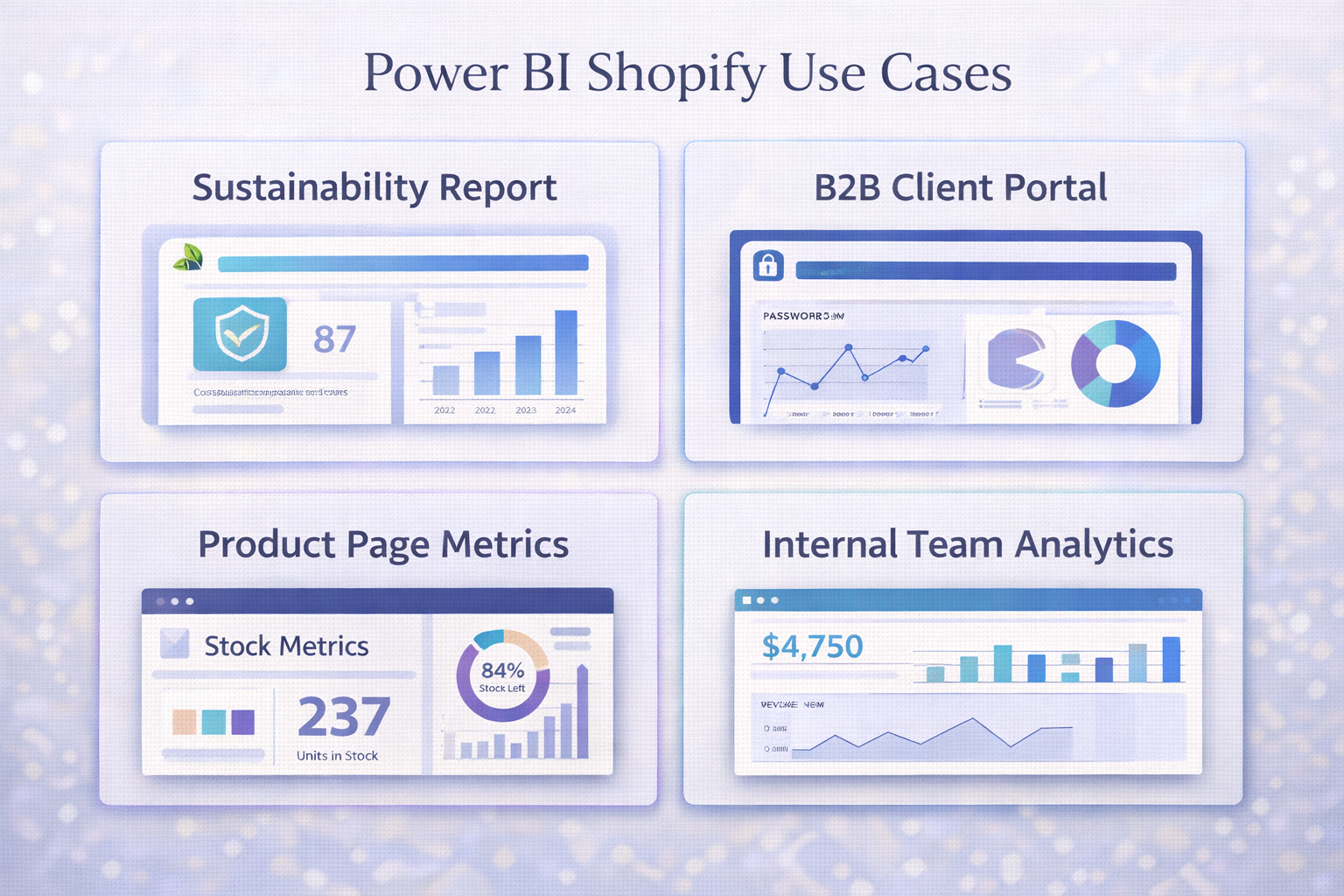
This is the question worth asking before you touch any settings. Not every store has a reason to do this. But the ones that do have very specific problems that an embedded dashboard solves cleanly.
Transparency and brand trust pages: Sustainable brands, ethical sourcing companies, and DTC stores that want to showcase real data publicly. Instead of writing “we reduced our carbon footprint by 40%,” you embed the live Power BI report that shows the actual numbers, updated automatically. Visitors can interact with the chart. It builds credibility in a way a static claim never does.
B2B wholesale portals: If you run a Shopify store with a wholesale or trade buyer section, your B2B clients often want data visibility. Inventory levels, order frequency trends, category performance. Embedding a filtered Power BI dashboard on a password-protected Shopify page gives buyers the analytics they want without you building a separate portal.
Product performance pages: Some stores, particularly in the health, fitness, or supplements category, publish clinical or performance data. An embedded Power BI dashboard showing tracked results over time is more persuasive and more credible than a static infographic.
Internal team pages: Some Shopify Plus merchants build internal pages for their operations teams. Embedding a live Power BI dashboard on a private page that staff access through Shopify gives everyone one place to check metrics without logging into a separate BI tool.
Investor and partner updates: If you share a public-facing revenue trajectory, growth metrics, or market performance data with investors or media, an embedded live dashboard on a dedicated Shopify page keeps that data current without a manual update every time.
The common thread across all of these: you already have the Power BI report built. You just want it accessible on a Shopify page without the usual technical friction.
Should You Embed It Directly on Shopify?
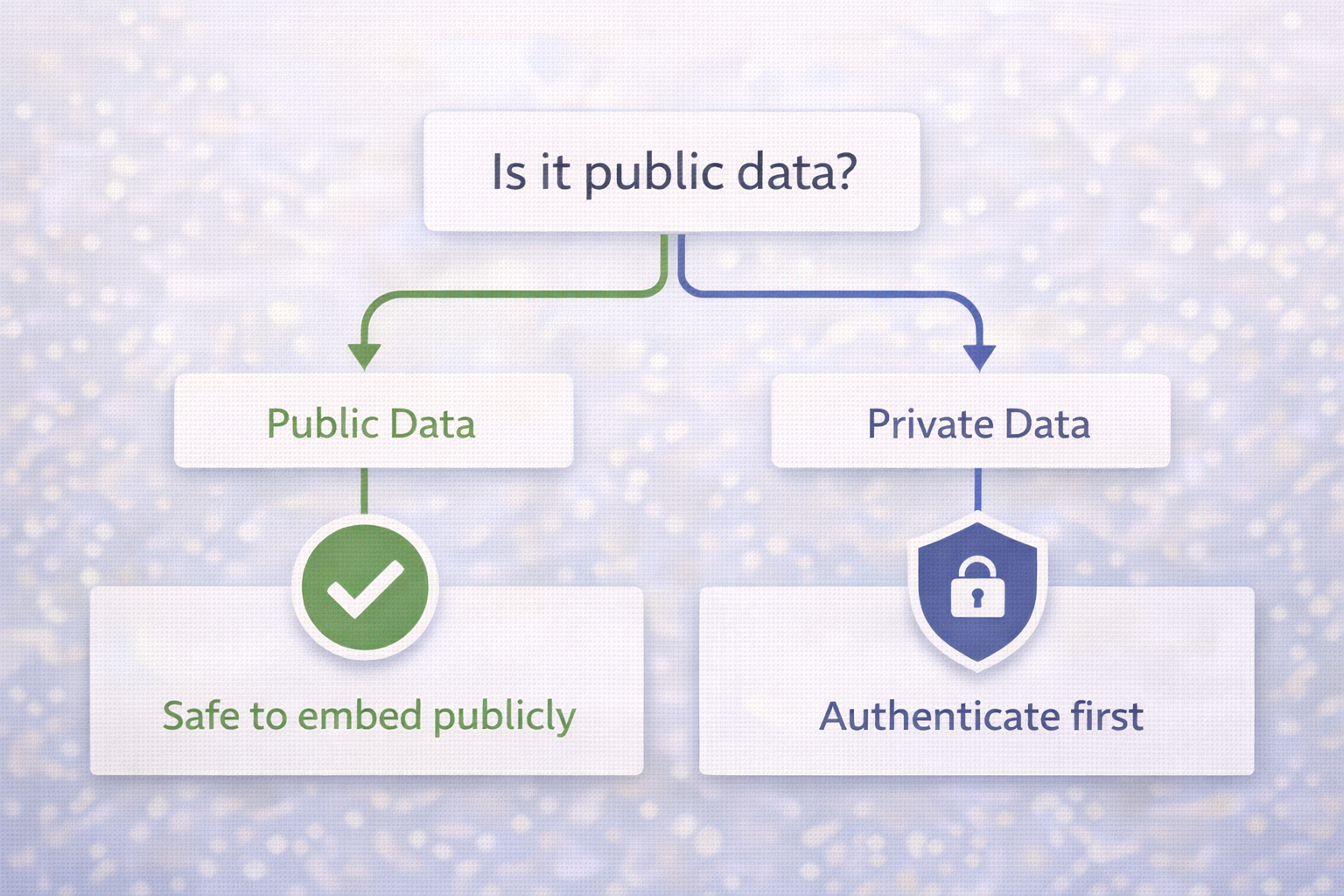
Yes, but only after answering one question: is this data you are comfortable with anyone on the internet seeing?
This is not a philosophical question. Power BI’s “Publish to web” feature, which is what makes dashboard embedding simple and accessible, creates a completely public URL. No login required. No authentication. Anyone with the link can view the report. And once you embed it on a Shopify page, search engines can find it too.
That matters because:
If the dashboard contains internal sales figures, customer data, profit margins, supplier pricing, or anything sensitive, you should not use Publish to web. Full stop. Power BI’s “Website or portal” secure embed option exists for exactly this reason, but it requires viewers to authenticate with their Microsoft account, which means it works for internal team pages or authenticated B2B portals, not public storefronts.
If the dashboard contains data you are genuinely comfortable making public, such as sustainability metrics, public performance benchmarks, published research results, or general industry data, Publish to web is the right approach and embedding it on Shopify is entirely appropriate.
Here is a quick decision guide:
| Data type | Right approach |
|---|---|
| Public brand transparency data | Publish to web, embed on any page |
| Performance data safe for public view | Publish to web, embed on any page |
| B2B client data with login | Secure embed, Shopify password-protected page |
| Internal team metrics | Secure embed, Shopify private/internal page |
| Revenue, margins, customer PII | Do not embed on Shopify |
If your use case is public, the rest of this guide covers the full workflow. If your use case requires authentication, the same EmbedAny steps still work once you have your secure embed URL from Power BI, but the viewer experience will require a Microsoft sign-in.
How EmbedAny Works
Before getting into the Power BI steps, it helps to understand what EmbedAny actually does, because it removes a layer of complexity most merchants do not realize is there.
Normally, embedding any external content on Shopify involves:
- Getting an iframe embed code from the external platform
- Opening Shopify’s page or product editor
- Switching to HTML view (the
<>icon) - Pasting the raw iframe code in exactly the right spot
- Hoping Shopify’s editor does not strip or mangle it on save
- Testing on mobile to make sure it is not broken
- Repeating every time the embed URL changes
EmbedAny removes all of that. It is a Shopify app that carries the Built for Shopify badge, meaning it meets Shopify’s standards for performance, design, and integration. The workflow is:
- Install EmbedAny from the Shopify App Store
- Get your public embed URL from Power BI (just the URL, not the iframe code)
- Go to any Shopify page, product description, or blog post
- Paste the URL into the content area
- Italicize the link (select it and press Ctrl+I or Cmd+I)
- Save
EmbedAny detects the italicized link and automatically converts it into a live, responsive, interactive widget. No iframe code. No HTML mode. No developer. No risk of Shopify’s editor stripping your embed.
The italic trigger is EmbedAny’s signal to render. A regular plain-text URL stays as a link. An italicized URL becomes an embedded widget. That is the entire mechanic.
Step-by-Step: How to Get Your Power BI Embed URL
Step 1: Open Your Report in Power BI Service
Go to app.powerbi.com and open the report or dashboard you want to embed. Make sure you are viewing the final version since any changes you make in Power BI will automatically reflect in the embedded version.
Step 2: Generate the Embed URL
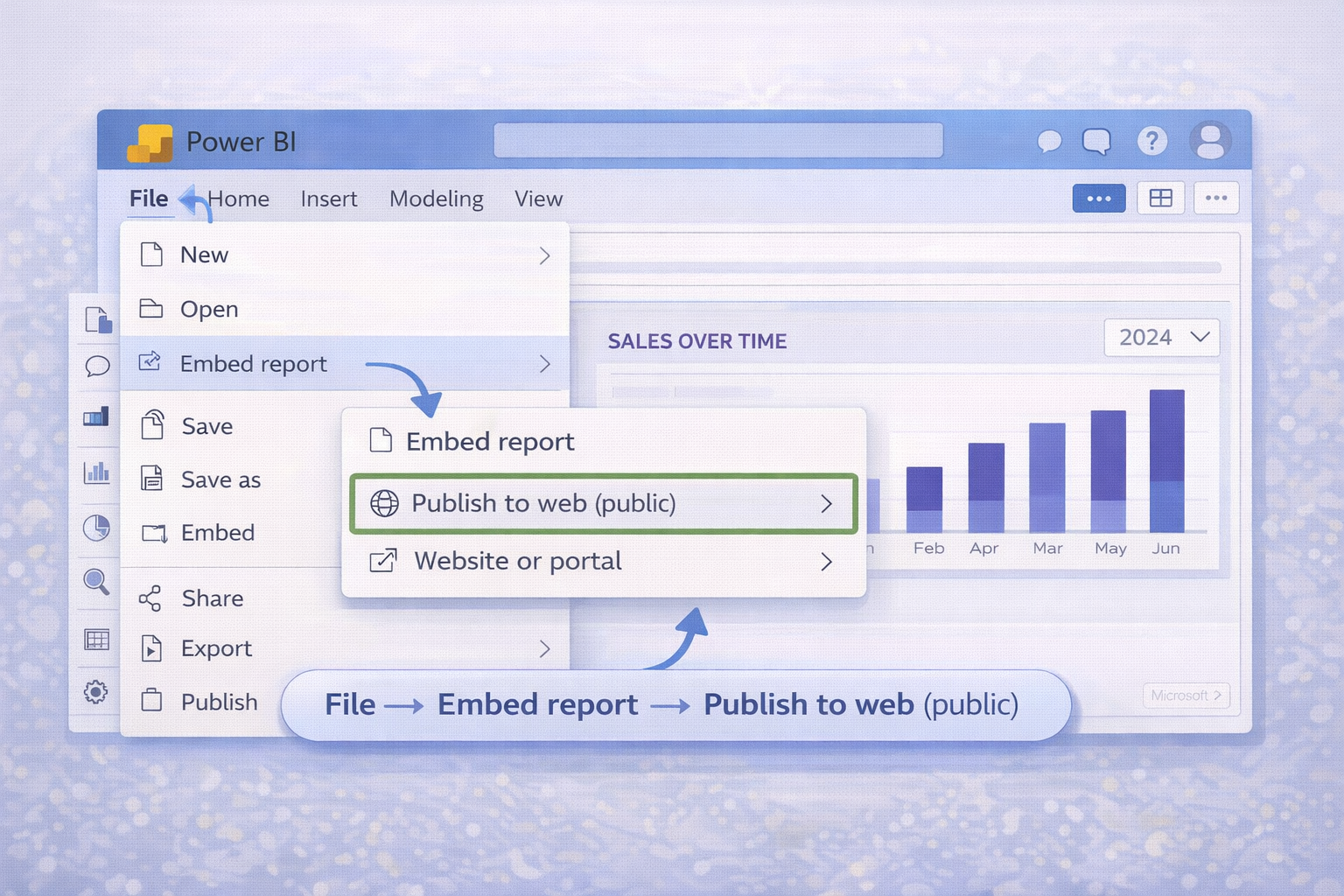
In the top menu, click File, hover over Embed report, then click Publish to web (public).
Power BI will show a warning that this makes your report publicly accessible. If your data is genuinely safe to make public, click Create embed code and then Publish.
The success dialog shows you two options:
- A shareable link (the direct URL to the report)
- An HTML iframe snippet
For EmbedAny, you only need the shareable link. You do not need the iframe code at all. Copy just the URL.
It looks something like this:
https://app.powerbi.com/view?r=eyJrIjoiMGY5NGRk...That is your embed URL. That is all you need.
Step 3 (Optional): Adjust Report Size Before Publishing
Before you copy the URL, Power BI lets you choose a display size. The default is usually fine. EmbedAny handles responsive rendering, so the exact pixel size you choose in Power BI matters less than it would with a raw iframe. Choose the widescreen 16:9 option if your Shopify theme uses full-width content blocks.
Step-by-Step: Embedding in Shopify Using EmbedAny
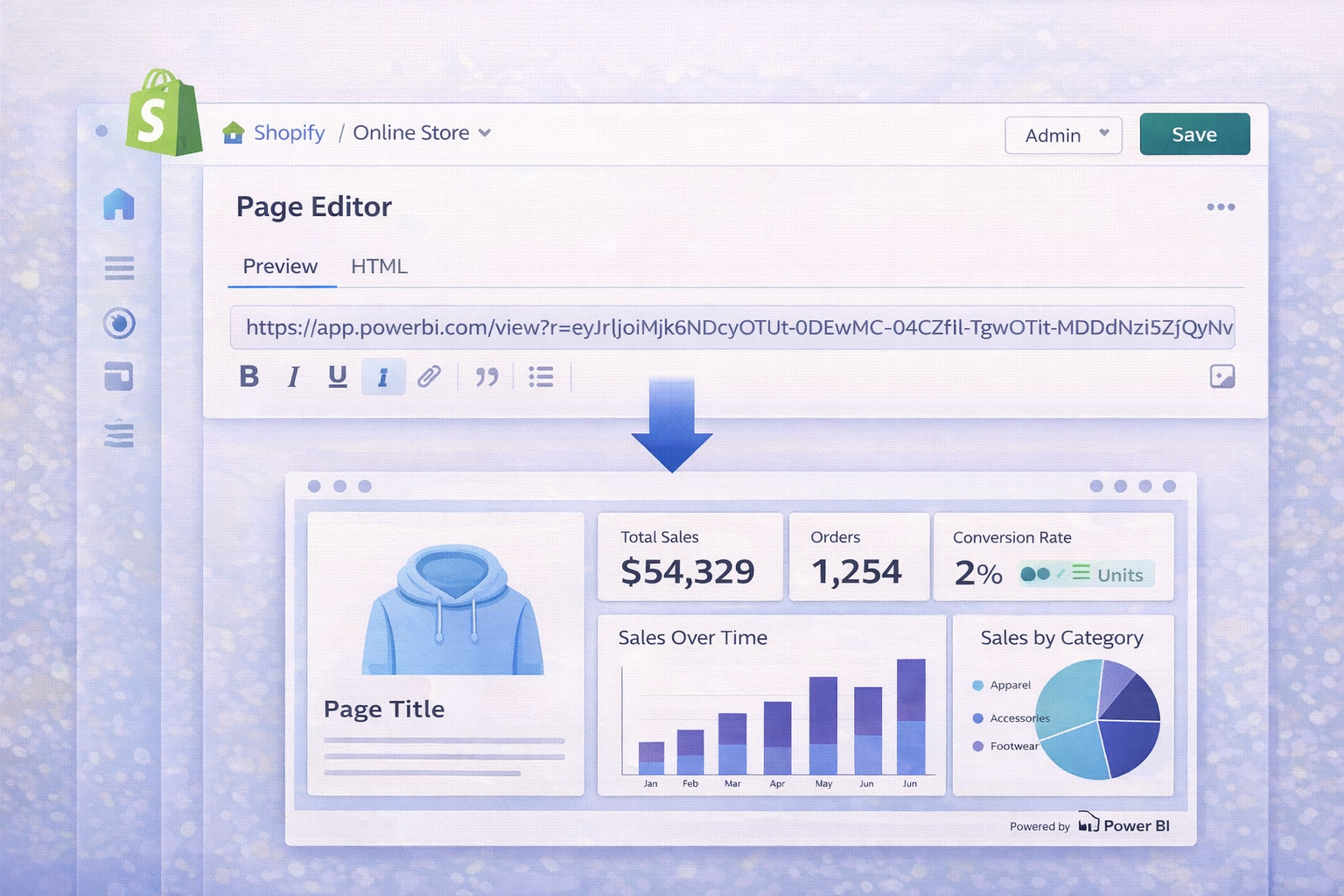
Step 1: Install EmbedAny
Go to the EmbedAny page on the Shopify App Store and install the app. Once installed, it activates automatically across your store. You do not need to configure it separately for each page.
Step 2: Navigate to Your Target Page
Go to the Shopify page, product description, blog post, or any content section where you want the dashboard to appear. This could be:
- Online Store > Pages > your custom analytics page
- A product description block for a data-heavy product
- A blog post discussing performance data
- A section added via the theme editor
Step 3: Paste and Italicize the URL
In the content editor, position your cursor where you want the dashboard to appear. Paste your Power BI embed URL directly into the text.
Now select the URL and italicize it. On keyboard: Ctrl+I on Windows or Cmd+I on Mac. In the editor toolbar: click the I (italic) button.
The link changes formatting to indicate it is now in italic mode.
Step 4: Save and Preview
Click Save. Open the page in a browser (not the editor preview, the actual live URL) and you will see the Power BI dashboard rendering as a fully interactive, embedded widget. Visitors can interact with filters, hover over chart elements, and navigate between report pages, all without leaving your Shopify store.
That is the complete workflow. No developer. No iframe code. No HTML mode switching.
If you are embedding in the Shopify Theme Editor instead of a page or product description, add an EmbedAny section to your page layout, then paste and italicize the URL inside that section’s content field. The behavior is identical.
What the Embedded Dashboard Looks Like in Practice
A Power BI dashboard embedded through EmbedAny loads as a fully interactive widget. Visitors can:
- Click on chart elements to drill down into data
- Use filters and slicers if the report includes them
- Navigate between pages in a multi-page report
- Hover to see tooltips and exact data values
The widget is responsive. On desktop, it expands to fill the content column. On mobile, it scales to fit the screen width. This is handled by EmbedAny automatically.
One honest caveat: Power BI dashboards tend to be data-dense. On a small phone screen, a report with 12 KPI tiles and 4 chart visuals will feel cramped regardless of the embedding method. Before publishing, check how your specific report looks on mobile in Power BI itself. If it is not readable on mobile, consider building a simplified “mobile view” page in Power BI and using that URL for the Shopify embed instead.
Real Use Case Examples
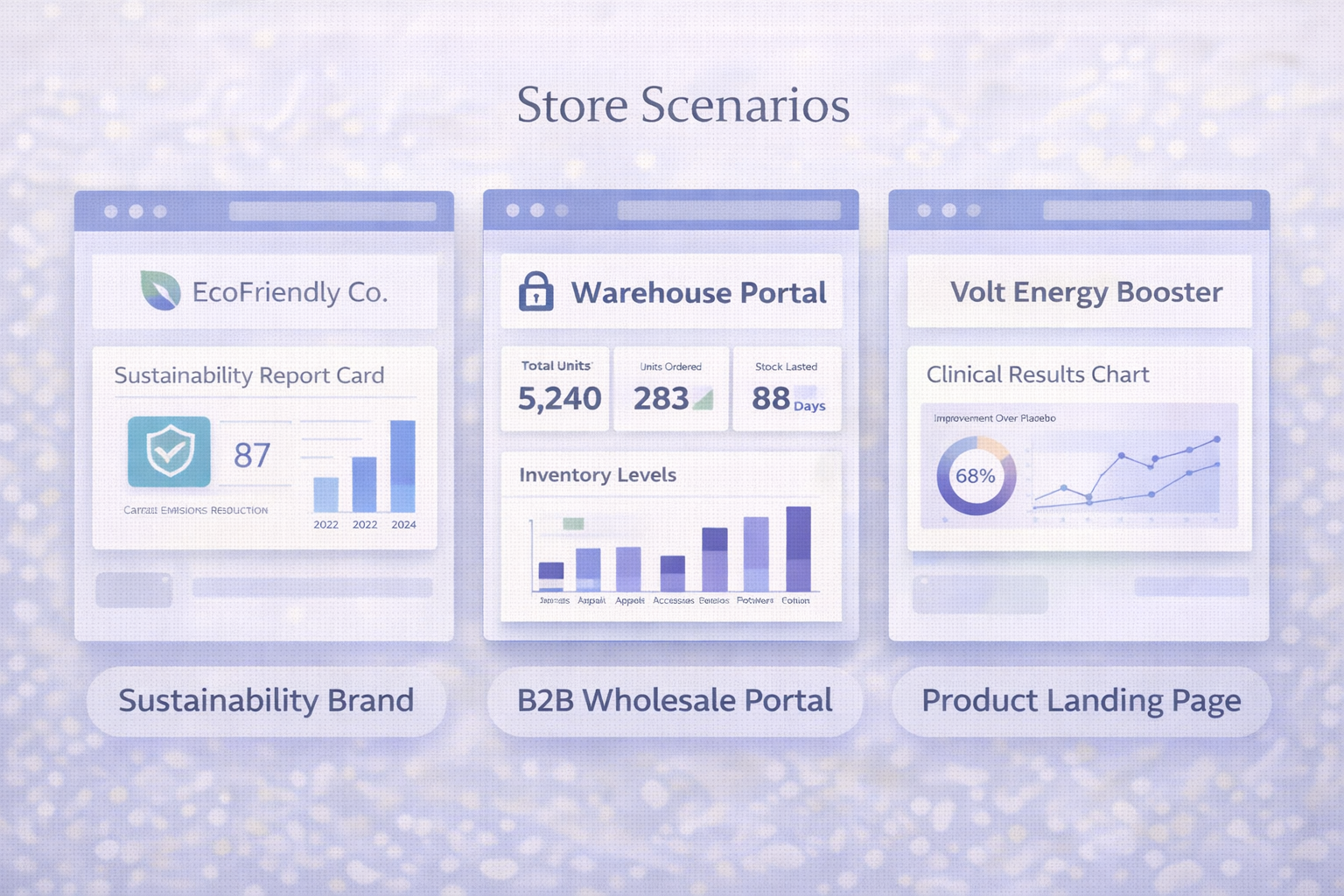
Sustainability brand: public impact report page. A DTC apparel brand uses Power BI to track and visualize their supply chain emissions, water usage, and recycled materials percentage by quarter. Instead of writing a static “impact report” PDF that gets updated once a year, they embed the live Power BI report on a dedicated /pages/impact page. The data updates automatically when the Power BI report refreshes. Visitors see real numbers. The page becomes a trust signal rather than a marketing claim.
Supplement brand: clinical results page. A health supplement company ran a six-month customer study tracking specific health markers. The results live in Power BI as an interactive visualization. Rather than publishing a static screenshot, they embed the full interactive report on the product page. Potential buyers can filter by age group, see confidence intervals, and explore the data themselves. That interactivity signals transparency.
B2B wholesale portal. A Shopify Plus merchant running a wholesale channel gives each trade buyer access to a password-protected Shopify page. That page contains an embedded Power BI dashboard showing that specific buyer’s order history, category trends, and inventory availability at their pricing tier. The data is secured through Power BI’s row-level security and authenticated via the secure embed method. The buyer logs in with their Microsoft account, and the report shows only their data.
Internal operations page. A mid-size ecommerce brand builds a /pages/ops-dashboard page in Shopify that their warehouse and operations team accesses daily. It shows live order processing rates, fulfillment times, and inventory velocity from Power BI. The page is password-protected in Shopify. The operations team bookmarks it as their morning dashboard instead of logging into Power BI separately.
Common Questions and Issues
The embed URL is not rendering, it is just showing as a plain URL.
Make sure the URL is italicized. Plain text URLs stay as plain links in EmbedAny. Select the full URL, including the https:// part, and apply italic formatting.
The dashboard is loading slowly. Power BI dashboards with many visuals and live data connections can take several seconds to load. There are two things that help. First, build a simplified version of your report specifically for embedding, with fewer visuals and pre-aggregated data where possible. Second, use Power BI’s data caching. Publish to web reports cache data for one hour, so the first load after a cache refresh will be slower than subsequent loads.
The report is not updating with new data. Publish to web reports update based on your Power BI dataset refresh schedule plus an additional caching layer. Power BI caches the embedded view for up to one hour. If you need near-real-time data in an embedded report, set your dataset refresh to run frequently in Power BI Service, but accept that there will be a short lag.
I need the dashboard to only show to logged-in users. Use Power BI’s secure embed option (“Website or portal” rather than “Publish to web”) to get an authenticated embed URL. Pair it with Shopify’s password protection on the specific page. The viewer will need to authenticate with their Microsoft account when they access the page.
Can I embed a dashboard in a Shopify product description? Yes. Paste and italicize the Power BI URL directly in a product description field. This is particularly useful for products where supporting data matters to the purchase decision.
Shopify Limitations Worth Knowing
Raw iframe code in Shopify’s rich text editor gets stripped by the editor’s sanitizer. This is why people typically struggle to embed Power BI directly without a tool. EmbedAny bypasses this entirely because it operates as a native Shopify app section, not as raw HTML in the editor.
If you are on a basic Shopify plan and using the standard theme editor, all of the above steps work as described. If you are on Shopify Plus with a custom theme, the behavior is identical. EmbedAny works across all Shopify plan tiers because it is a Built for Shopify app and not theme-dependent.
One platform-level limitation: Shopify’s checkout pages cannot include embedded third-party content. The embed works on all standard storefront pages but not inside the checkout flow.
For more on how Shopify handles embedded content and why raw iframe code fails in certain contexts, our guide on how to add iframe content in Shopify stores covers the full breakdown.
EmbedAny and 800+ Other Platforms
Power BI is one data visualization platform. But EmbedAny supports 800+ platforms with the same paste-and-italicize mechanic.
If you are embedding Power BI for analytics pages, you might also want to embed:
- Tableau dashboards alongside Power BI for comparison views
- Google Data Studio (Looker Studio) reports, which also generate public embed URLs
- Flourish interactive data visualizations for more visual storytelling
- YouTube product demo videos on the same product pages
- Instagram Reels showing real use of the product
All of these follow the same workflow. Install EmbedAny once, and every italicized supported URL across your entire store becomes an embedded widget. You do not pay separately for each platform or manage separate embed scripts.
If your store already has a conversion problem related to lack of social proof, our guide on why your Shopify store is not making sales covers embedding social proof and data together as a trust-building strategy.
Final Thoughts
Power BI dashboards on Shopify sounds like a niche use case. But once you understand the pattern, it fits a surprisingly wide range of real store scenarios: transparency pages, B2B portals, data-backed product pages, and internal operations dashboards.
The only reason most stores do not do this is the technical friction. Raw iframe code, editor sanitizers, CSP errors, and developer involvement add enough friction that merchants give up before getting the dashboard live.
EmbedAny removes that friction. You get the Power BI embed URL, paste it into Shopify, italicize it, and the dashboard appears. No code, no iframe, no developer.
If you have Power BI reports sitting in a workspace that your customers, partners, or team could genuinely benefit from seeing, the technical barrier to making that happen just got a lot smaller.
Install EmbedAny from the Shopify App Store and get your first Power BI dashboard live on your store today.
FAQs
can i embed a power bi dashboard on shopify without coding
Yes. With EmbedAny, you paste your Power BI “Publish to web” URL into any Shopify page and italicize it. EmbedAny detects the italicized link and renders it as a live, interactive dashboard widget. No iframe code, no HTML editor, no developer required.
is it safe to embed power bi dashboards on a public shopify page
Only if the data is genuinely safe to make public. Power BI’s “Publish to web” feature creates a publicly accessible URL with no authentication. Anyone with the link, including search engines, can view the report. Only use this for data you are fully comfortable making public. For sensitive data, use Power BI’s secure embed option paired with a password-protected Shopify page.
how do i get the embed url for a power bi report
In Power BI Service (app.powerbi.com), open your report, click File in the top menu, hover over Embed report, and select Publish to web (public). After confirming, you receive a shareable URL. Copy that URL. For EmbedAny, you need only this URL, not the full iframe code that Power BI also provides.
does the embedded power bi dashboard update automatically
Yes. The embedded report reflects updates from your Power BI dataset refresh schedule. Power BI caches the embedded view for up to one hour, so changes may take a short time to appear after a dataset refresh. For near-real-time data, set your dataset refresh to run frequently in Power BI Service.
can i embed power bi on a shopify product page
Yes. Paste and italicize your Power BI embed URL directly inside a product description field. This is useful for products where supporting data, such as clinical results, performance benchmarks, or compatibility charts, directly influences the purchase decision.
what is the difference between publish to web and the secure embed in power bi
Publish to web makes your report publicly accessible to anyone on the internet with no sign-in required. The secure embed (Website or portal option) requires viewers to authenticate with their Microsoft account before seeing the report. For public Shopify pages, use Publish to web. For internal team pages or authenticated B2B portals, use the secure embed with a password-protected Shopify page.
why is my power bi url not embedding in shopify
The most common reason is that the URL is not italicized. EmbedAny uses italic formatting as the trigger to convert a URL into an embedded widget. Select the full URL and apply italic formatting using Ctrl+I (Windows) or Cmd+I (Mac). Plain text URLs remain as plain links. Also confirm you are using the shareable link from Power BI’s Publish to web output, not the raw iframe code.
can i embed other data visualization tools on shopify using the same method
Yes. EmbedAny supports 800+ platforms including Tableau, Google Looker Studio, Flourish, and many other data visualization tools that generate public embed URLs. The workflow is identical: paste the embed URL and italicize it. One Shopify app handles embeds from every supported platform.